Preparation and Clean-up for a Demo
This page describes what needs to be prepared before a demo, and cleaned up afterwards.
Since the demo consists of several blocks, the preparation steps needed depend on which block(s) you'll run — see the per-block sections below.
Cloning projects
Every block requires cloning at least one project locally. If you haven't done this recently, expand the section below for the Git footer / Personal Access Token steps — the mechanism is the same one used across the public trials.
Cloning a project from Workbench
Your trial environment includes everything you need to get started: a dedicated, isolated tenant in the IBM DevOps Solution Workbench, and a GitLab instance with repositories for all your projects - including our reference application Roboflow ready for you to explore.
You bring your own IDE and coding assistant — whatever you normally use. In our screenshots throughout these trials we use Visual Studio Code with GitHub Copilot.
Solution Designer
The Solution Designer is your main workspace in Workbench. This is where architecture is modelled,
design decisions are captured, and structured context is created for your coding assistant.
Your trial comes with a dedicated, isolated tenant. Log in using the credentials from your trial onboarding email.
GitLab
Every project in the Solution Designer is backed by a Git repository in your trial's dedicated GitLab group. Throughout the trial, you usually access GitLab repositories
through the Solution Designer since URLs are specific to your tenant.
To find the Repository URL for any project:
- Open the project in the Solution Designer
- On the Overview page that opens, you'll find "General Information" on the right hand side.
- The link under "Acronym" takes you directly to the GitLab repository for that project.
- Log into GitLab using the "Keycloak" button.
Cloning a project to work in your own IDE requires a Personal Access Token (PAT). To create one:
- Log into your Trial GitLab (using the Keycloak button)
- Click your profile icon in the upper right corner and select Preferences
- Go to Access → Personal Access Tokens
- Create a token with
read_repository,write_repositoryandapiscope
Cloning a project
To clone a project, you can either use the "Code" button in the GitLab UI and copy the "Clone with HTTPS" URL or you can copy the URL directly from the Solution Designer project page. To do this:
- Open the project in the Solution Designer
- Expand the footer bar that says "Git"
- Copy the URL
In both cases, use a terminal and run git clone <URL> -b <optional-branch-name> and use your username and the created PAT as the password when prompted.
Cloning via SSH is disabled in the trial environment for security reasons.
RoboFlow
Your trial environment comes preloaded with RoboFlow — a fictional B2B webshop for robotics parts that serves as the reference
application across all trial experiences. Its services are already designed and documented in the Solution Designer, ready for you to explore and build on.
Creating a demo branch
Several blocks ask you to "create a demo branch from main". The per-block Preparation sections below assume this mechanism and don't repeat it.
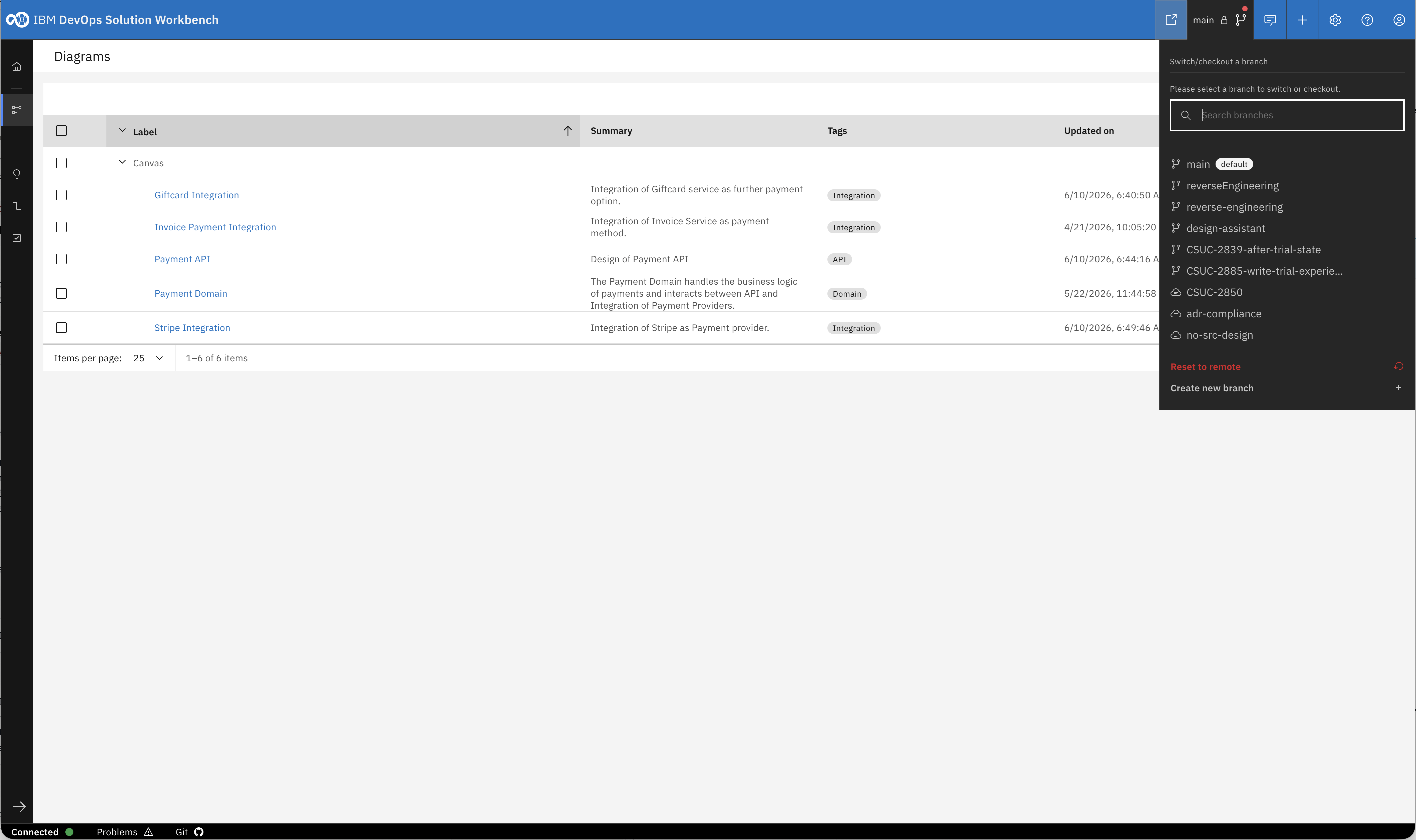
Click the branch selector in the top bar next to the project name, then click "Create new branch" at the bottom of the list.
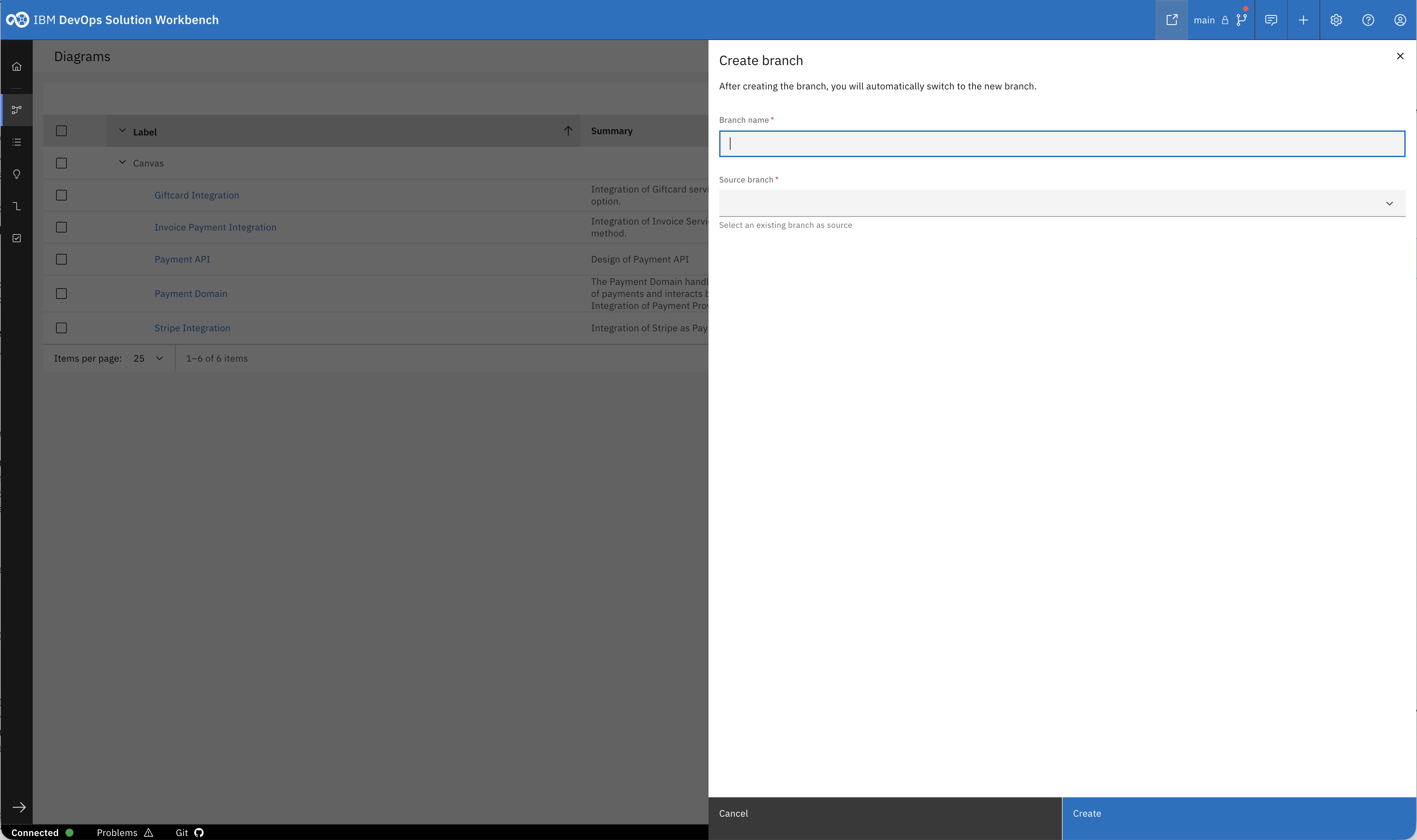
Give the branch a name (e.g. demo-<yourname>-<date>), select main as the source branch, and click "Create". You will automatically switch to the new branch.
General preparation
Environment
Demos use the Education Environment:
- Workbench
- RoboFlow System Design Architecture Project
- Payment Service (
PAYMNT) - Giftcard Service (
GIFTCARD)
General preparation — Solution Designer
- Log in to Workbench on the EDU system.
- Open separate browser tabs for the projects/services relevant to your chosen block(s):
PAYMNT,ROBOFLOWAP,GIFTCARD.
AI coding assistant
Several blocks generate code from skills and design. Make sure your IDE is configured with an AI coding assistant, and that the skills for the demo projects are in place in the intended folders.
To ensure largely uninterrupted code generation (avoiding regular user interactions), set the coding assistant to:
- Advanced mode
- Auto-approve
Clean-up
After running a demo, the following needs to be cleaned up. If additional artefacts were created during the demo that aren't described in this script, clean those up too.
The Architecture Design project's productive state is committed to the main branch. Every change made during a demo is just an artefact of that demo and should be removed by resetting to the remote branch: open the branching dialog, switch to main (if not already selected), and select Reset to remote.
Developer / Team Pain
Preparation:
- Clone the
PAYMNTproject to your local machine and open it in your IDE. Open Payment Service in Workbench to grab the clone URL from the Git footer (see Cloning projects above) - Check out the
no-src-designbranch. - Make sure there are no leftovers from preceding demos (there shouldn't be any generated code initially). Clean up with:
git clean -fd
git restore . - Optional: create a new branch from
main(see Creating a demo branch above) — no need to push anything back,mainis sufficient for this demo block.
Enterprise Pain
Preparation:
- Create a new
ROBOFLOWAPbranch for the demo (see Creating a demo branch above) and open it in Workbench. - Clone the
GIFTCARDproject to your local machine and open it in your IDE. Open Giftcard Service in Workbench to grab the clone URL from the Git footer. - Check out either
mainor a demo branch — generated code isn't pushed back to the repo for this block.
Organizational Pain
Preparation:
- Create a new
ROBOFLOWAPbranch for the demo (see Creating a demo branch above) and open it in Workbench. - On the Gift Card Service component diagram, delete the following elements from the diagram beforehand, since they're placed live during the demo:
- Tech Debt
- Risk
Since a demo typically screenshares several applications (browser for Workbench, IDE, slides), share the entire screen rather than individual windows. Turn off notifications, collapse the dock, and remove clutter or sensitive information beforehand.