Navigating Workbench
In this course, you'll learn how to find your way around in the IBM DevOps Solution Workbench and get familiar with its header bar and navigation bar.
Work environment
Workbench is the central workspace for creating and refining solution designs. It provides structured modeling tools that allow architects, domain experts, and developers to collaboratively define system architecture, service boundaries, domain models, and architectural decisions.
It stores design intent as structured, machine-readable artifacts that your coding assistant can work from directly. This means architectural decisions, domain relationships, and implementation standards defined in Workbench travel automatically into your IDE - giving your AI the context it needs to generate code that fits your system.
Exercise
Estimated time: 5 minutes
Exercise goal: You will become familiar with Workbench's header bar and navigation bar, and know where to find User Settings, Admin Settings, Projects, and Workspaces
Step 1: Header Bar - Management and Administration
The header bar at the top of the IBM DevOps Solution Workbench gives you access to management and administration functions - from quickly creating new workspaces or projects, to configuring personal and organization-wide settings.
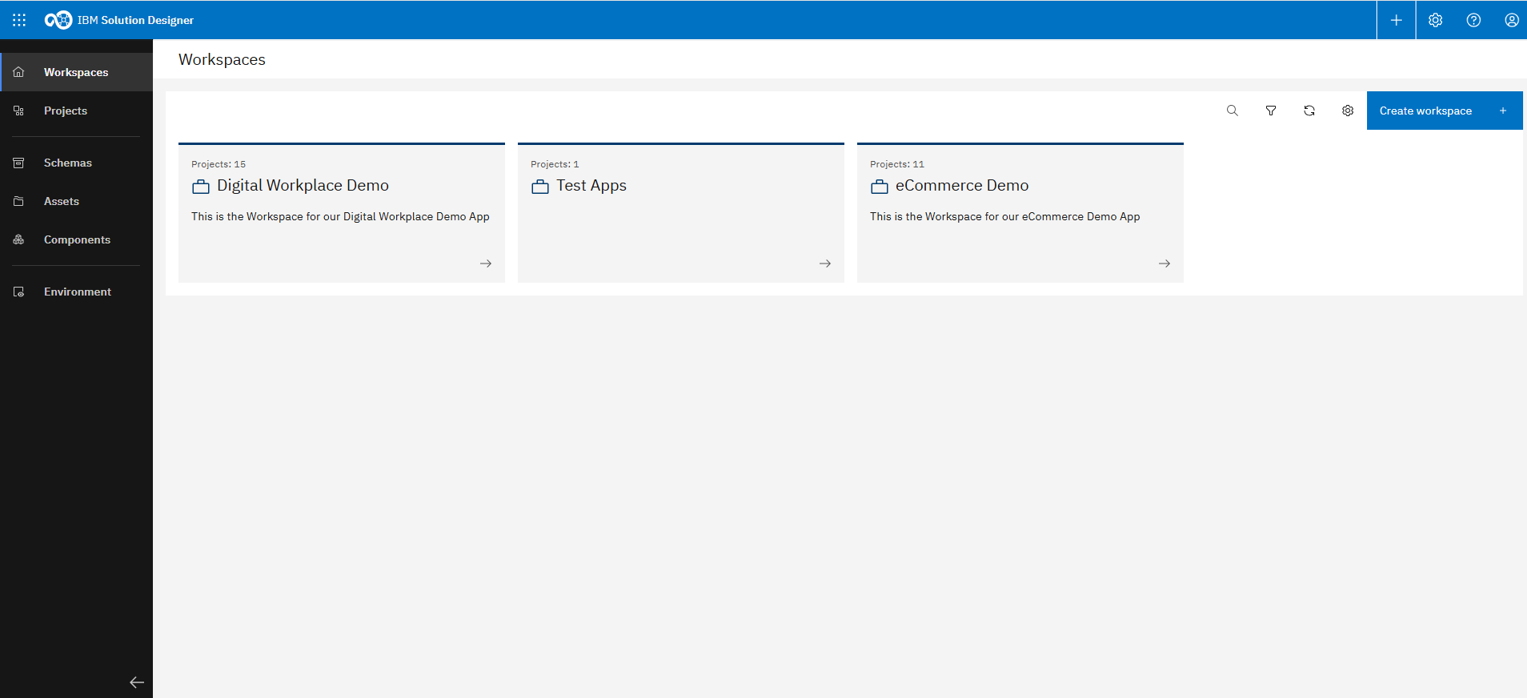
The Workbench landing page provides quick access to all main features
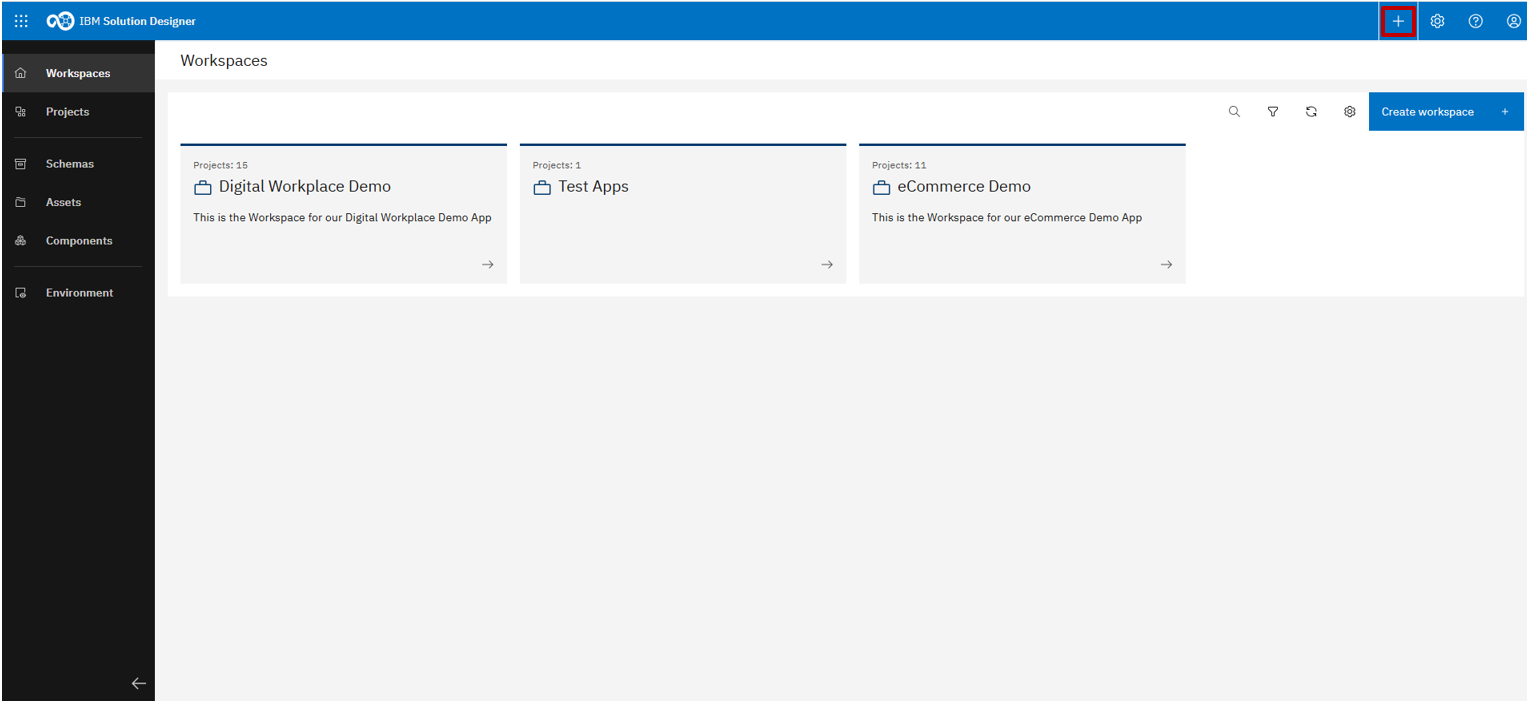
The + icon opens the quick action menu, letting you create new workspaces or projects
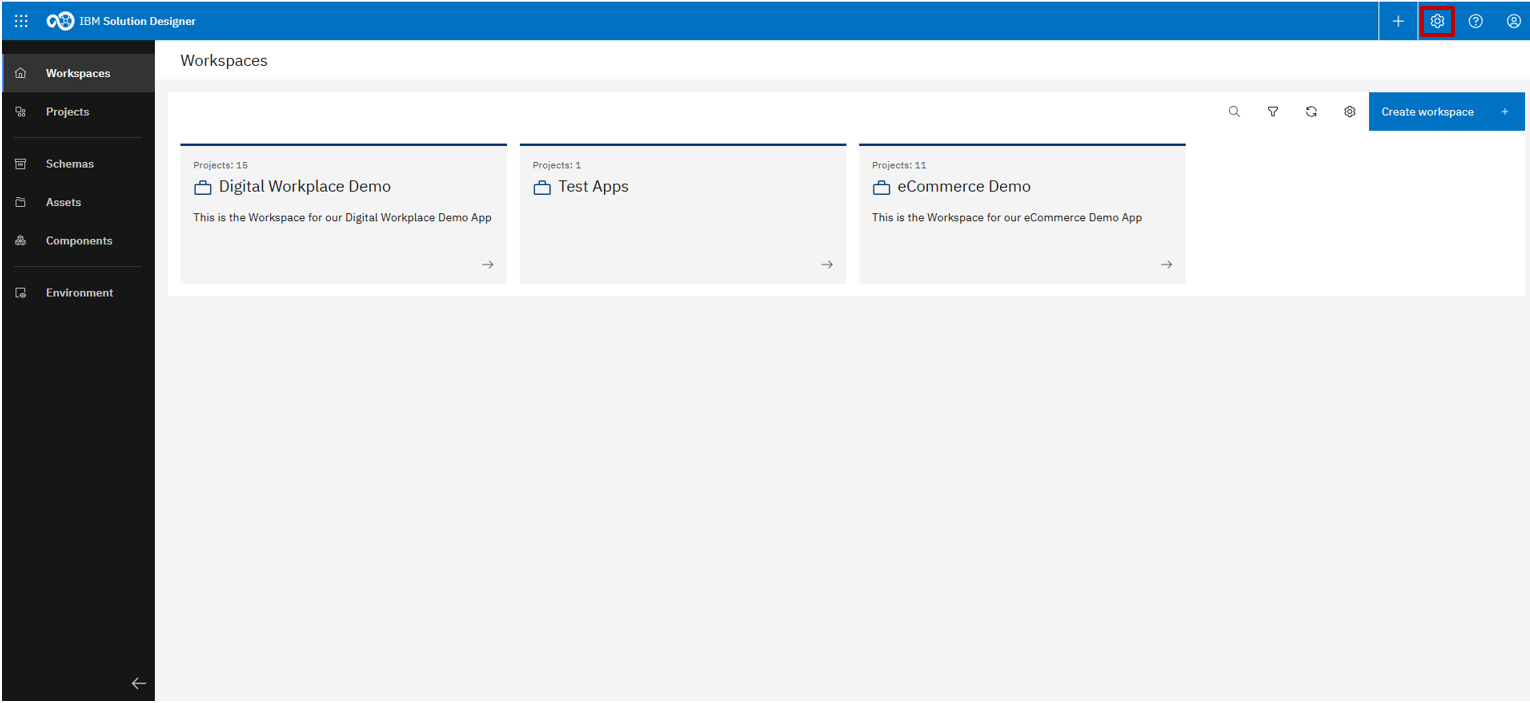
The gear icon opens the Admin Settings
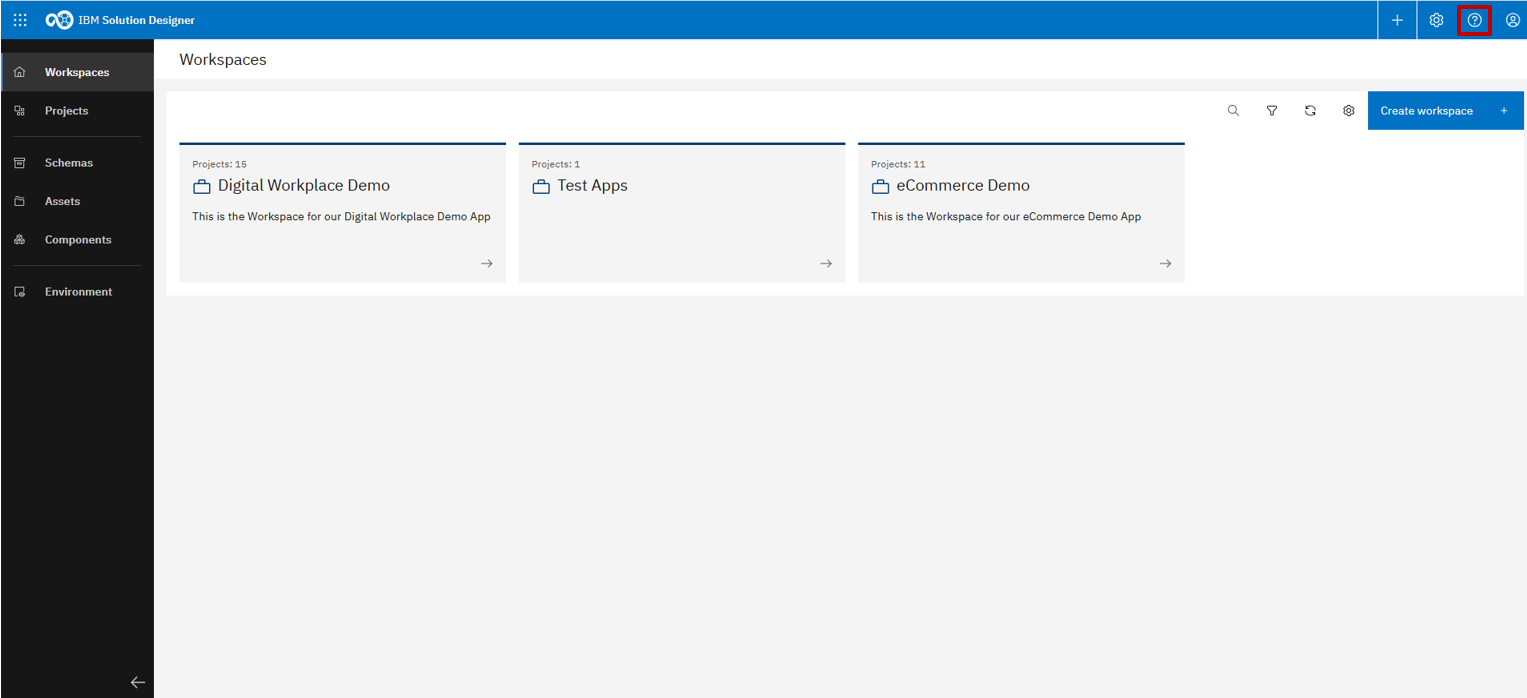
The "Help" section offers guidance and documentation
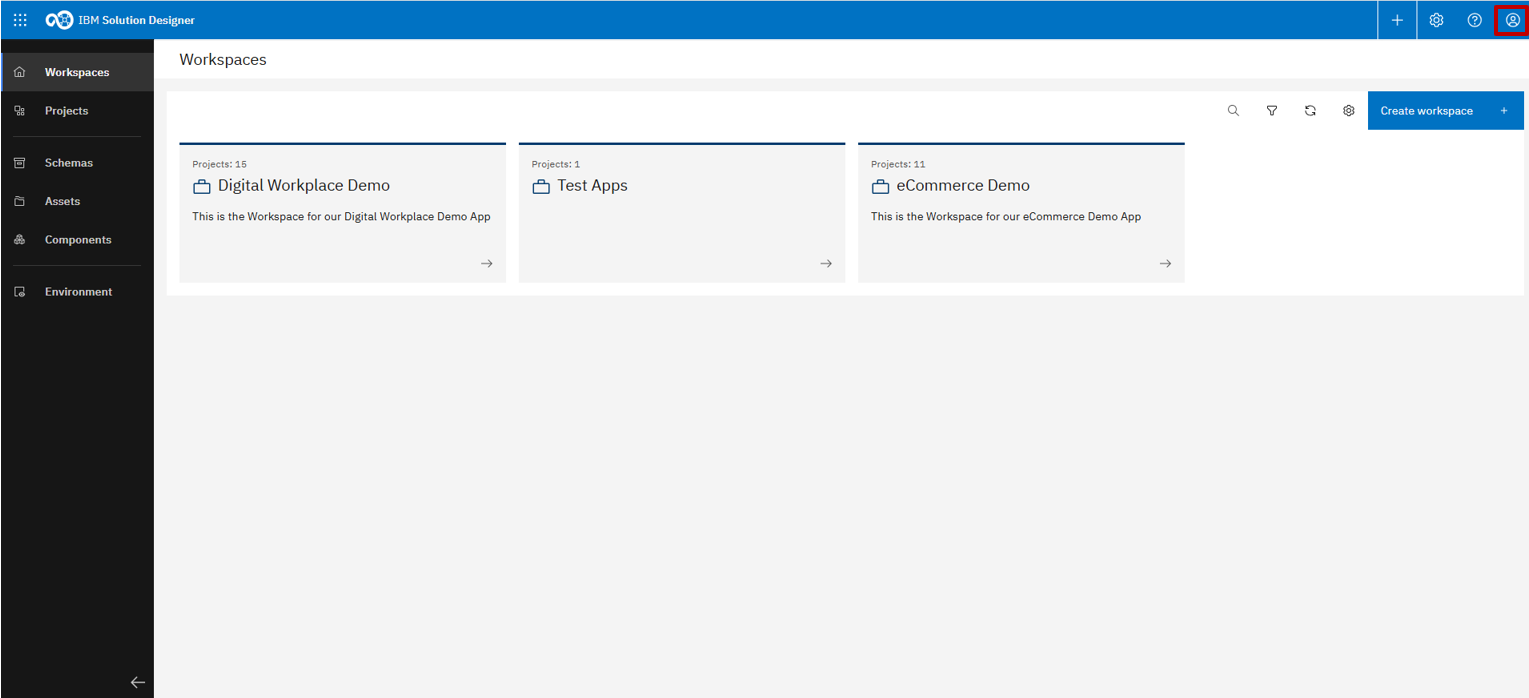
The "User Settings" are located behind the user logo in the top-right corner
User Settings
Your User Settings let you for example personalize your workspace and manage your tokens, e.g., to connect to your repositories.
You can find the "User Settings" by clicking on the user icon in the top-right corner
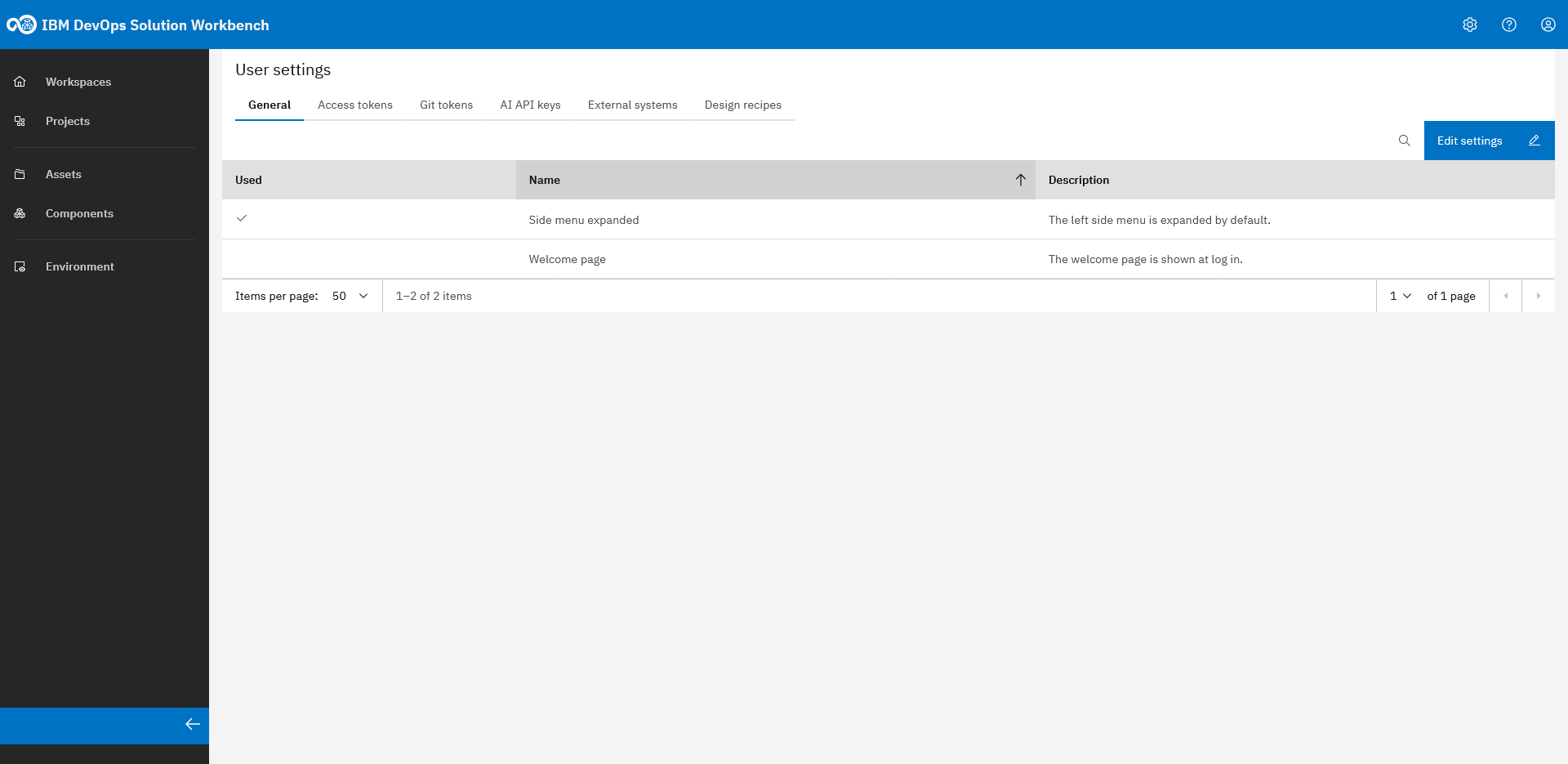
After opening the User Settings, you land on the General tab where you can configure some basic settings
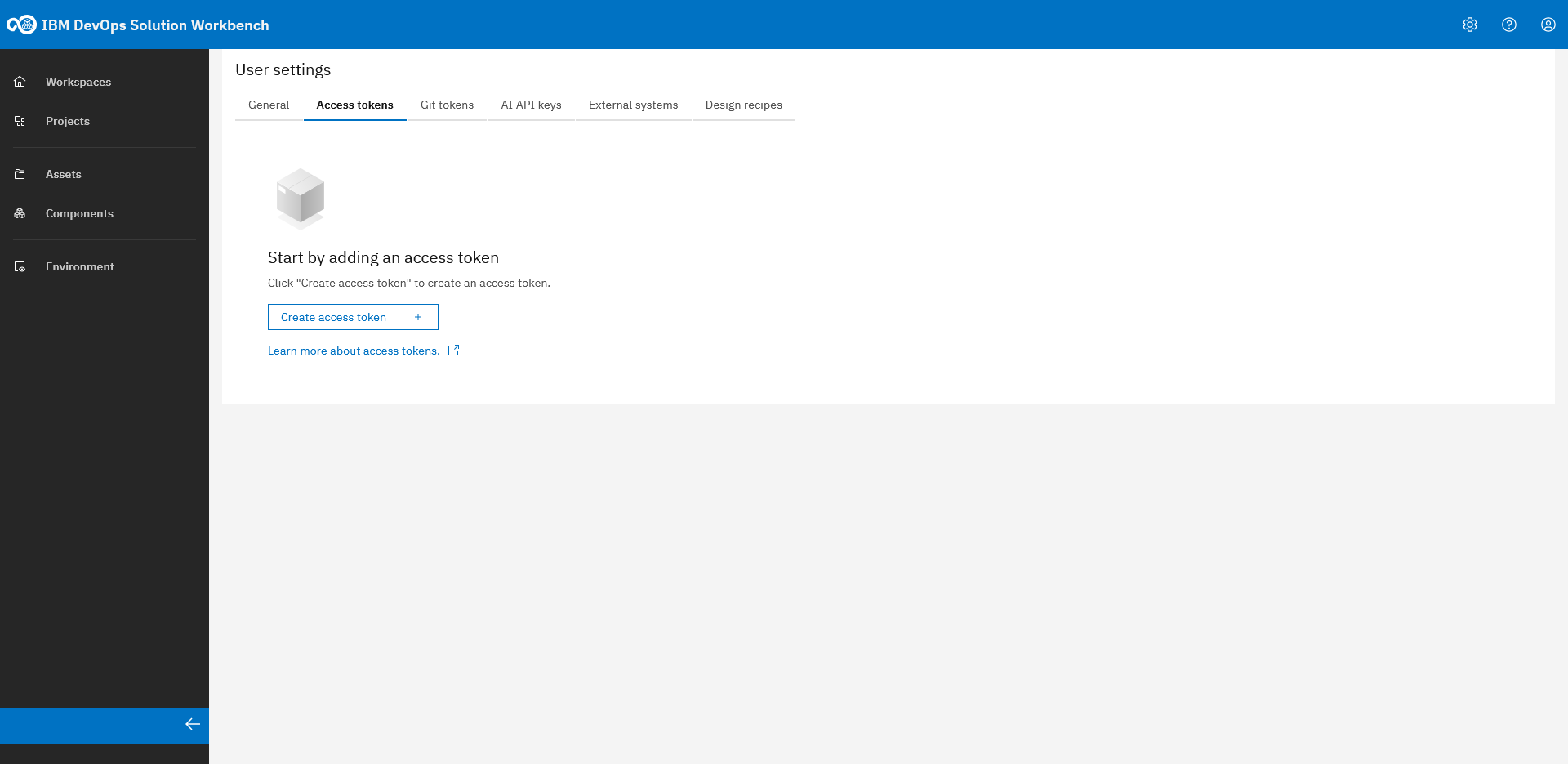
"Access tokens" (Personal Access Tokens - PATs) allow you to authenticate API and MCP clients in Workbench. For example, this is necessary if you want to use Reverse Engineering in the Workbench to have the Coding Assistant generate model elements.
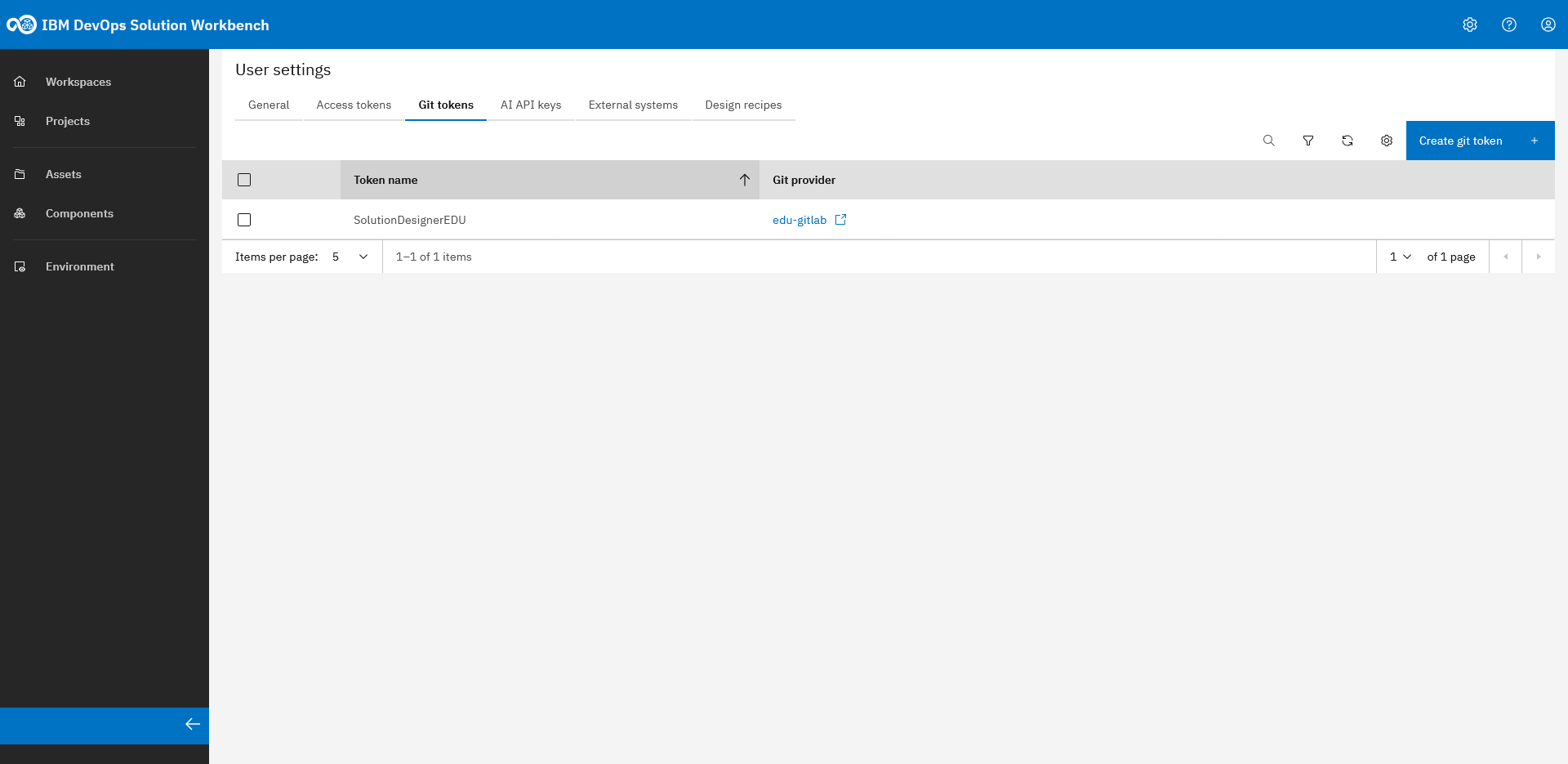
The "Git tokens" tab allows you to manage your Git tokens. Git tokens are necessary to be able to access your GitLab repositories in the Workbench and therefore to open projects - permissions are controlled via your Git permissions.
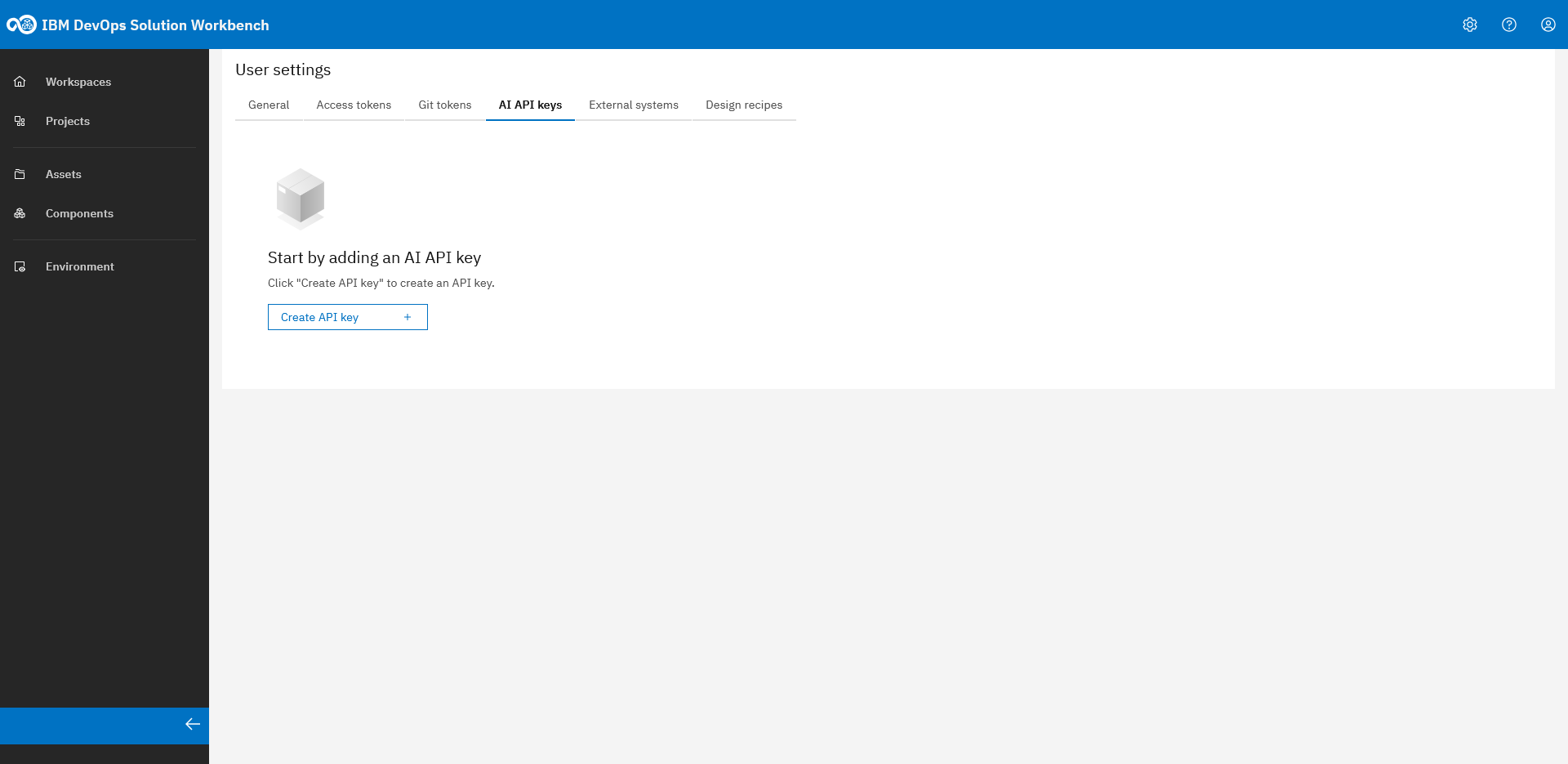
When configured centrally (by an admin), Design Assistant and Diagram Assistant are available without a personal API key. Alternatively, users can provide here their own API key.
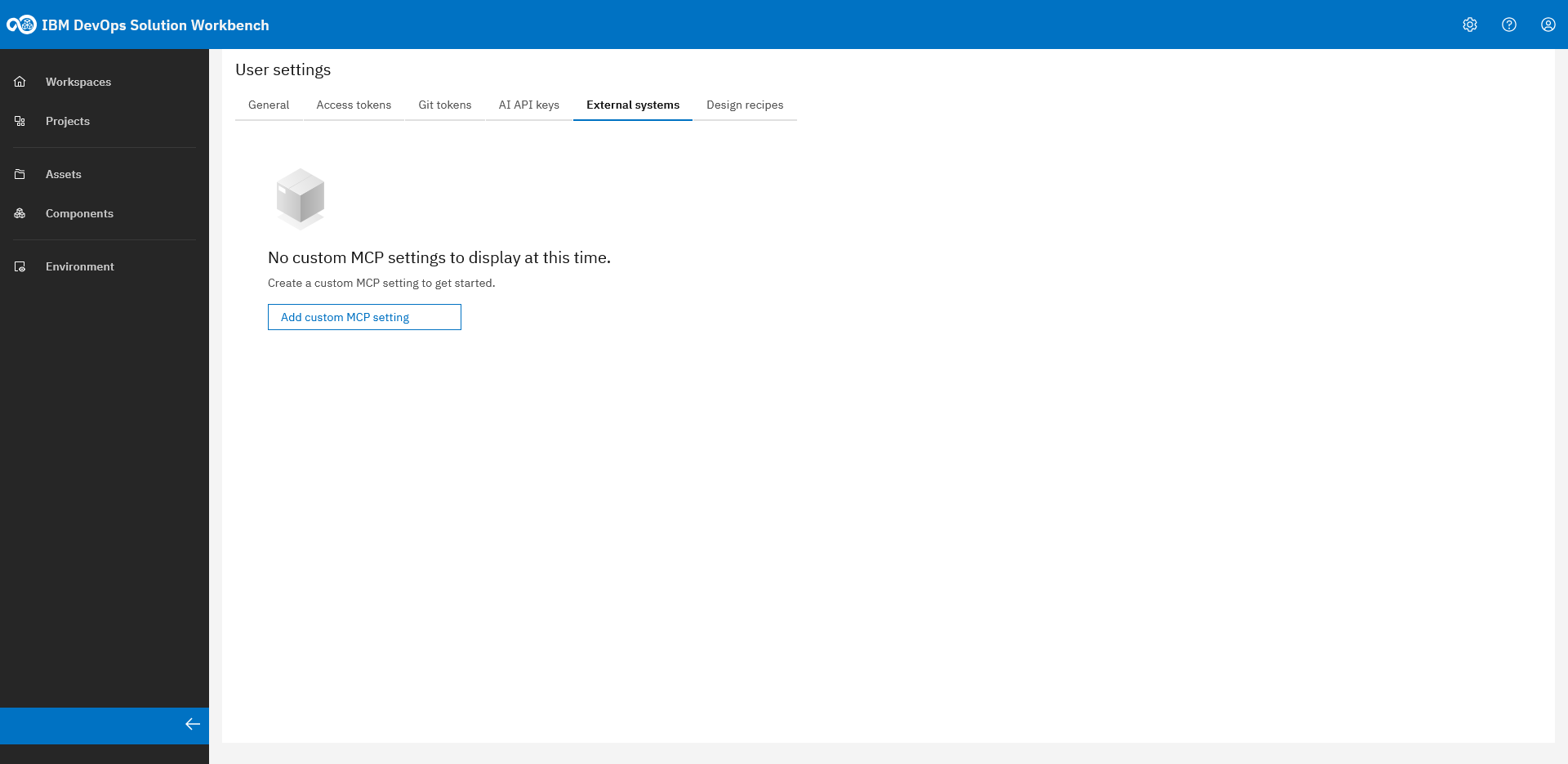
In the "External systems" tab, a user can configure its custom MCP settings - in addition to the by an admin added MCP server configuration, for example to provide a personal access token to authenticate to the external system.
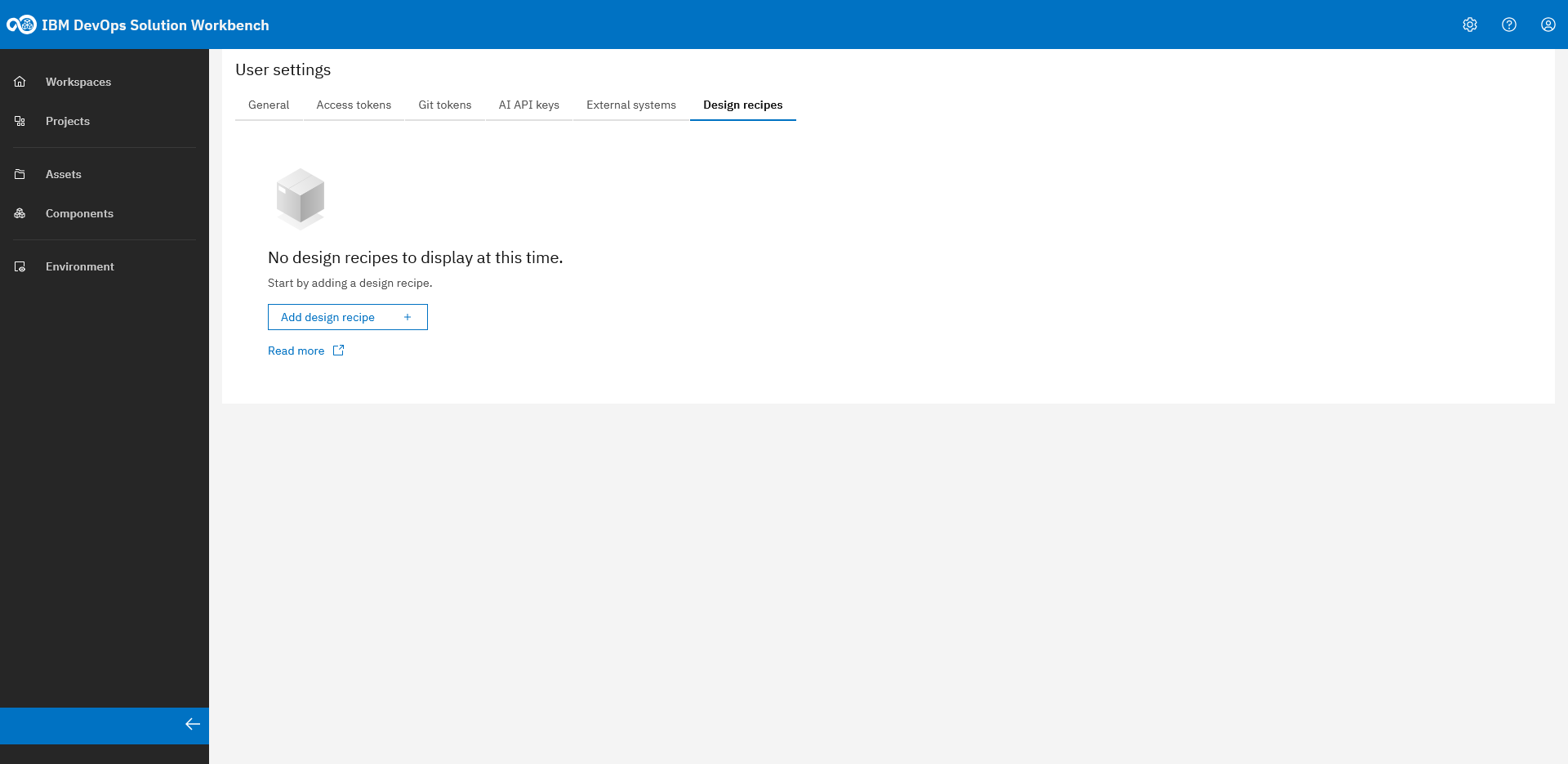
Manage your custom "Design Recipes", which can be useful in addition to the recipes linked to a project baseline. This allows you to define your own recurring commands and skills, as well as to test these before publishing.
For more details about User Settings, please refer to the Product Documentation - User Settings.
Admin Settings
The Admin Settings give administrators central control over licenses, git providers, OML profiles, design recipes, project baselines, and workbench-wide customizations.
You can find the "Admin Settings" by clicking the gear in the top right corner
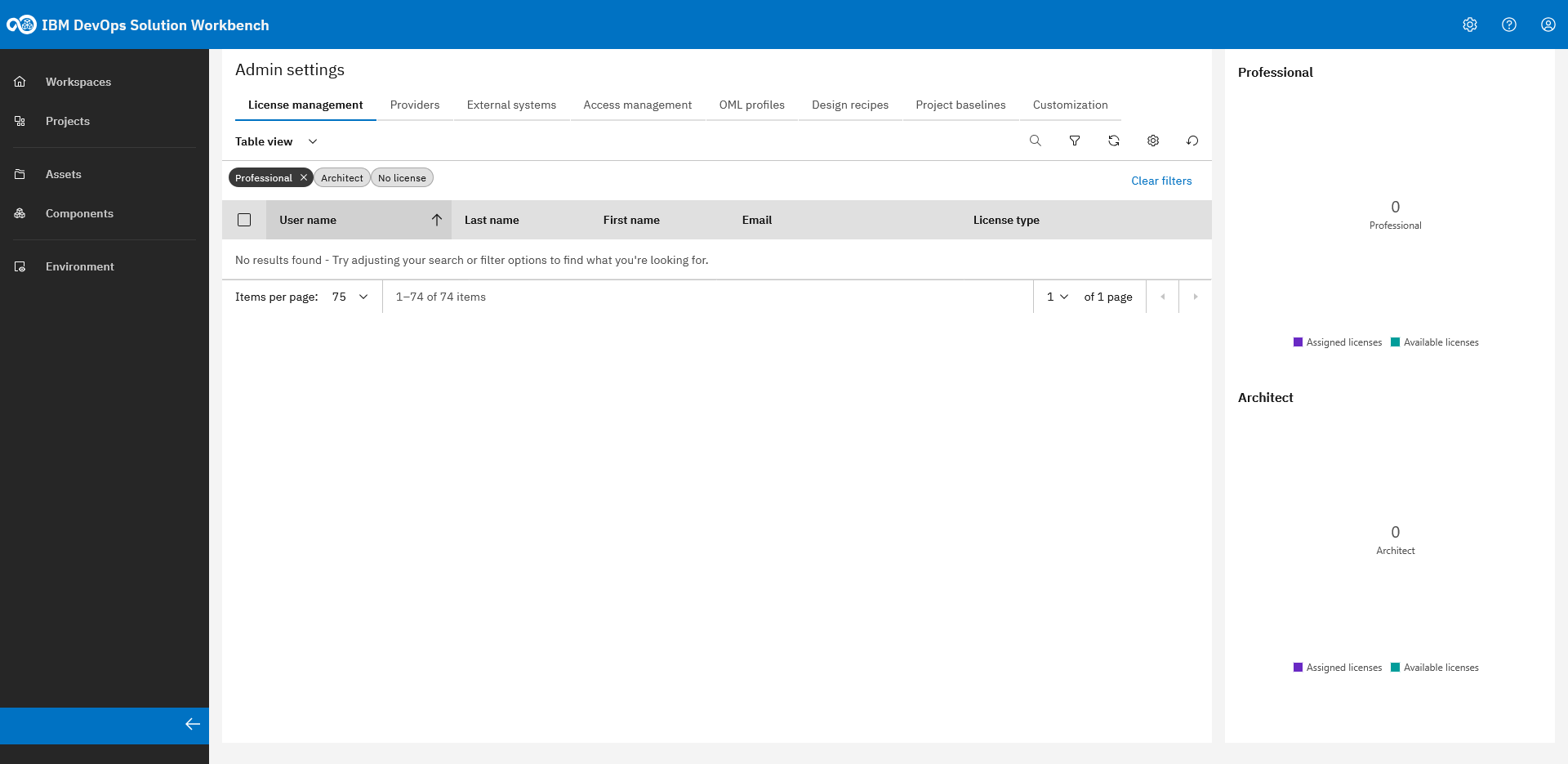
After opening the Admin Settings you land in the "License management" tab where you see all the users with licenses
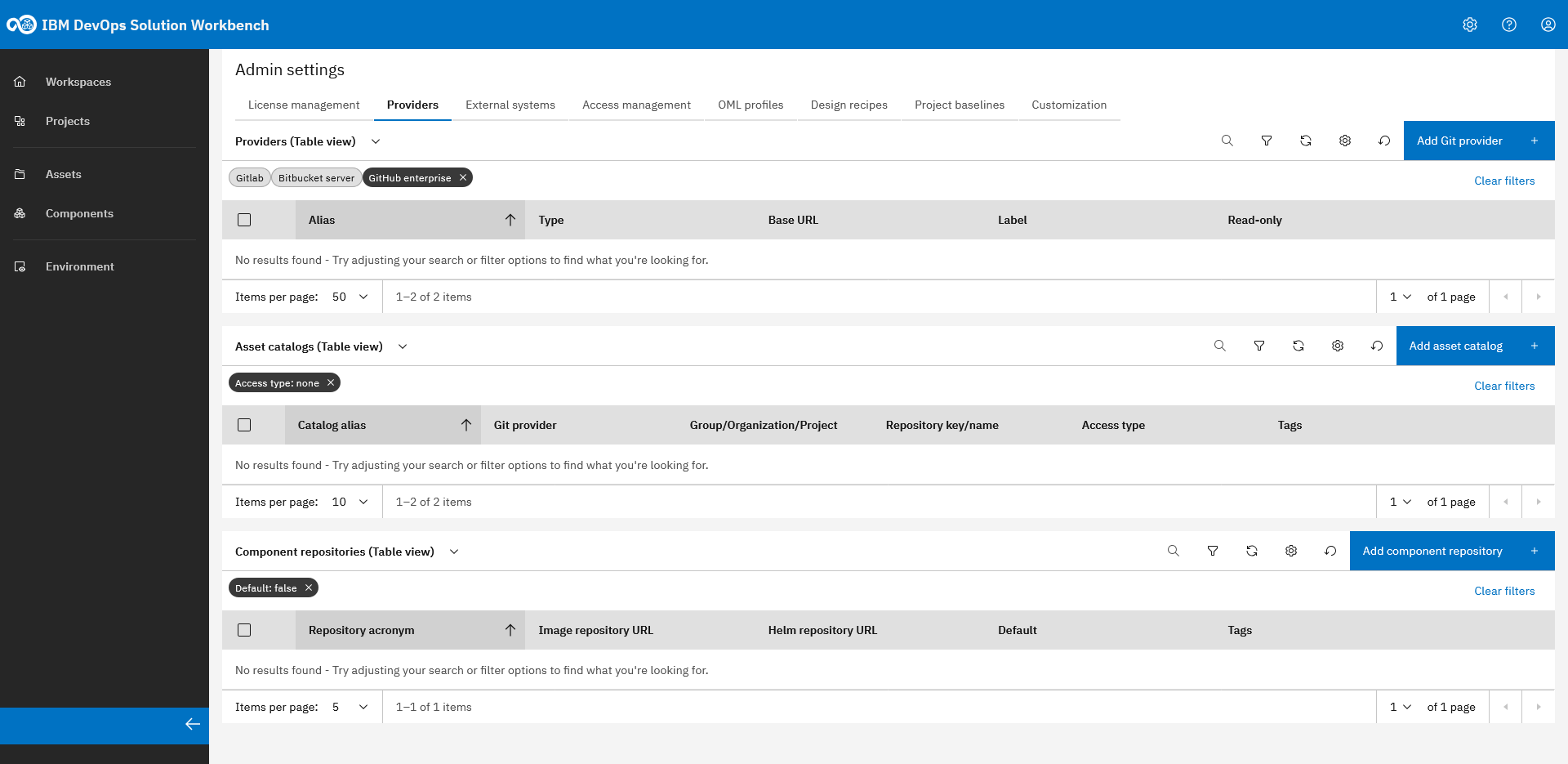
The next tab is "Providers". Admins are able to add git providers (for project storage), asset catalogs and component repositories.
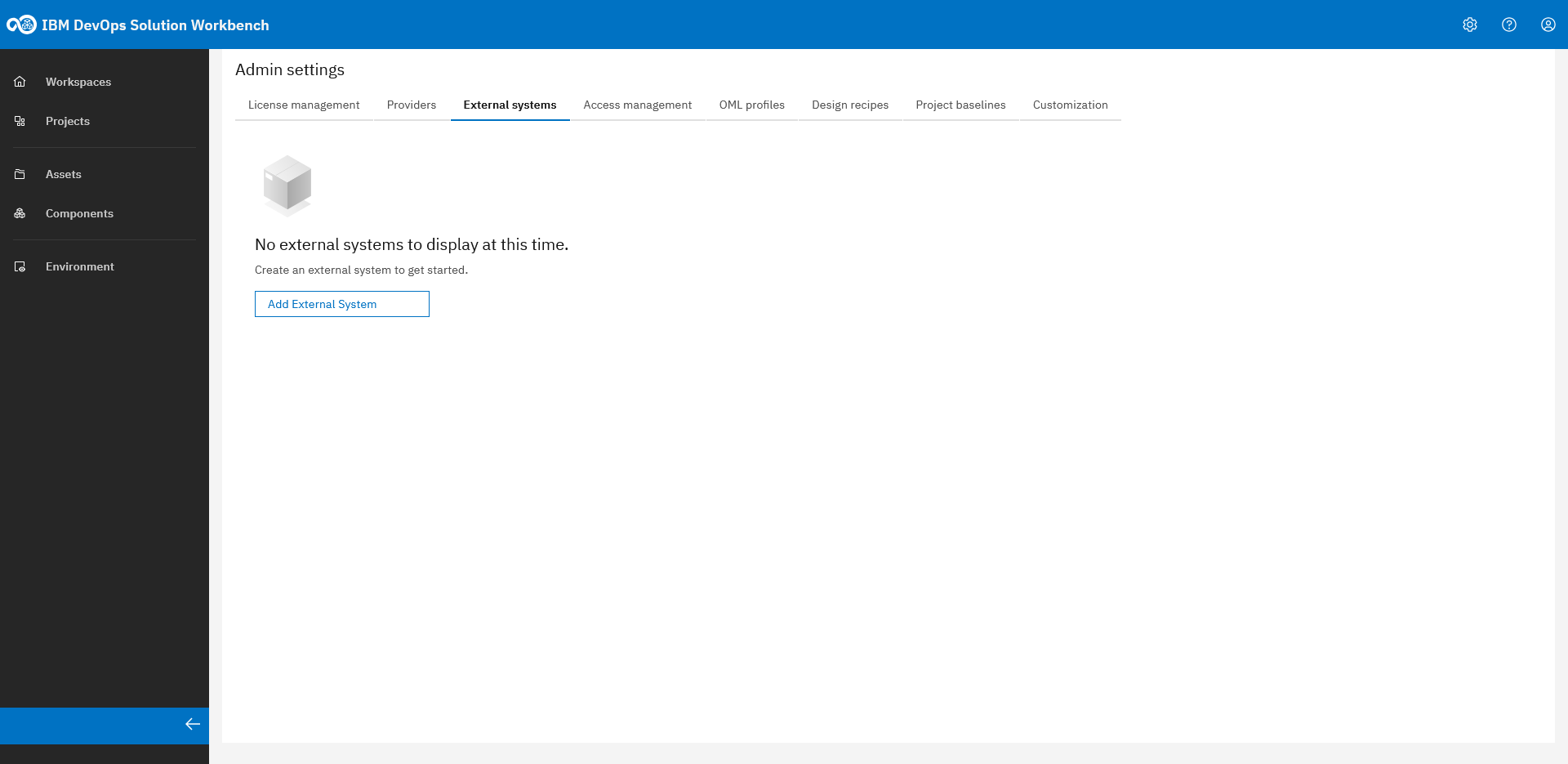
In the "External systems" tab, admins can add and configure MCP server, which can be used by the Design Assistant to connect to external systems. User can add its personal configuration, e.g., for authentication, in their settings.
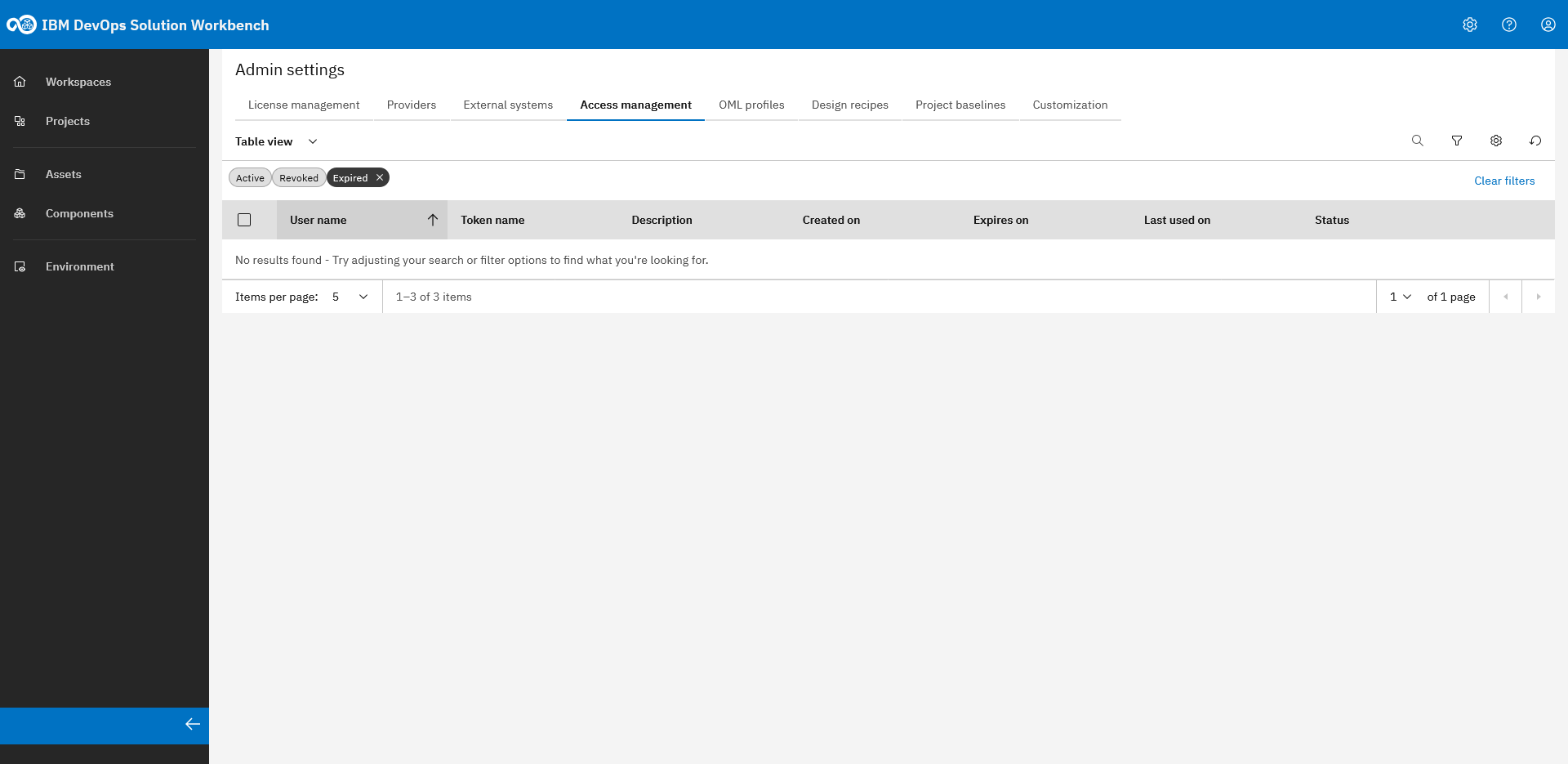
Below "Access management", admins can view all users access tokens and delete them when needed, e.g., if a token was exposed
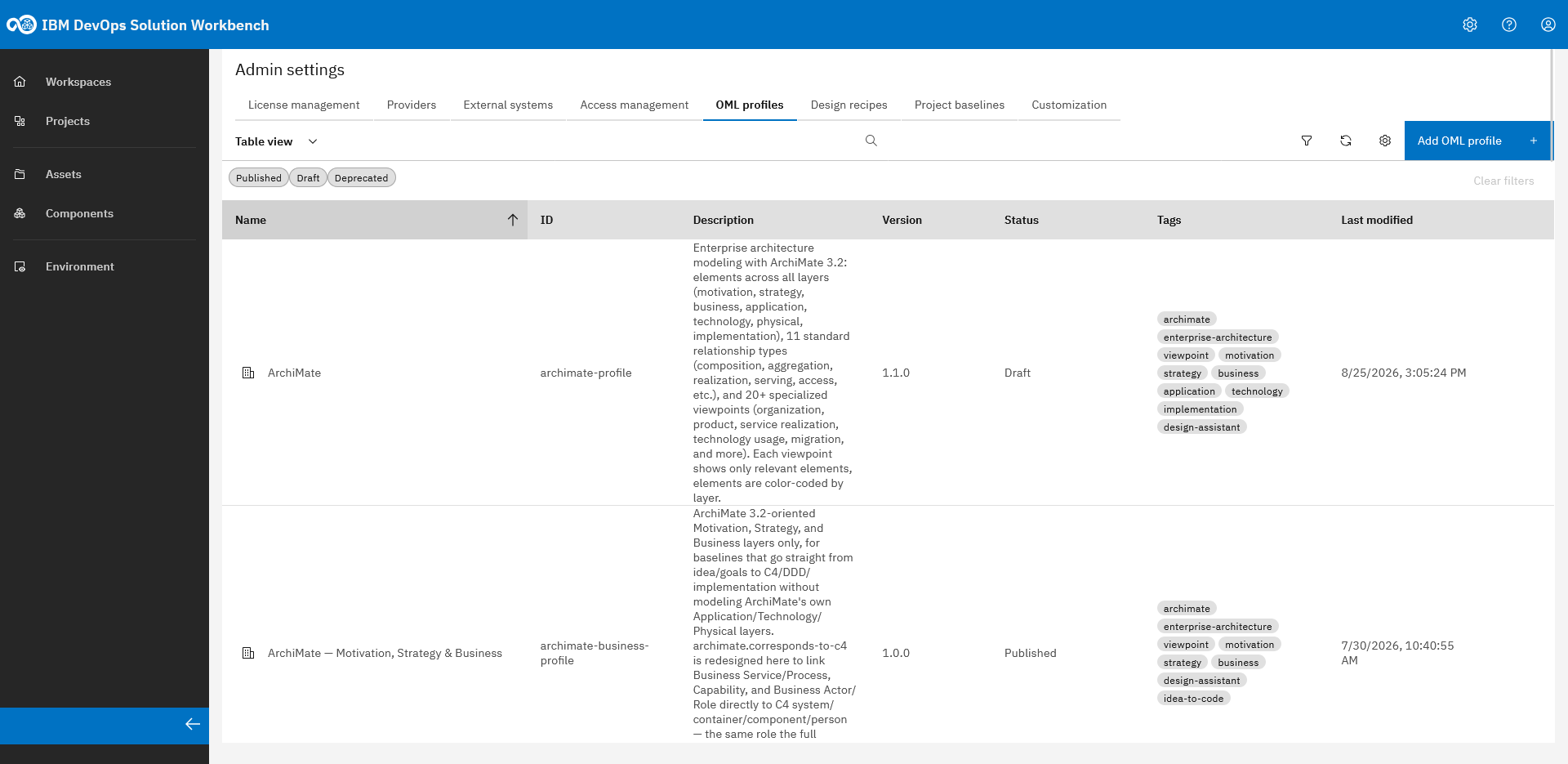
Under the "OML profiles" tab, admins can manage OML profiles that define the vocabulary for specific concerns or domains
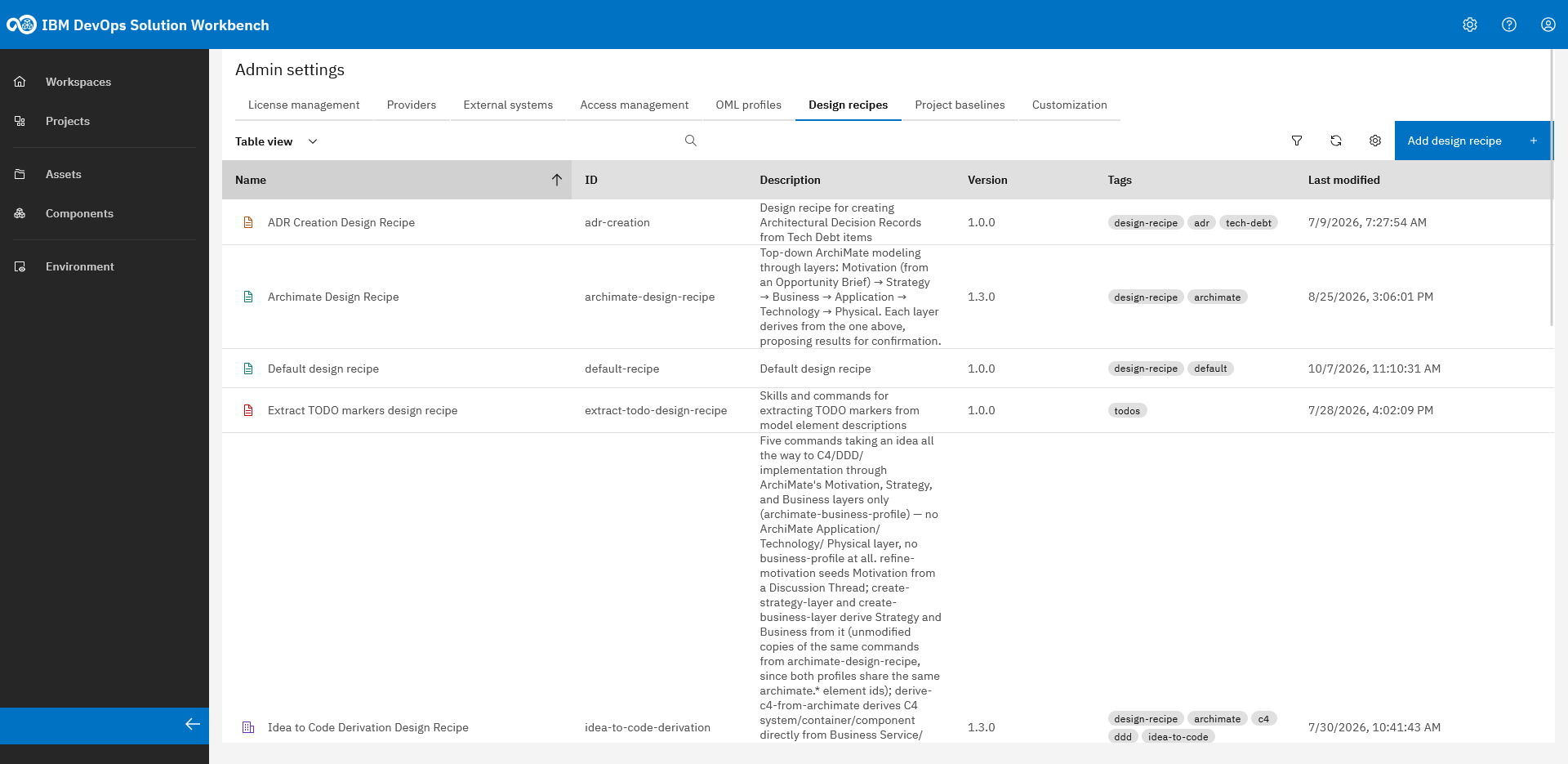
In the "Design recipes" tab, admins can manage design recipe bundles (skills and commands for Design Assistant) and reference these from project baselines
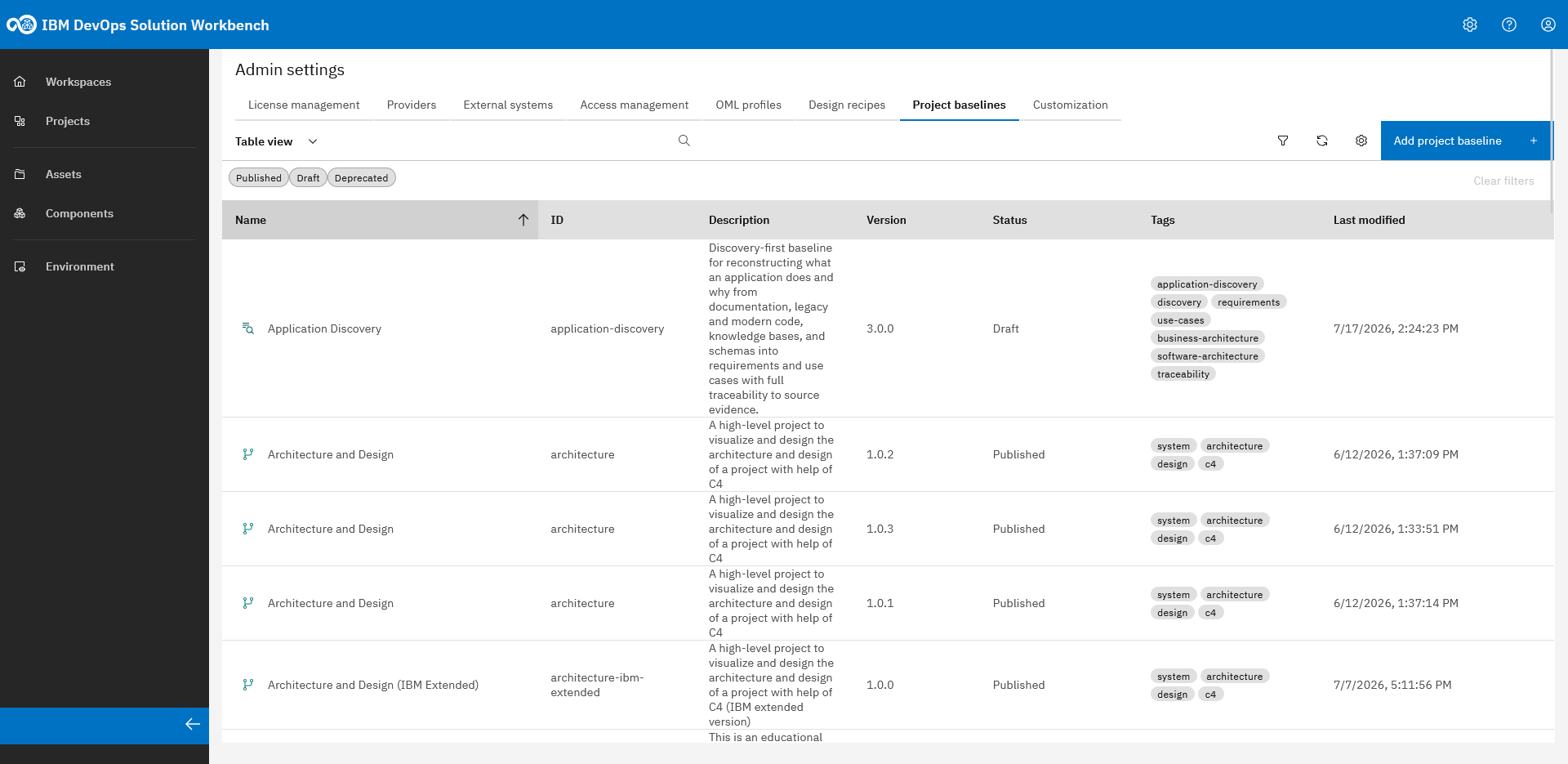
"Project Baselines" define the complete modeling environment for projects. Below this tab, an admin can upload, publish, deprecate and download baselines.
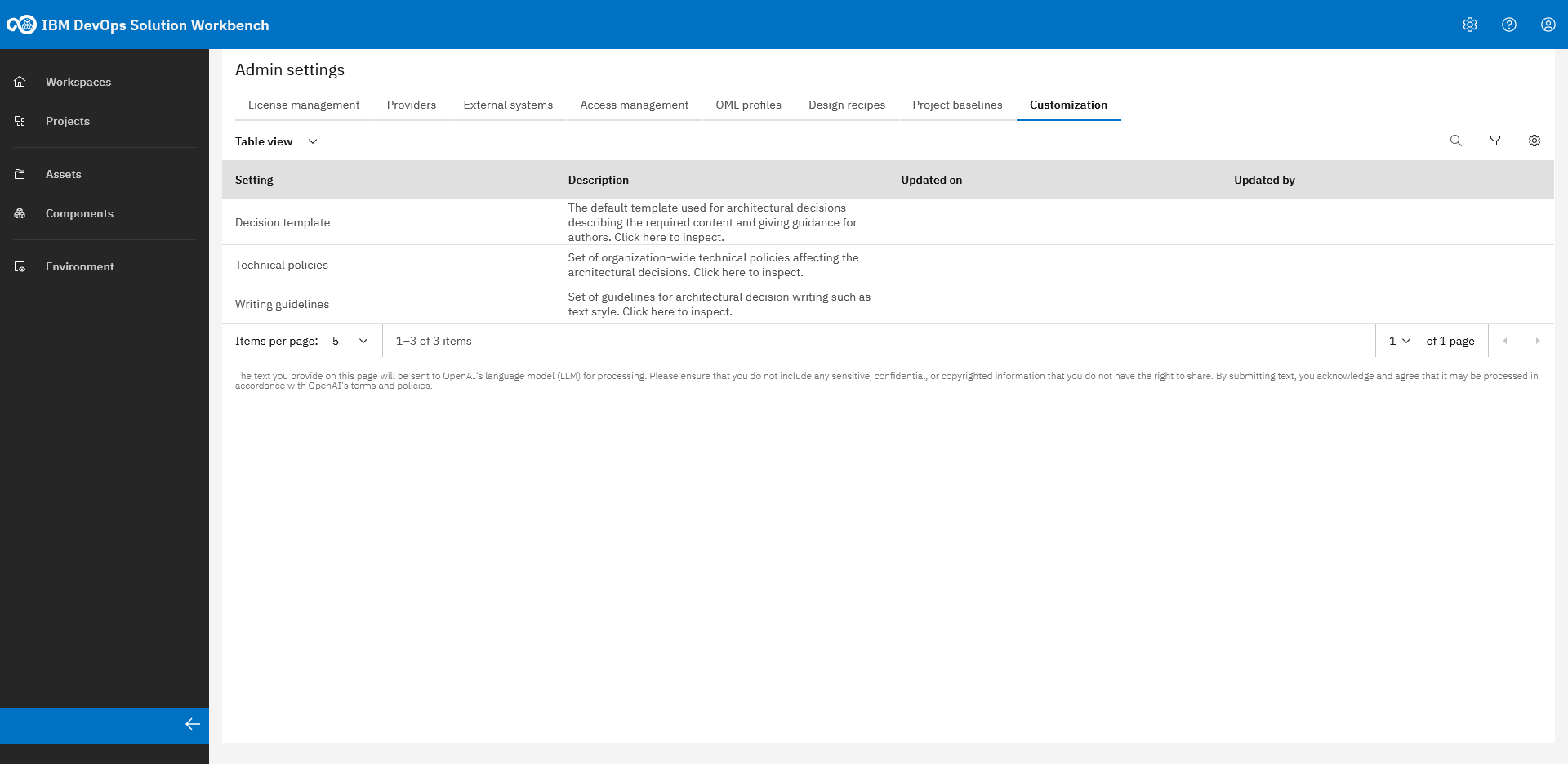
In the "Customization" tab you can view and edit organization-wide settings such as the decision template, technical policies, and writing guidelines
For more details about Admin Settings, please refer to the Product Documentation - Admin Settings.
For more in-depth insights and topics on baseline, OML, and more, take a look at the Building Blocks or the How To - Custom OML Profile.
Step 2: Navigation Bar - Projects and Workspaces
The navigation bar on the left lets you move between the main working areas of Workbench. Going forward, this course focuses on the two you'll use most: Workspaces and Projects.
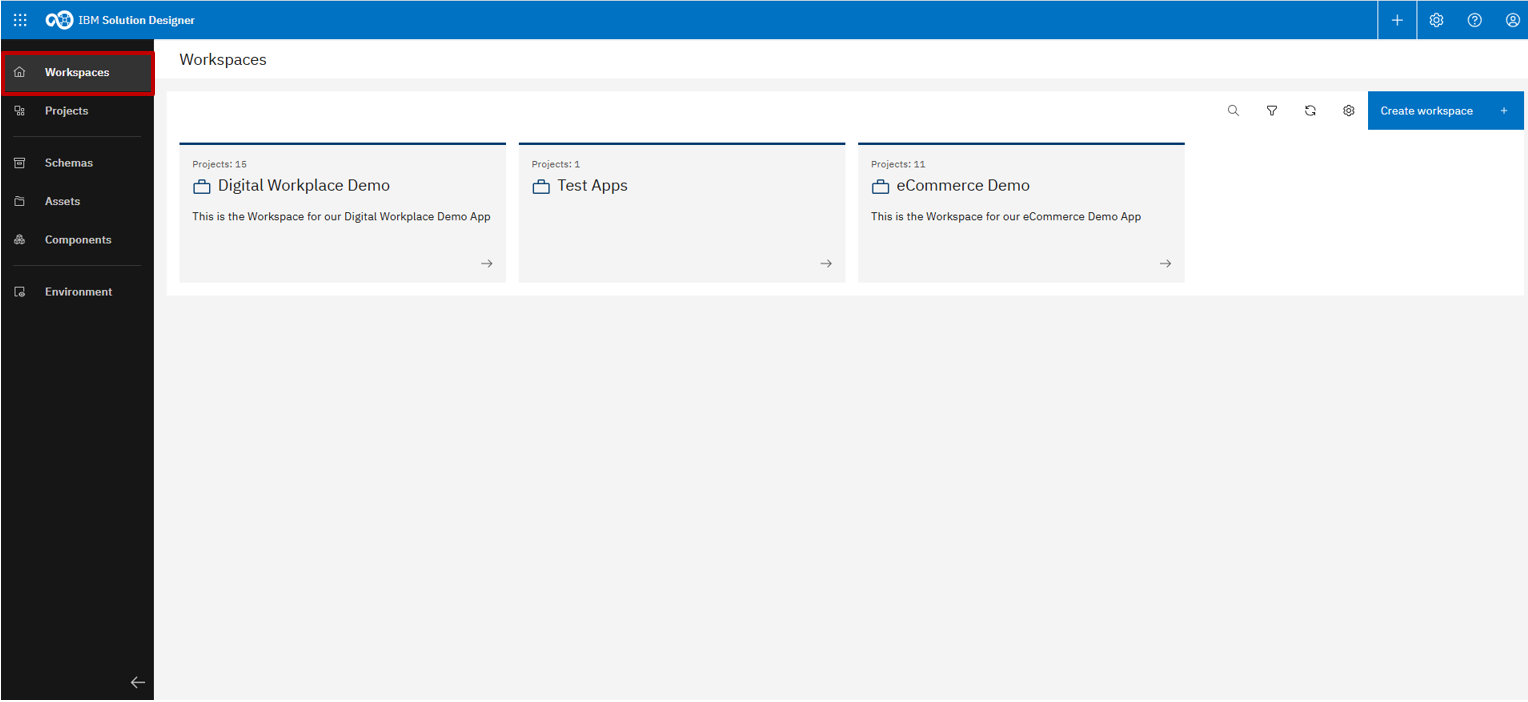
"Workspaces" lets you group and organize related projects.
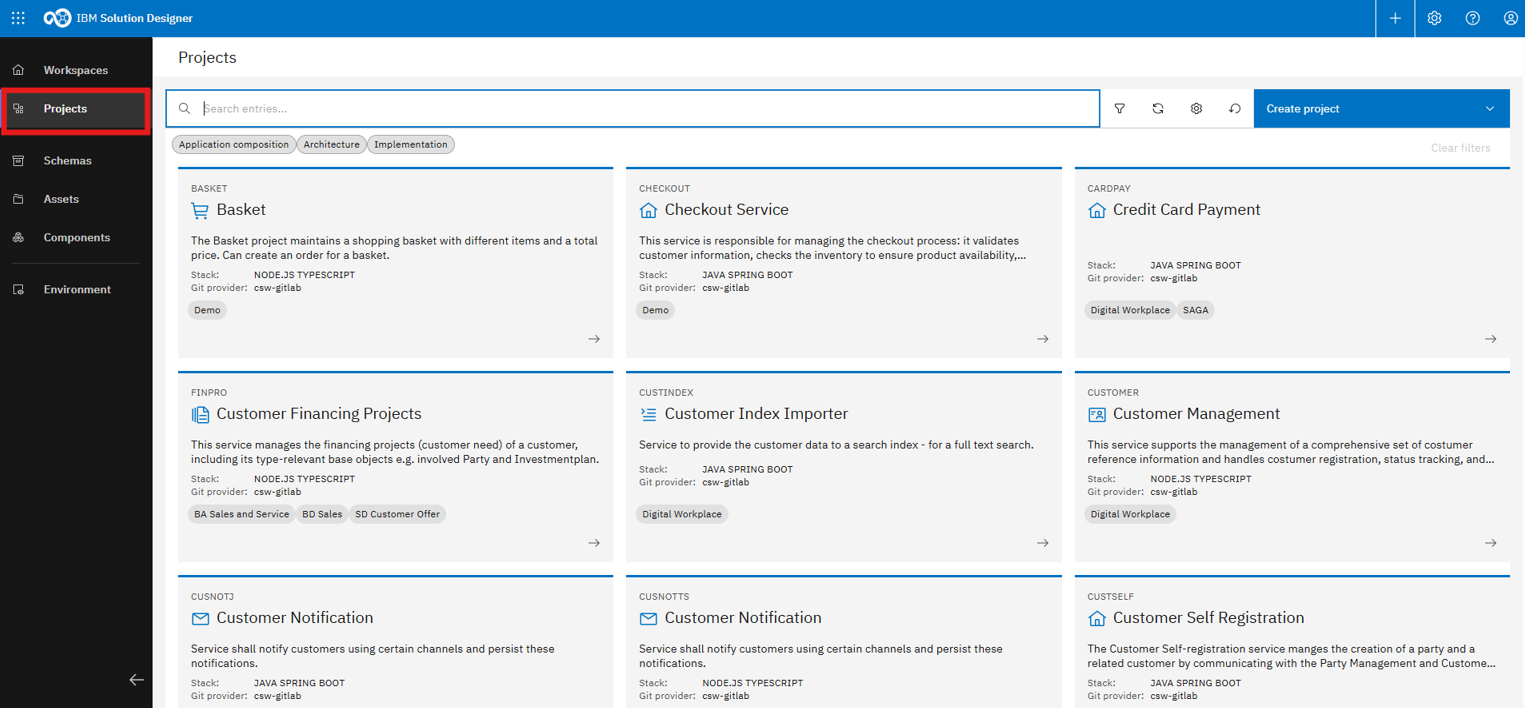
"Projects" shows a list of all existing Workbench projects.
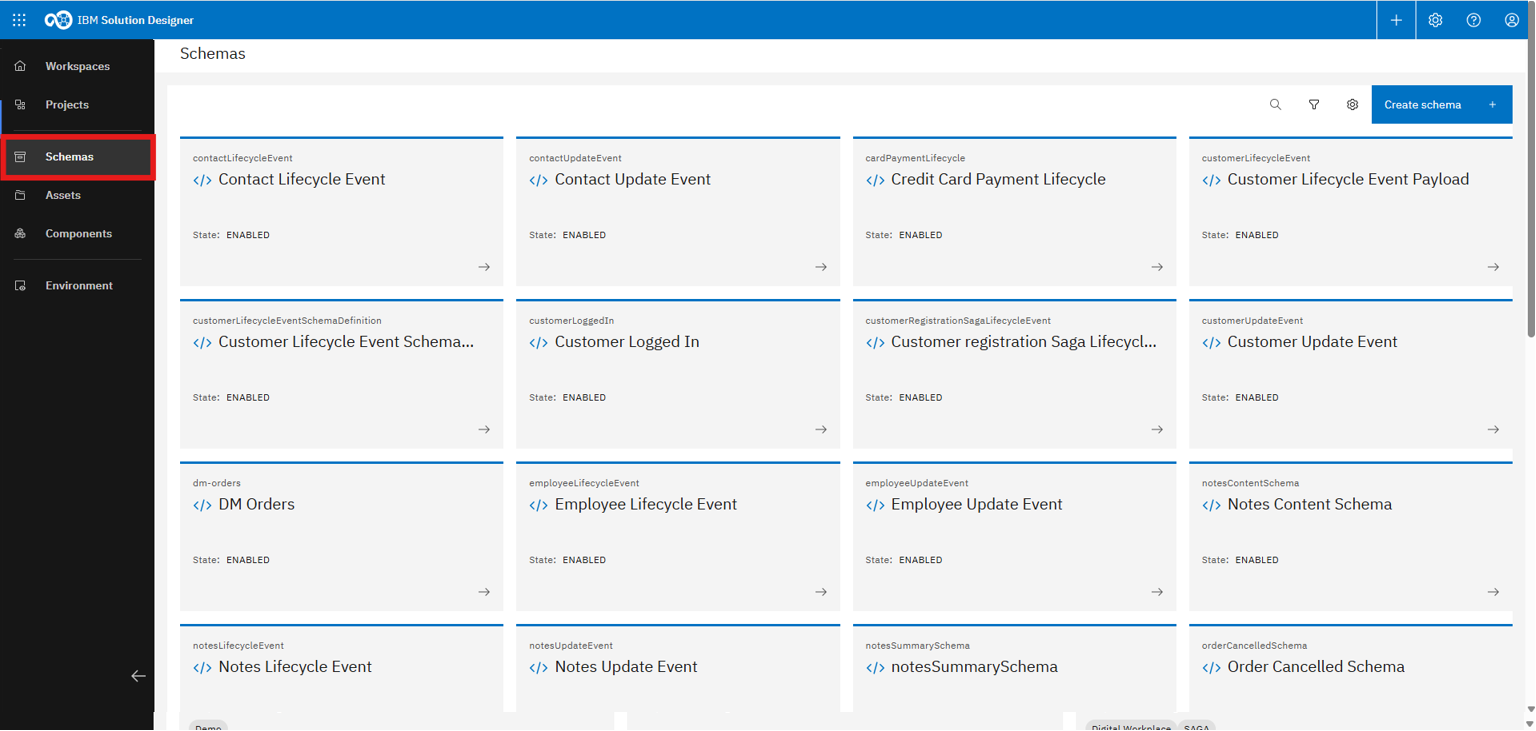
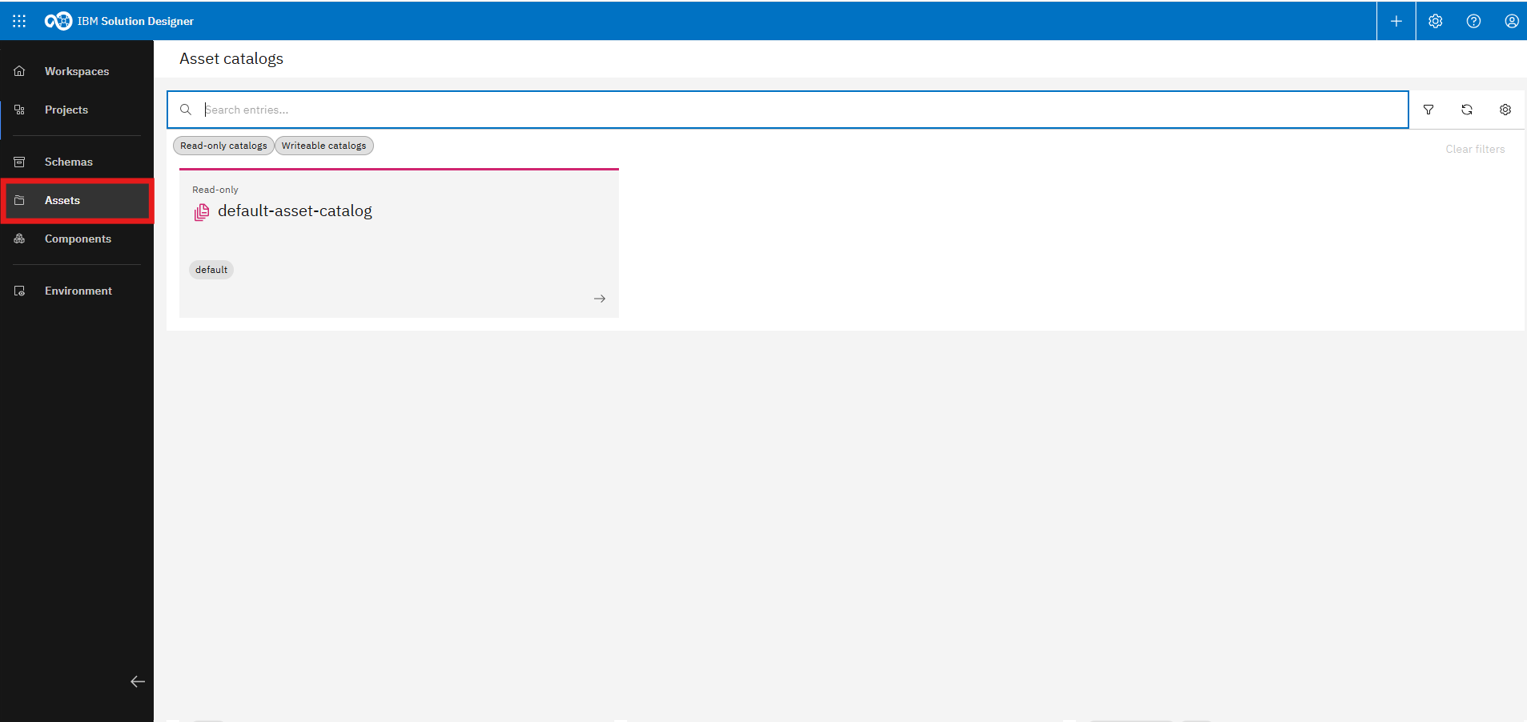
With an "Asset" you can share projects, for example a fully developed service project or just a template to start with. Assets are stored in so-called "Asset Catalogs".
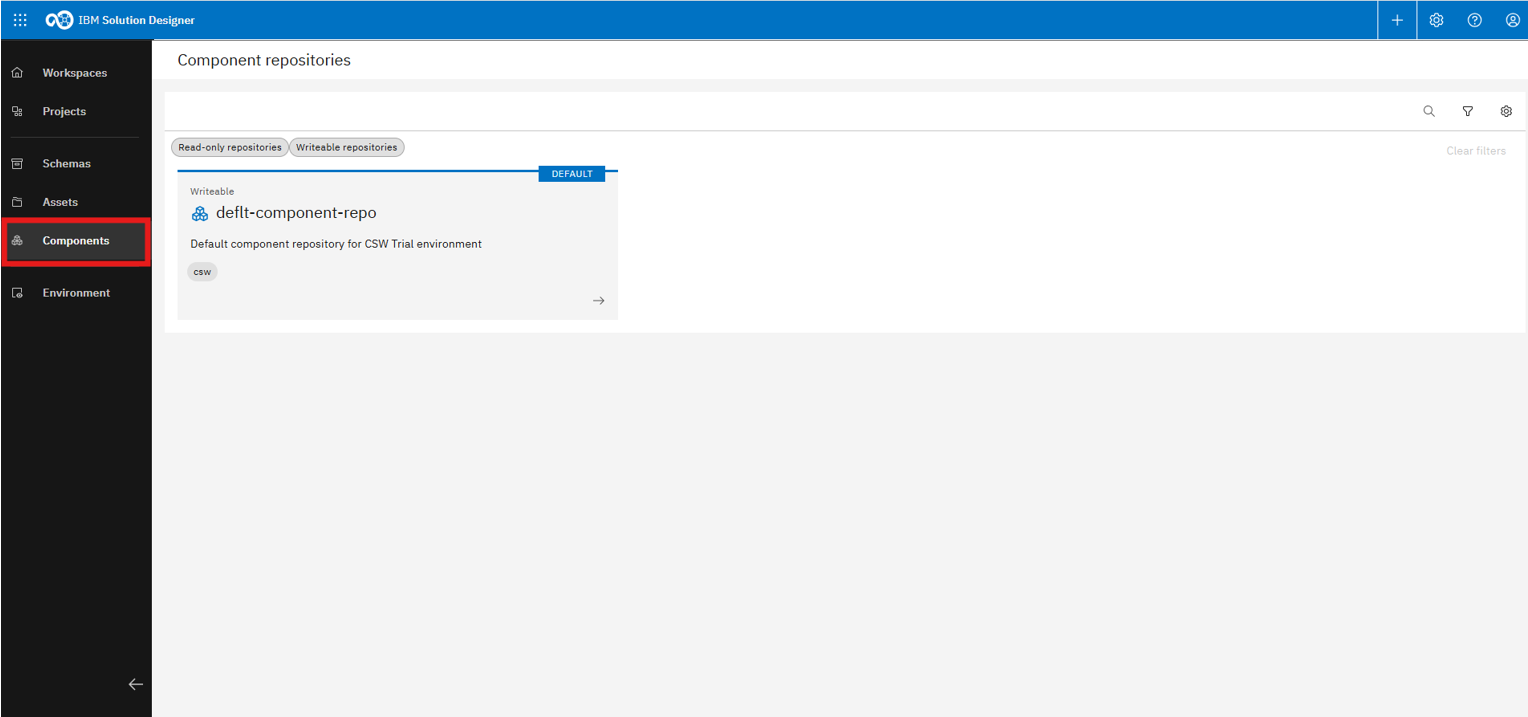
"Components", basically Helm charts of either by you or others developed service projects, are managed within component registries, which you can find here. Components are especially useful for reusing existing functionality.
Under "Environment" you can find all Workbench capabilities, used specifically for OpenShift projects, known as k5-projects. It serves as a monitoring and management overview for development and operations teams.
Want to go deeper? Continue with Manage Workspaces to learn how to create, manage, and share workspaces.
You now know your way around Workbench's header bar and navigation bar, and where to find User Settings, Admin Settings, Projects, and Workspaces.
If you work with deprecated Managed Stacks you'll need the Solution CLI
Solution CLI
The Solution CLI provides a command-line interface for direct interaction with the development and runtime environments. It supports tasks such as pushing and pulling code from Git repositories, running and debugging services locally while connected to an OpenShift cluster, and managing SDK updates. This allows developers to efficiently bridge the gap between local development workflows and cloud-based deployments.
The Solution CLI described below was part of the Managed Stacks workflow. It is no longer required for the new AI-assisted development approach — your coding assistant and IDE are all you need. This content will be updated soon.
If you have not installed the Solution CLI yet, please expand this section and follow the instructions.
Setup for Managed Stack projects
The steps below are only required if you are working through the Managed Stack training content.
Description
For the implementation of any Managed Stack Service project, it is mandatory to install the Solution CLI and clone the project with it. The CLI contains useful commands to manage the implementation of your services and is necessary to generate the service's code on the basis of your Service design in the Solution Designer. You can find a more detailed explanation along with the available commands in our product documentation.
The steps below are only required if you plan to complete the implementation exercises in the Managed Stack Service training.
- Ensure that you have setup the necessary prerequisites for local development
- For installing the CLI, NodeJS has to be available on your machine (https://nodejs.org)
- For TypeScript please install at least TypeScript see here
- For Java please install Java SDK and Maven see here
Install Solution CLI
- Open any previously created project.
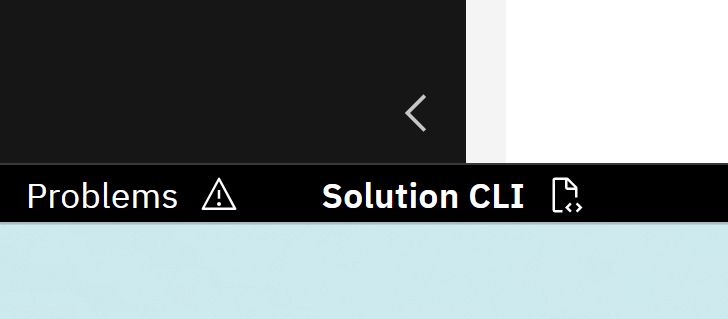
- Click on "Solution CLI" in the bottom left corner.
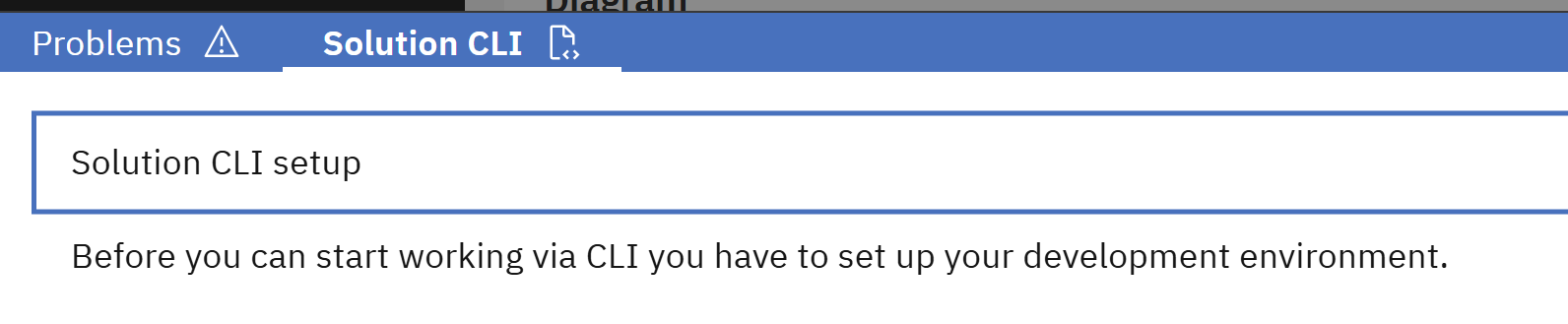
- Open the section "Solution CLI Setup"
- Follow the instructions of the section to download and install the CLI. It is recommended to use the Git Bash for the commands.
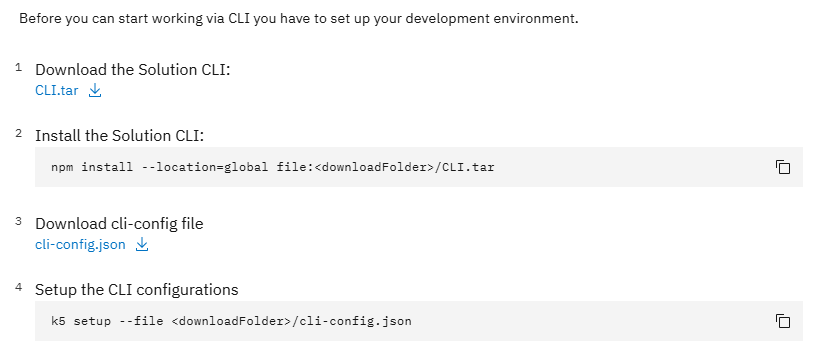
- After installing, please continue with the instructions to setup the CLI. Use your credentials from the Solution Designer to log in.
You have successfully setup your local development environment. You can now use the Solution CLI when implementing your services.