Create and use custom Design Recipes
You want to create your own custom design recipe to enable the Design Assistant to assist you in working with your models and diagrams, supporting your specific activities, goals and way of working in a consistent way.
Description
This How-To shows you
- how to create your own custom design recipe
- how to enable your custom design recipe for your project
- how to use your custom design recipe from the Design Assistant
The product documentation also provides guidelines on what design recipes are. Reference information about the structure of design recipes is also available. You might want to consult these resources while following this how-to.
Prerequisites
- You have a project based on a project baseline.
- You have administrative rights in workbench, so that you can create and import design recipes and project baselines.
Example
The Goal
For our how-to we will create a design recipe that will allow us to let the Design Assistant scan a C4 model and find all TODO markers in their descriptions. It should then add or update a DiscussionThread element and list all the identified TODO markers and notes in that element, linking that element to the respective model elements the marker was found in.
The Plan
- Create a skill describing how to manage TODO markers in model element descriptions
- Create a command that would make use of that skill
- Package the skill and command in a design recipe
- Create a simple project baseline referencing only the C4 and basic collaboration profiles and the design recipe we just created
- Package and install the new project baseline
- Create a new project from the project baseline we created
- Create a simple C4 model
- Apply the command to one or many model elements in our simple C4 model and observe the results
Steps
1. Create the skill
A skill describes how an LLM can achieve a certain result or find answers to certain problems. It does so by describing a sequence of activities that lead to the desired result. Those activities can be anything that the LLM is capable of - either directly or via the use of e.g. a configured Model Context Protocol (MCP) server. The Design Assistant has access to the complete set of model elements in the current project and can also manipulate or create model elements. Since the Design Assistant is powered by an LLM, it is helpful to be aware of the capabilities described above and the general constraints of what an LLM can do.
To create a skill, we simply create a markdown document and describe our skill - SKILL.md:
---
name: extract-and-document-todos
description: Use when the user wants to make TODO comments in model element descriptions more visible, structured and explicit.
---

Scan the description of either each model element in the current project or of those elements that were explicitly specified and find occurences of the strings TODO (case insensitive). For each of these occurences do the following:
- Copy the string following that occurence until the end of the line, sentence or paragraph (whatever seems to belong to that occurence).
- Create a new element of type DiscussionThread and set its description to the string extracted above. Set the label of the element to a short summary of that string.
- Link that DiscussionThread element to the model element the TODO string was extracted from. Label the link 'Discuss TODO', set the type to 'discuss-todo'.
- Remove the TODO string and its content from the model element it was found in.

Don't make any other modifications to the model elements.
2. Create the command(s)
To create a command that acts on a selected model element or a set of selected model elements, we simply create another markdown document with the following contents - COMMAND.md:
---
name: extract-todos
label: Extract TODOs
description: Find occurences of TODO markers from the selected model elements and extract them into linked model elements, making those TODOs more visible and explicit
elementTypes:
  - "*"
single: true
multi: true
---
Extract TODO markers from the following elements: ${elements}
In order to also run the extraction on all model elements present in the project, we create a second command like this - COMMAND.md:
---
name: extract-all-todos
label: Extract TODOs in the entire project
description: Find occurences of TODO markers in the entire project and extract them into linked model elements, making those TODOs more visible and explicit
---
Extract TODO markers from all model elements.
3. Package the Design Recipe
In order to make our skills and commands available to the Design Assistant, we need to package above files in a certain way. Create a new directory and copy the files we created into the following filesystem structure:
.
├── commands
│   ├── extract-all-todos
│   │   └── COMMAND.md
│   └── extract-todos
│       └── COMMAND.md
├── k5-design-recipe.yaml
└── skills
    └── extract-and-document-todos
        └── SKILL.md
As you can see we need to provide some meta data for our design recipe in the form of a file called k5-design-recipe.yaml. Create this file and set the following content:
# Unique recipe identifier (stable across versions)
id: "extract-todo-design-recipe"
# Semantic version
version: "1.0.0"
# Name, displayed in the UI
name: "Extract TODO markers design recipe"
# optional description
description: "Skills and commands for extracting TODO markers from model element descriptions"
# optional tags
tags:
  - "todos"
icon: "Document"
color: "#cc0000"
After compressing the directory we just populated with your favourite compression tool (or by running zip -r ../my-todo-extractor-design-recipe.zip * if you are on Linux or MacOS), we can now upload the resulting zip file containing our new design recipe to Workbench. For this you need to have the administrator role.
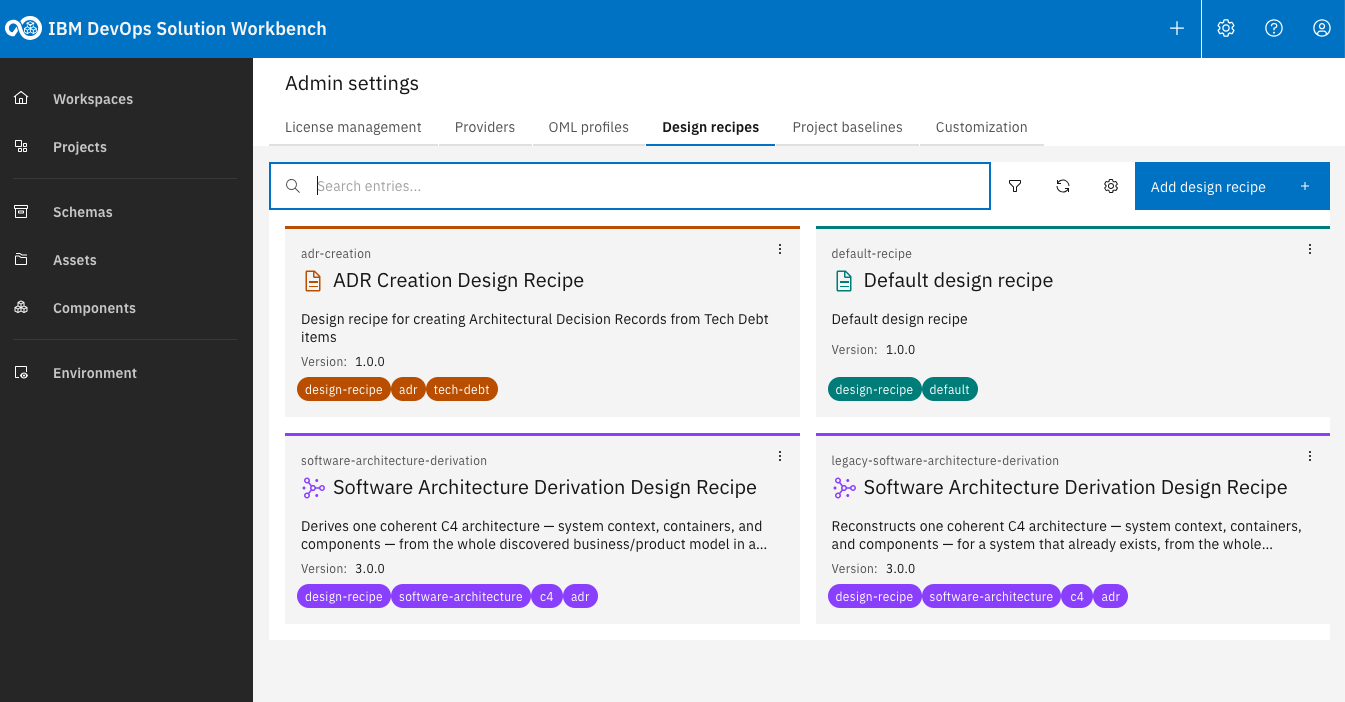
Click on the gear symbol at the top right and then on "Admin settings" > "Design recipes".
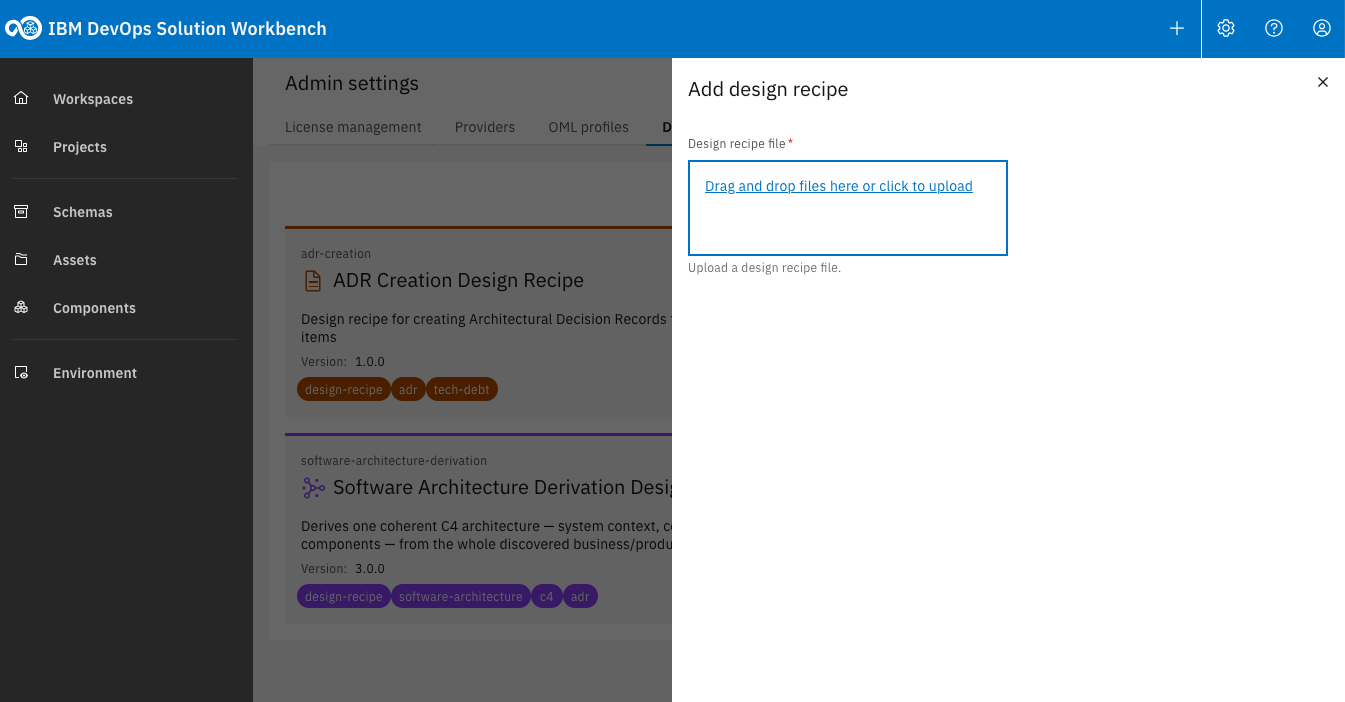
Click "Add design recipe".
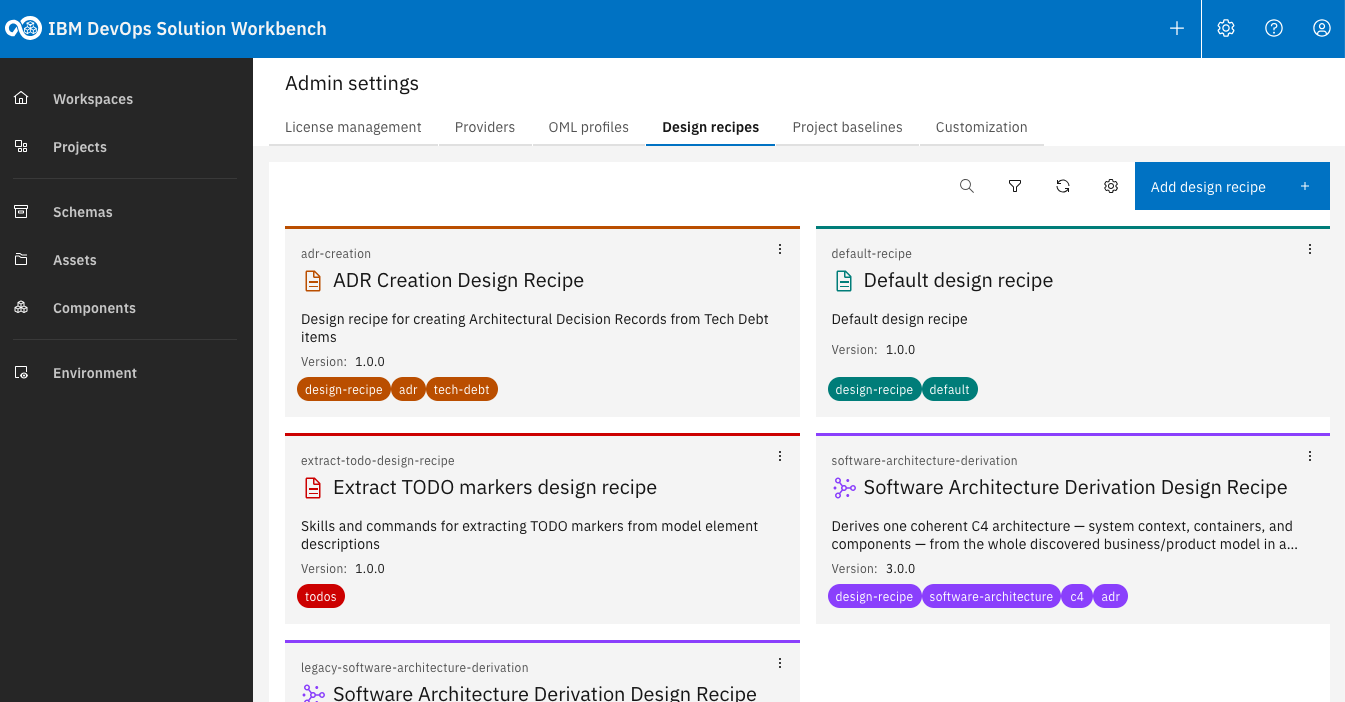
Check your new design recipe has successfully been uploaded and the meta data you entered is shown in the design recipe tile.
We have now packaged and uploaded our new Design Recipe. In order to make use of it in a project we need to reference the Design Recipe from our project. This is accomplished not directly but via a project baseline the project is associated with.
4. Create a new Project Baseline
To make use of our new Design Recipe we will quickly create a new basic project baseline, containing only three OML profiles and our new Design Recipe. In reality you might also just amend whatever project baseline you are already using and release a new version of that.
To create a simple project baseline, we create a new directory and create three files in there:
- a README describing the purpose of the project baseline in plain text
- A file named k5-baseline.yaml which contains meta data for this project baseline
- A file named k5-oml.yaml which contains references to all OML profiles and Design Recipes the project baseline is comprised of
The README is a markdown file that you can fill with whatever you deem useful information for the consumer of your project baseline.
The meta data file k5-baseline.yaml should look like this:
id: "architecture-with-todo-extraction"  # Unique baseline identifier
version: "1.0.0"                         # Semantic version
name: "Architecture and TODO Extraction" # This is the name of the baseline that is shown in the workbench UI
description: "This is an educational bare basics profile to show usage of a custom design recipe"
tags:
  - "todos"
  - "custom-design-recipe"
icon: "Application"                      # Icon identifier
color: "#0000BB"                         # Hex color code
The project baseline references in k5-oml.yaml need to contain the following:
id: "architecture-model-extract-todos"
version: "1.0.0"
name: "Basic architecture baseline with TODO marker extraction"
description: "A baseline with basic architecture modelling capabilities combined with a Design Recipe to extract and TODO markers from model elements"
metadata:
  tags:
    - "c4"
    - "architecture"
    - "todos"

# Ignore the layer for the time being. It is irrelevant for our purpose but the documentation states there needs to be at least one layer entry
layers:
  - id: "technology"
    name: "Technology Layer"
    description: "Infrastructure, platforms, and technology components"
    descriptionDetailed: "The technology layer represents infrastructure, platforms, and technology components. Elements in this layer describe the technical foundation and deployment infrastructure."

systemDefinitions:
  - id: "k5-oml-system"
    version: "1.0.0"

# Modeling Profiles
profiles:
  # Basic Shapes
  - id: "basic-shapes-profile"
    version: "1.0.0"
  # C4 Model
  - id: "c4-profile"
    version: "1.0.0"
  # Collaboration
  - id: "basic-collaboration-profile"
    version: "1.0.0"

# Design Recipes
designRecipes:
  - id: "extract-todo-design-recipe"
    version: "1.0.0"
  - id: "default-recipe"
    version: "1.0.0"
Your directory will now look like this:
.
├── k5-baseline.yaml
├── k5-oml.yaml
└── README.md
Create a zip archive again (e.g. by running zip -r ../project-baseline-with-todo-extractor-design-recipe.zip * in the directory) and add it to workbench.
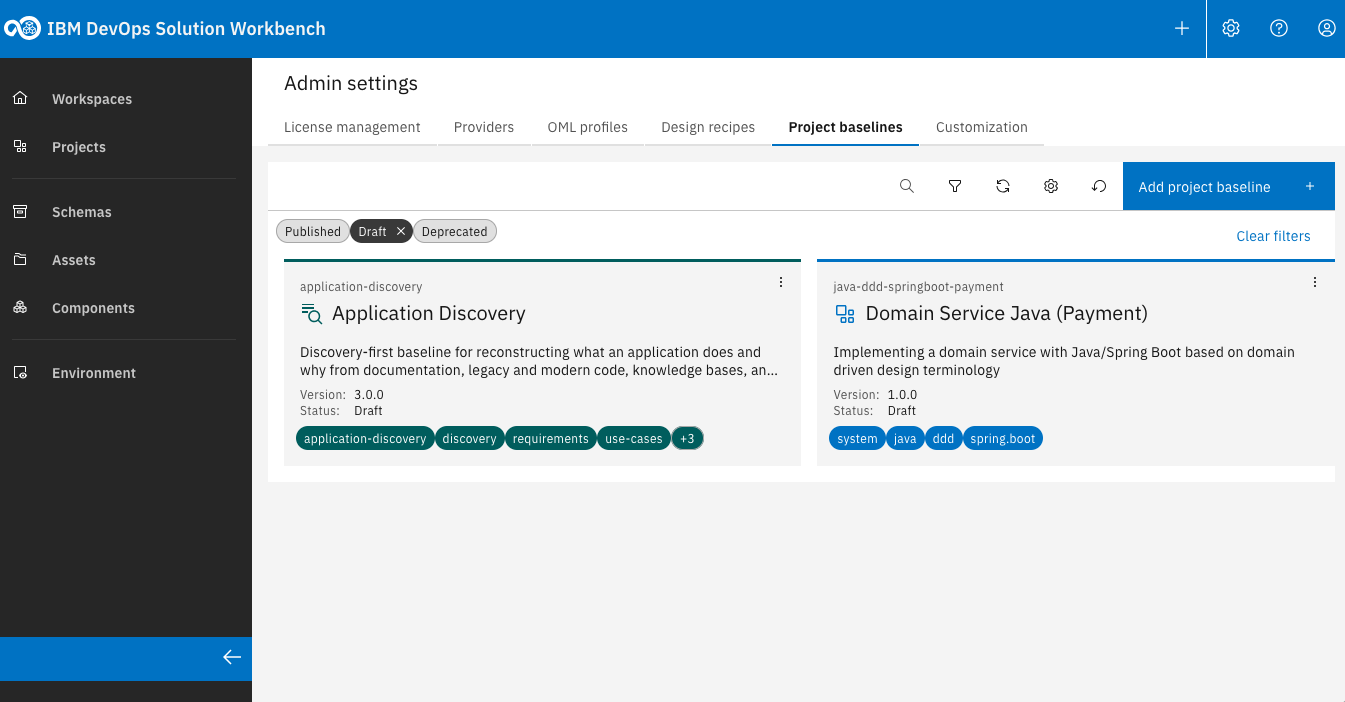
Click on the gear symbol at the top right and then on "Admin settings" > "Project baselines".
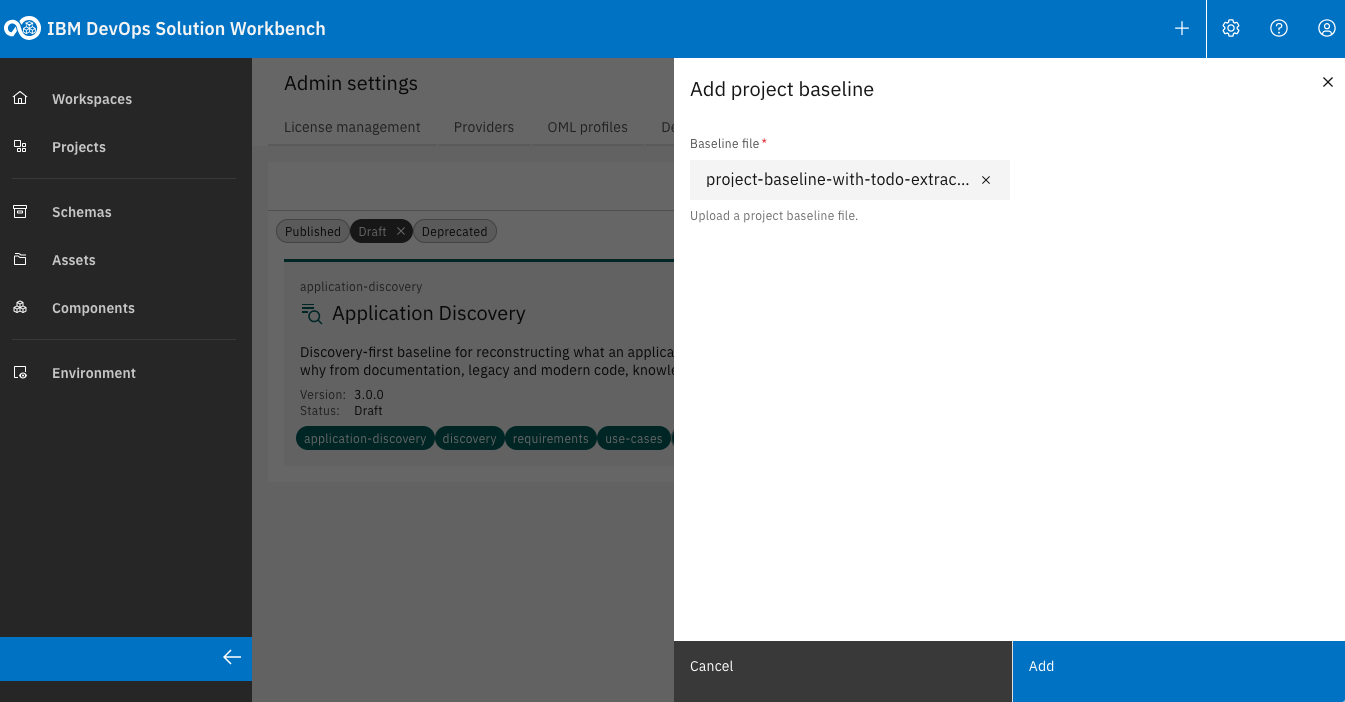
Click "Add project baseline".
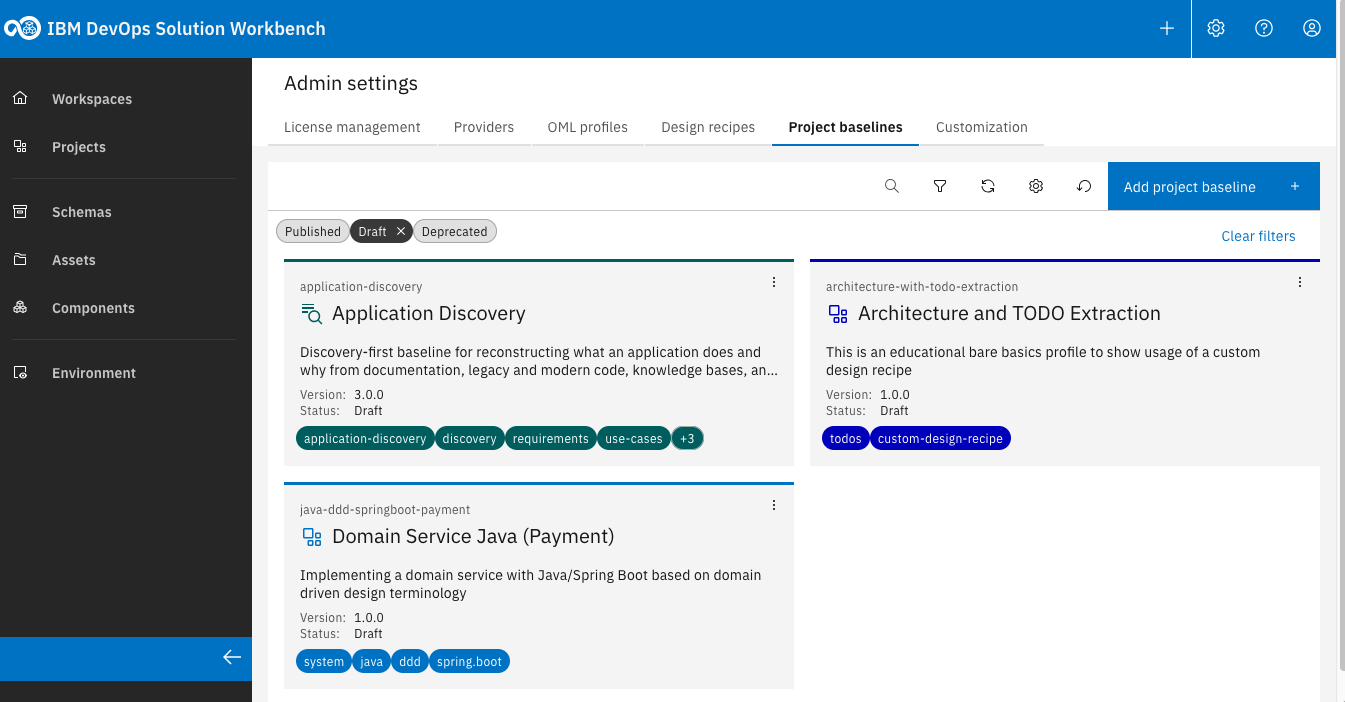
Check your new project baseline has successfully been uploaded and the meta data you entered is shown in the project baseline tile.
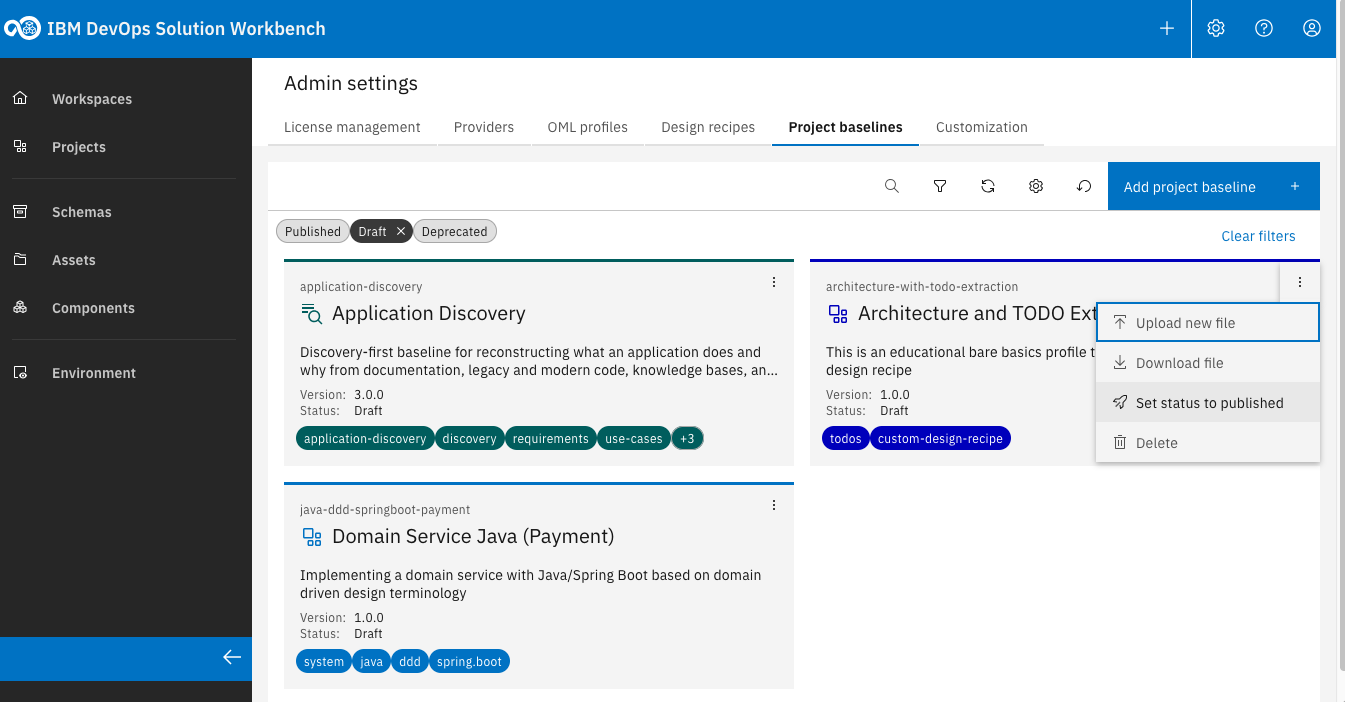
Publish your new Project Baseline to allow all workbench users to make use of it.
As you need to have administrative rights when managing project baselines, it is not strictly neccessary to publish the baseline in order for you to be able to work with it (Administrators can choose project baselines in DRAFT state) - if you want your project baseline to be useable by ordinary users though, publishing it is required.
5. Create a new project using the new project baseline
In order to see our new design recipe in action we will now create a new project based on our new project baseline. To do that follow these steps:
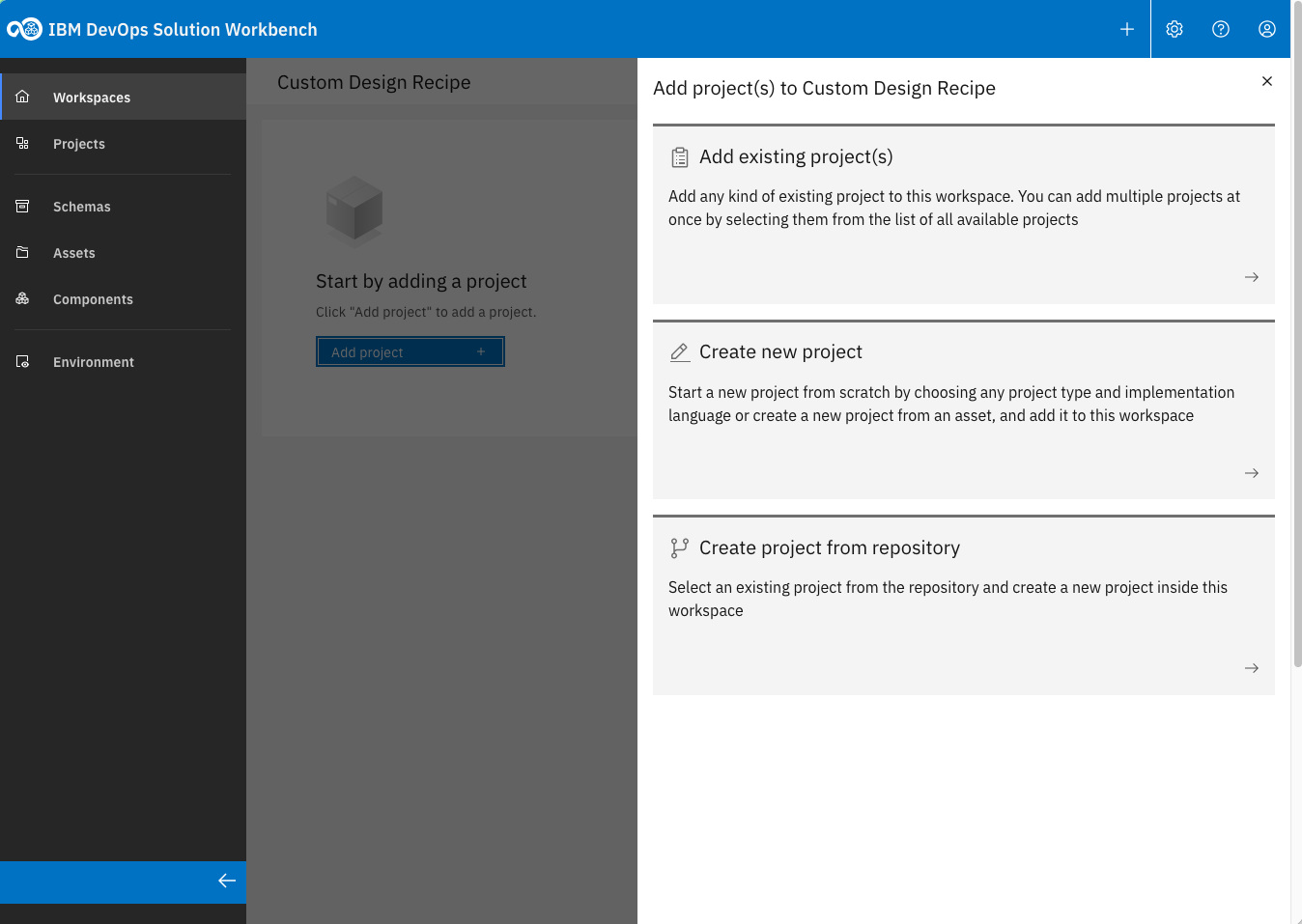
In your workspace choose Add project > Create new project.
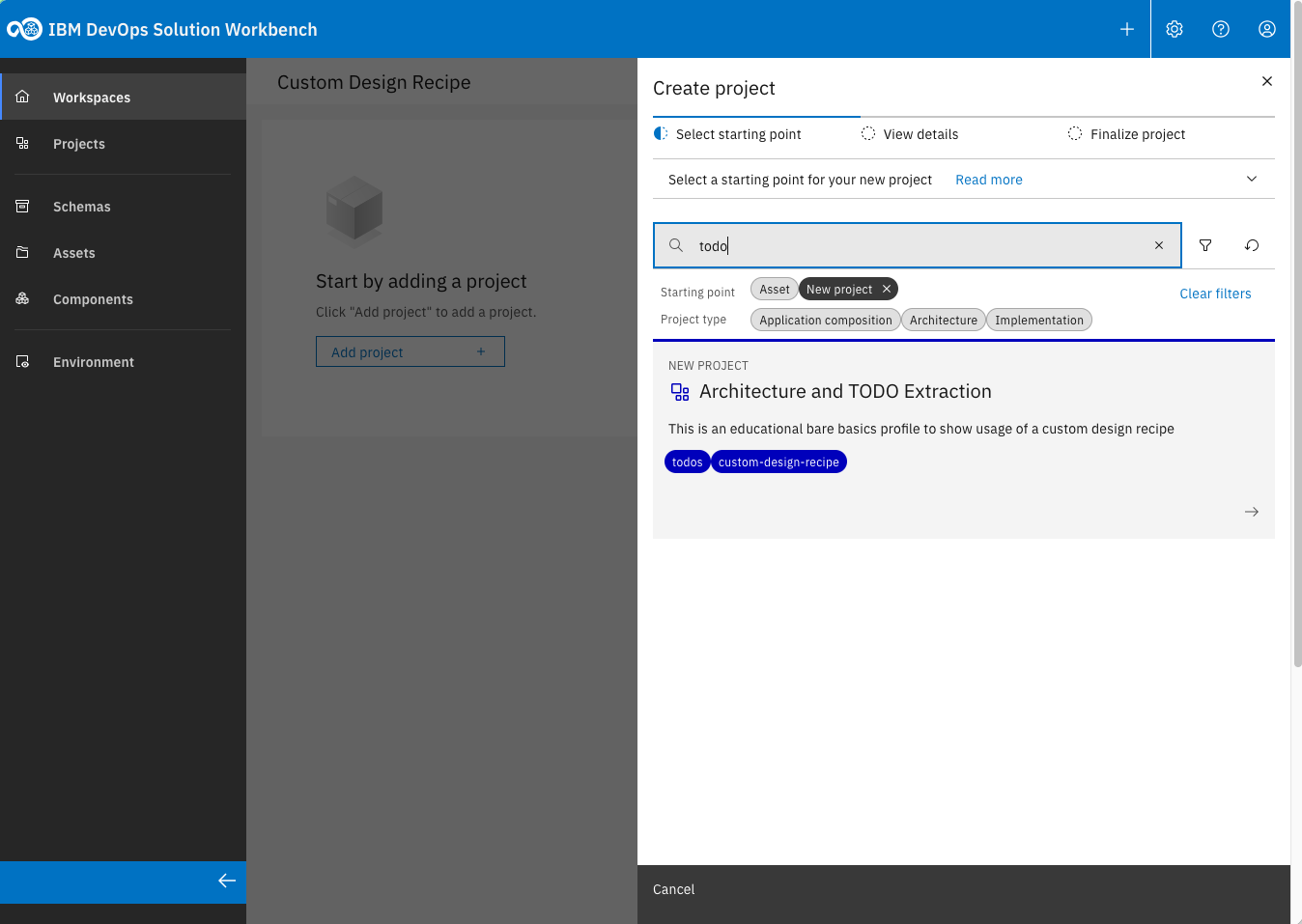
Seeach for "todo" and select the new project baseline as the basis
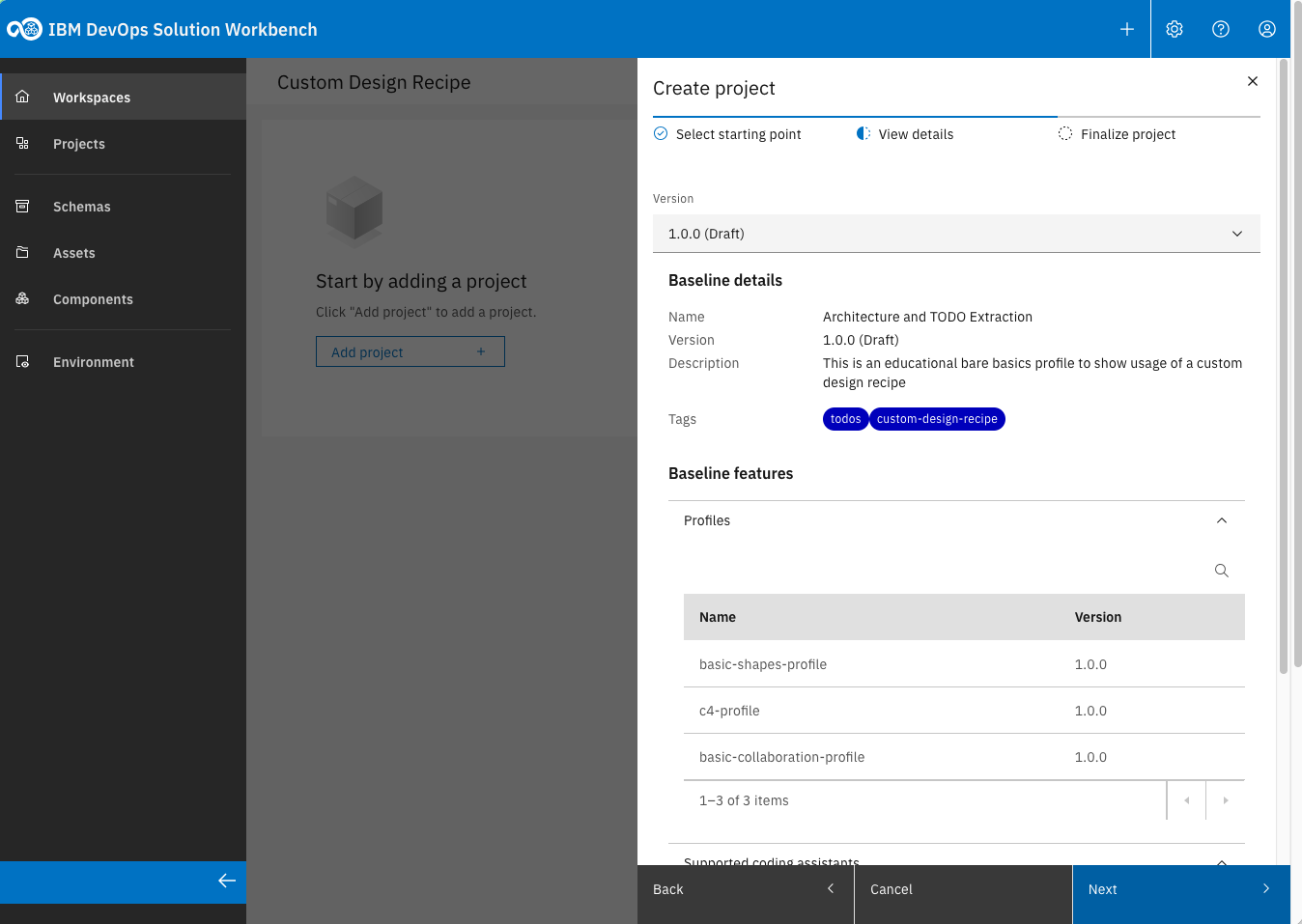
Check the chosen project baseline meta data
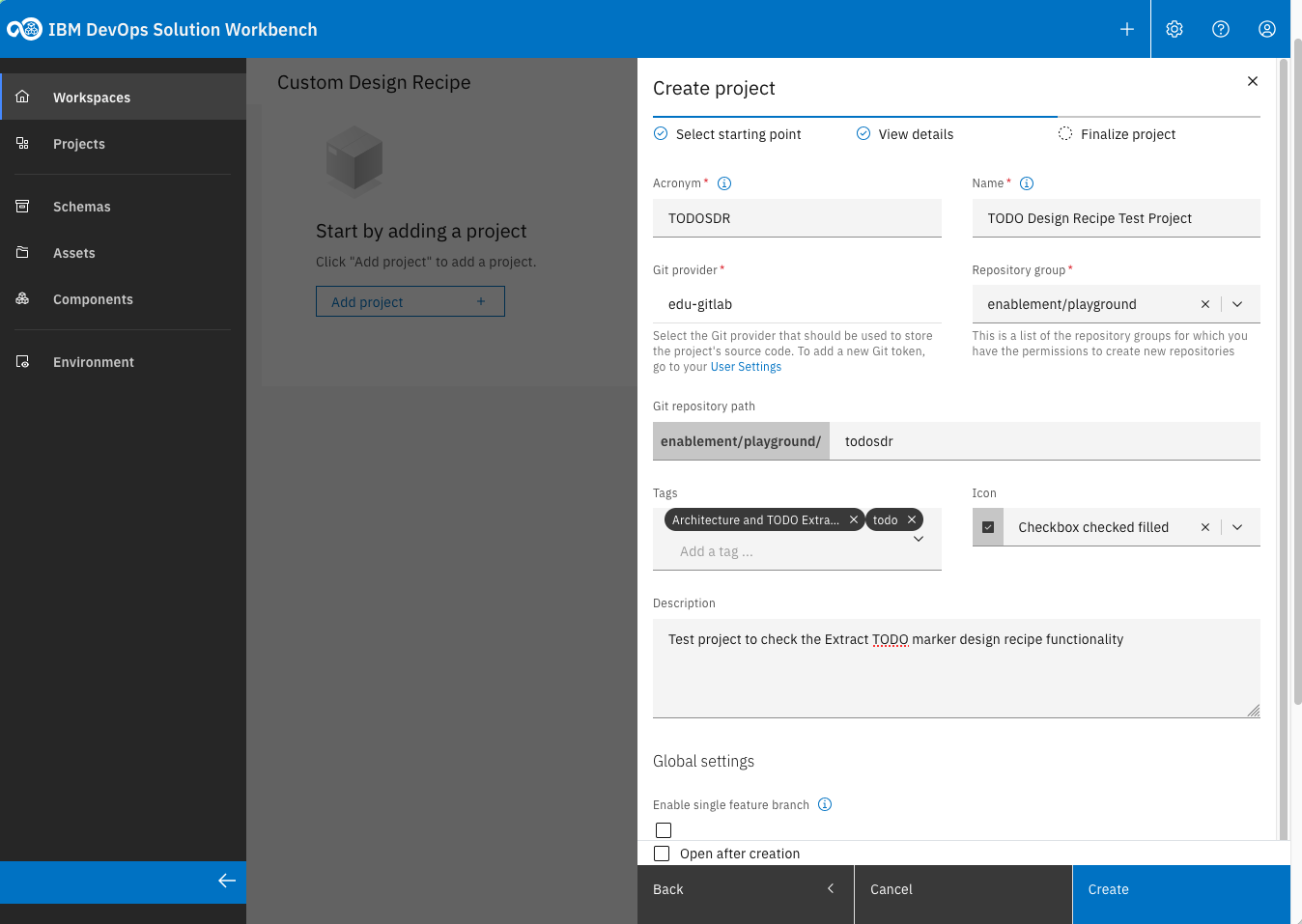
Set some base properties of your new project
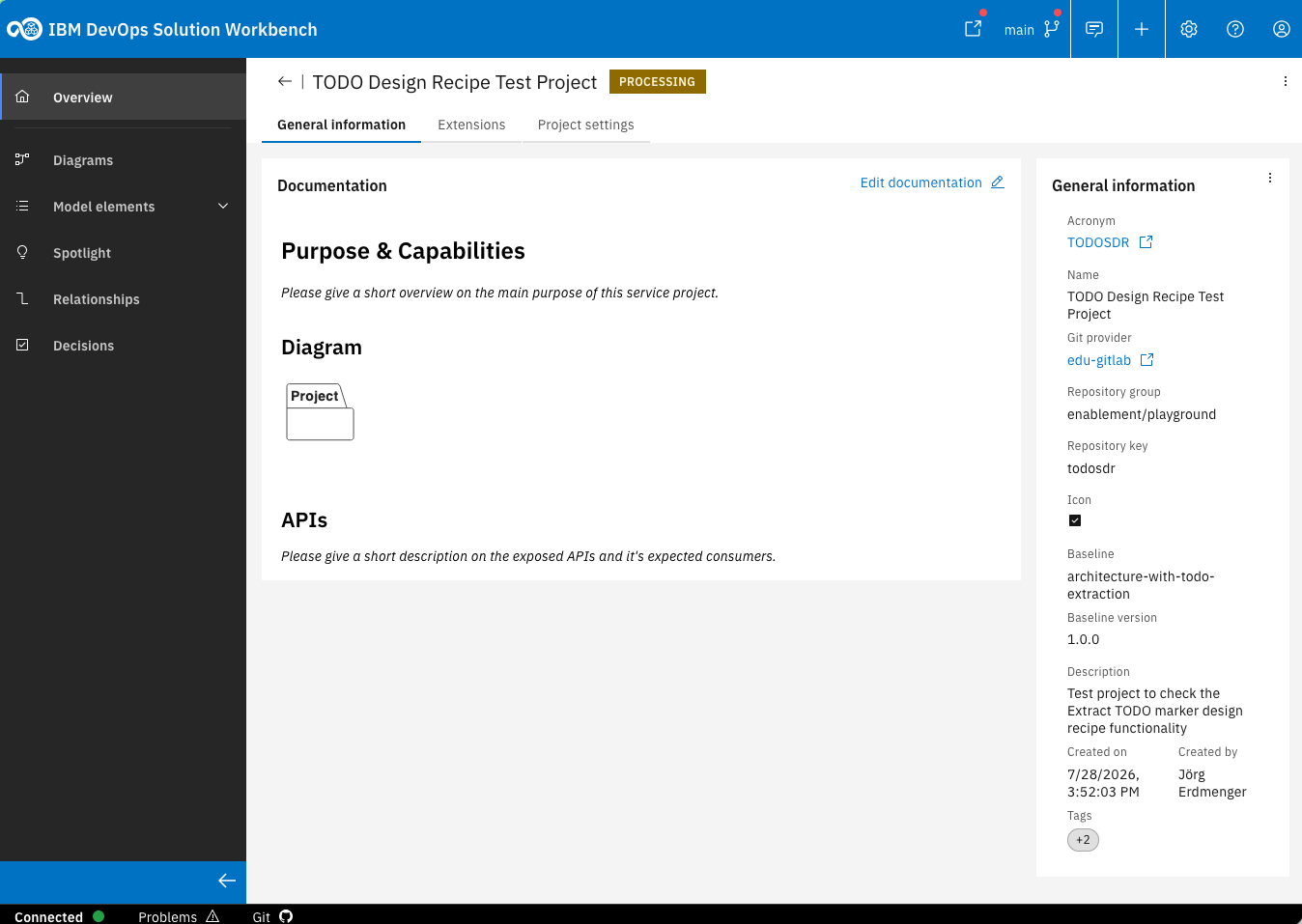
Open your new project
Depending on the setup of your workbench instance and git provider, the default branch (usually 'main' or 'master') might be write protected (as indicated by a lock icon next to the branch name). If that is the case, you need to create a new branch and switch to it in order to be able to make changes to the project.
6. Use the new commands and skills to extract your own TODO markers
Test out the new design assistant capabilities by creating a model and diagram and have the design assistant extract your TODO markers.
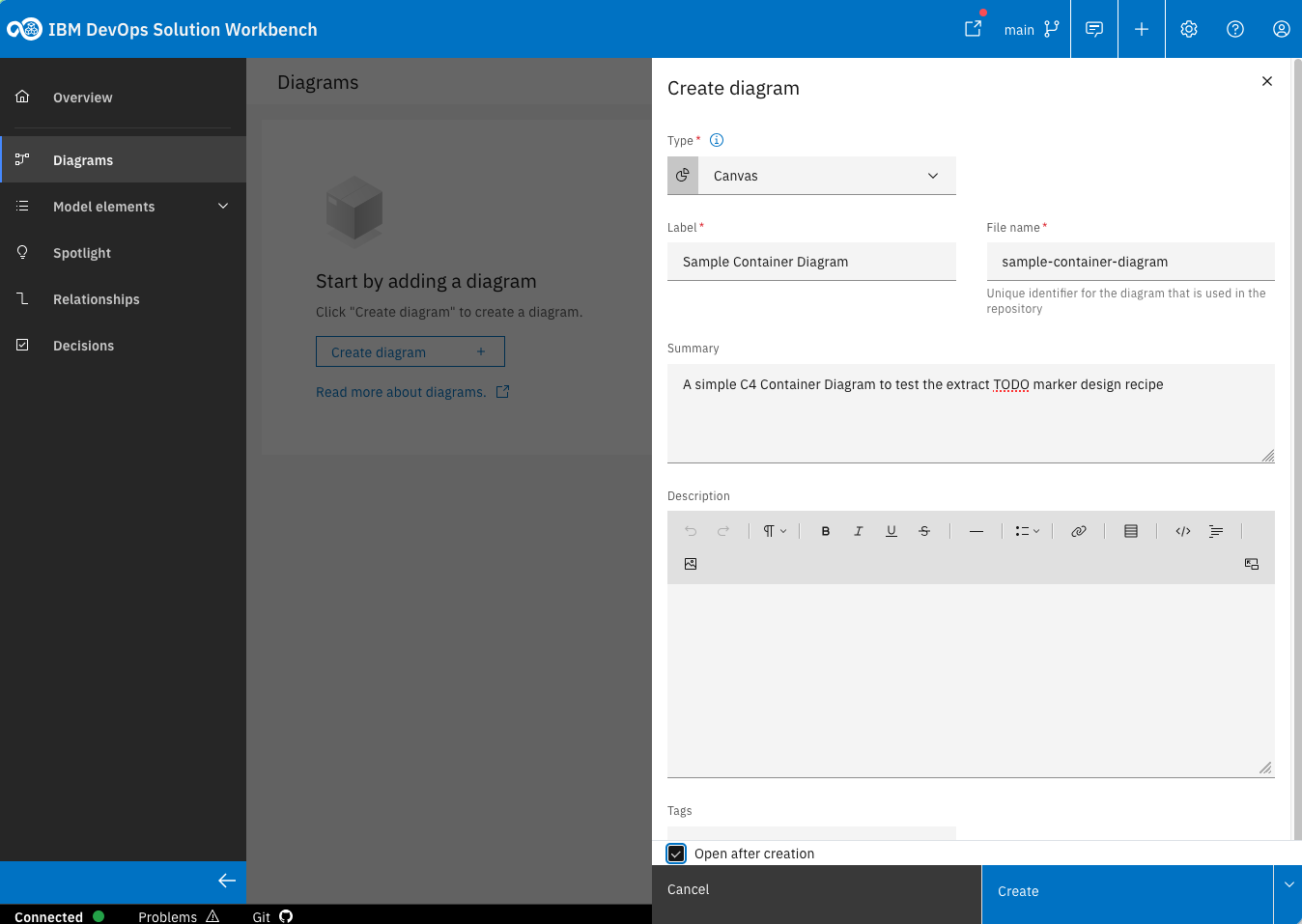
In your project create a new diagram and set some basic properties
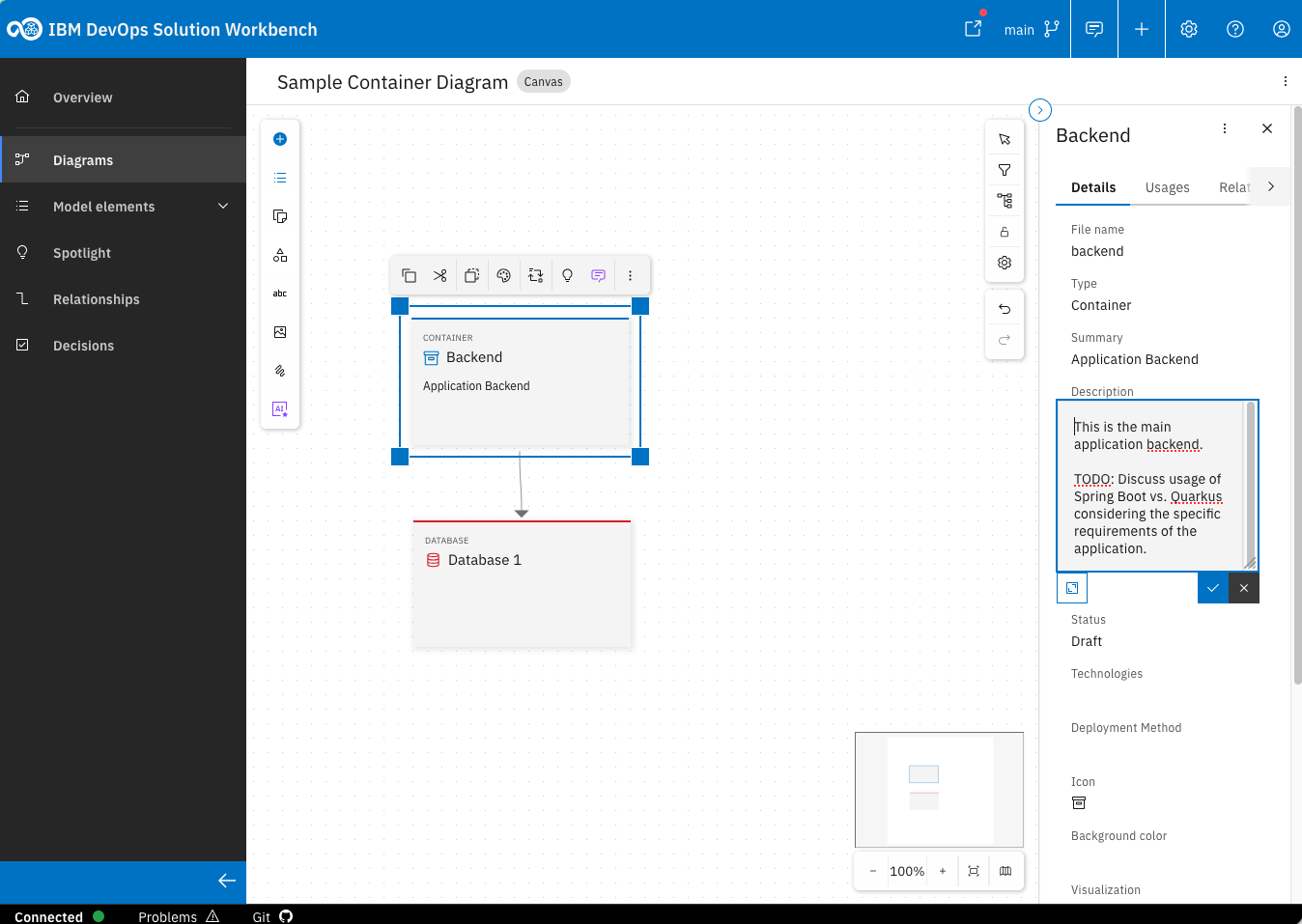
In the diagram create a container and a database, link them and set the description of the container called backend
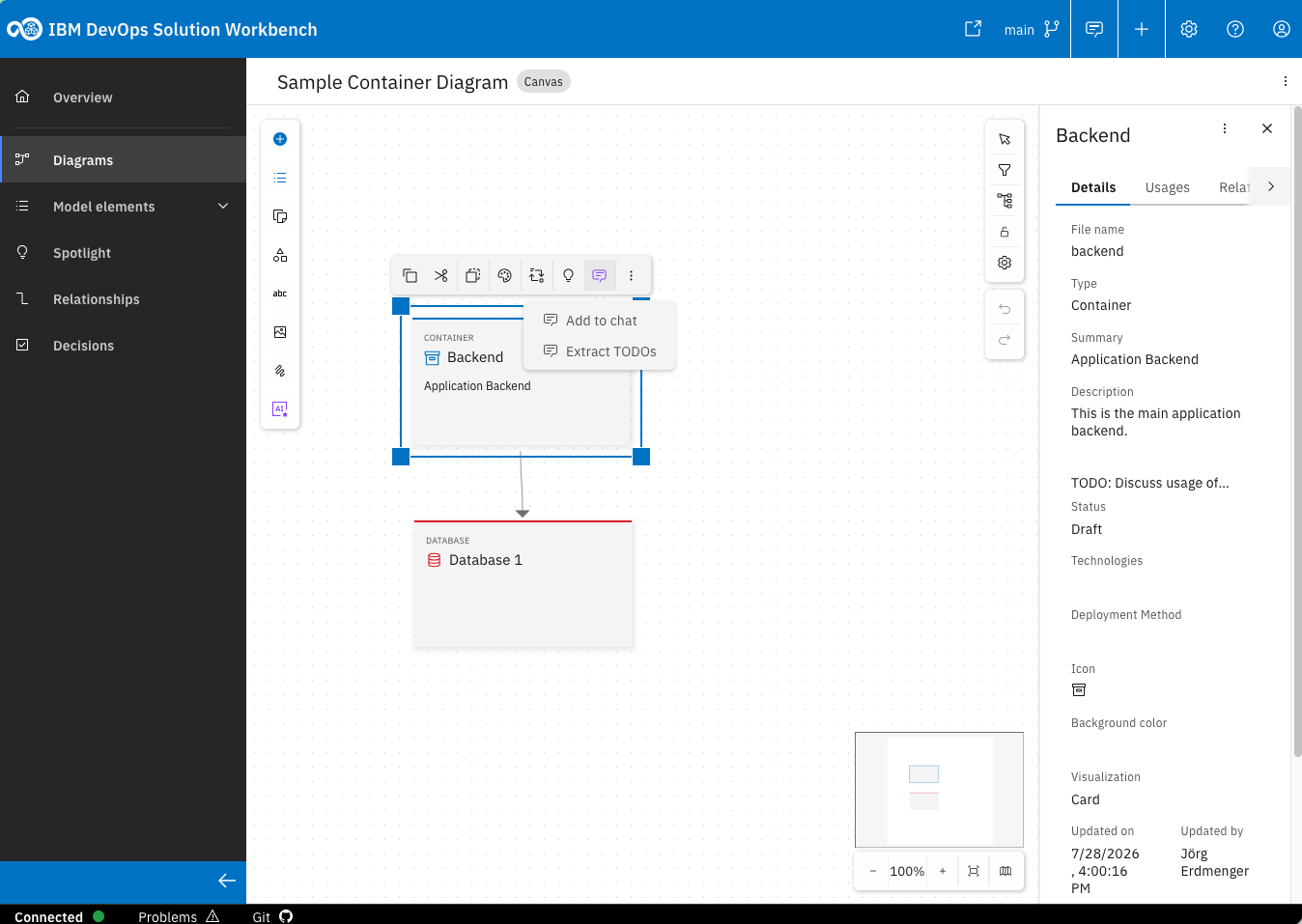
Choose the Extract TODOs command from the purple element context menu to prompt the design assistent
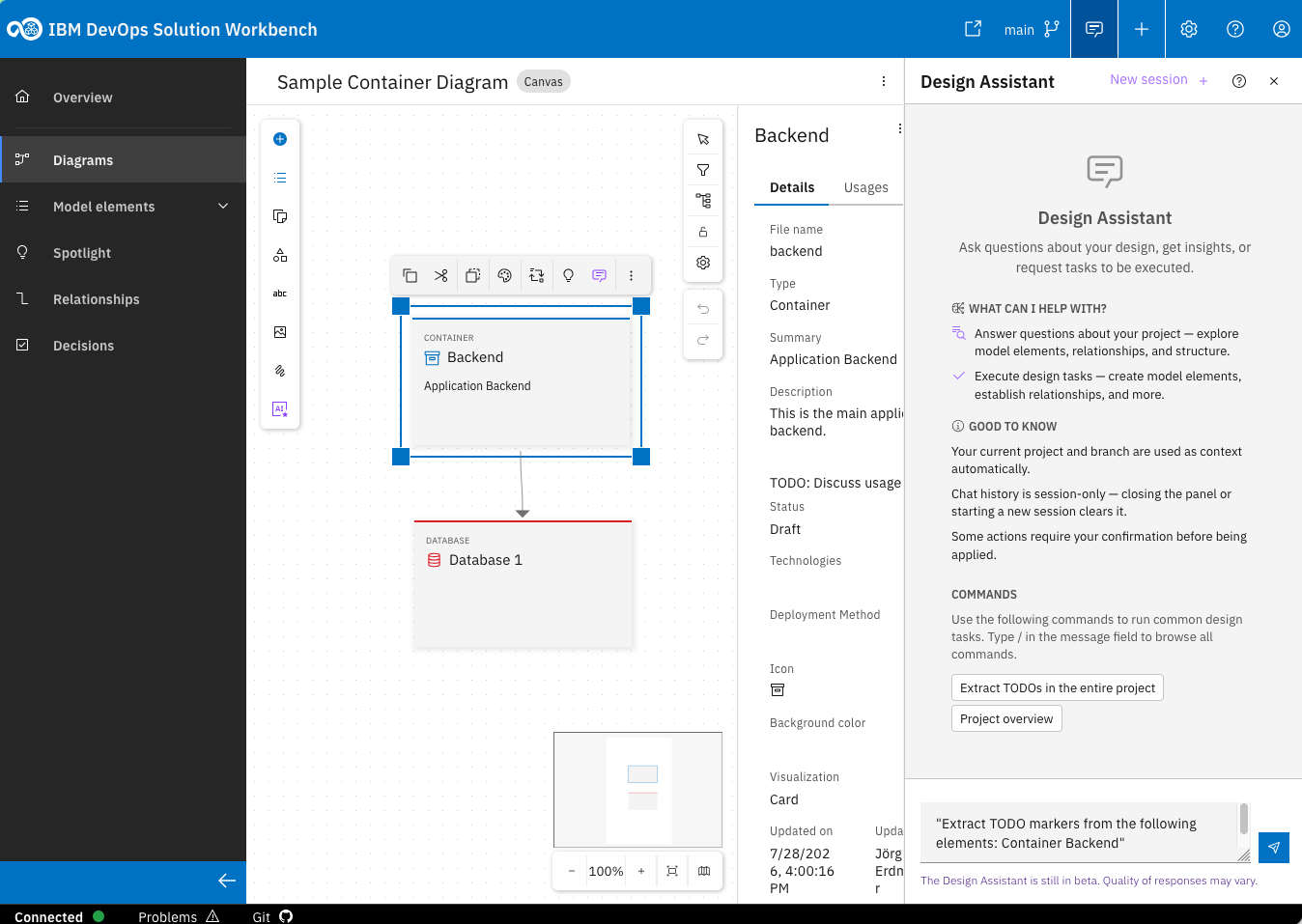
Review the prompt and send the design assistant to work
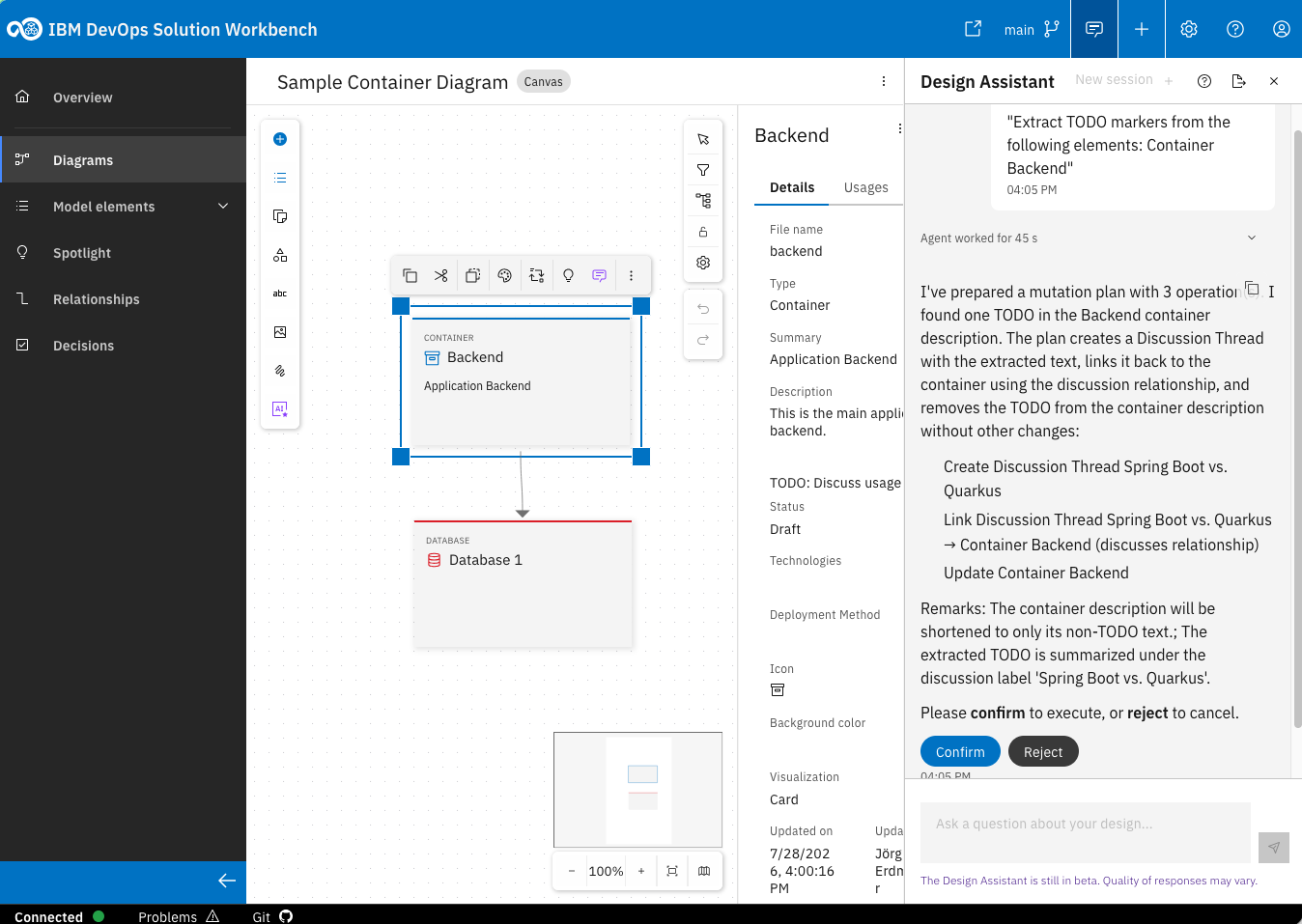
Review and confirm the plan of the design assistant
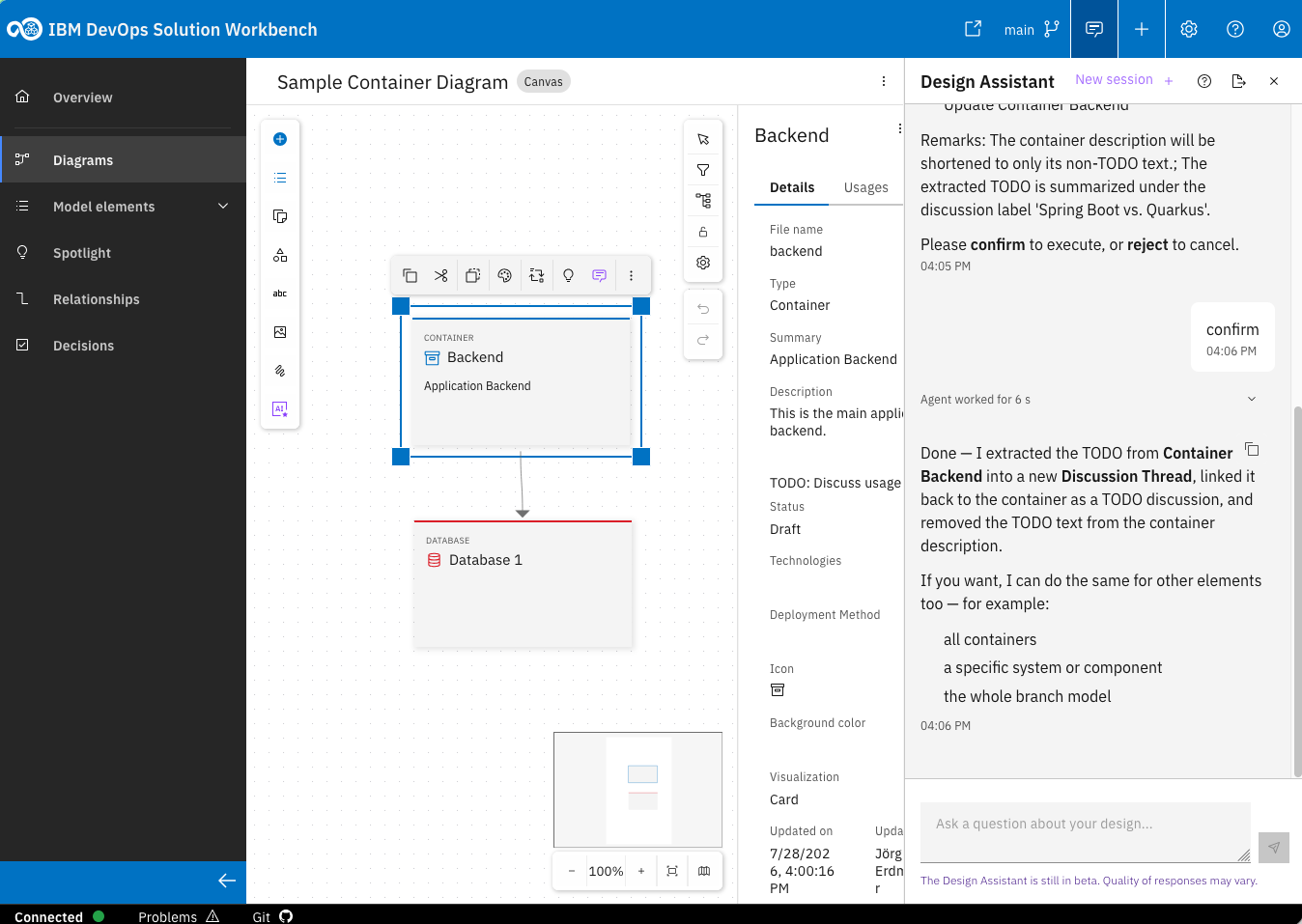
Success!
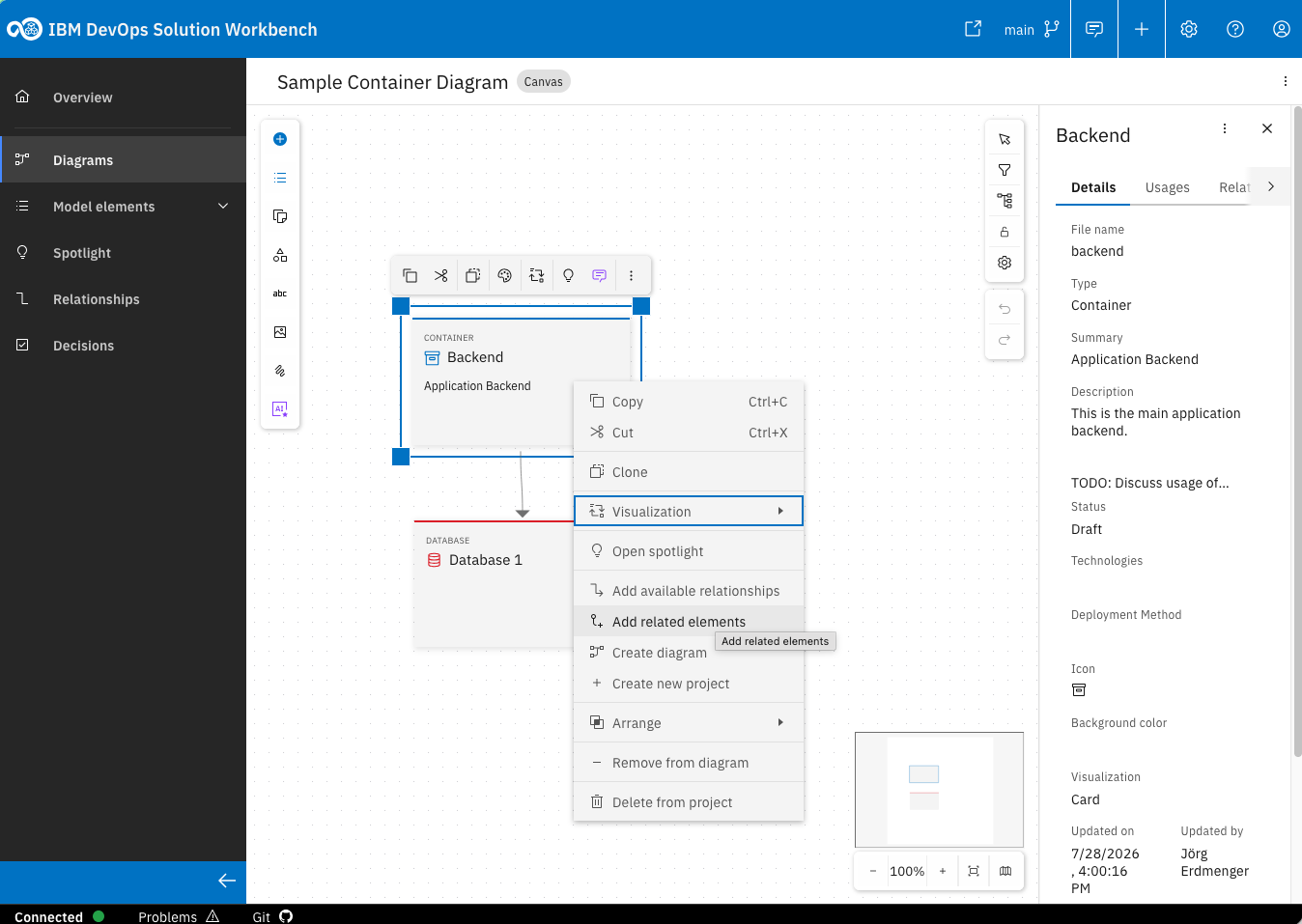
From the context menu of the "Backend" container model element choose "Add related elements"
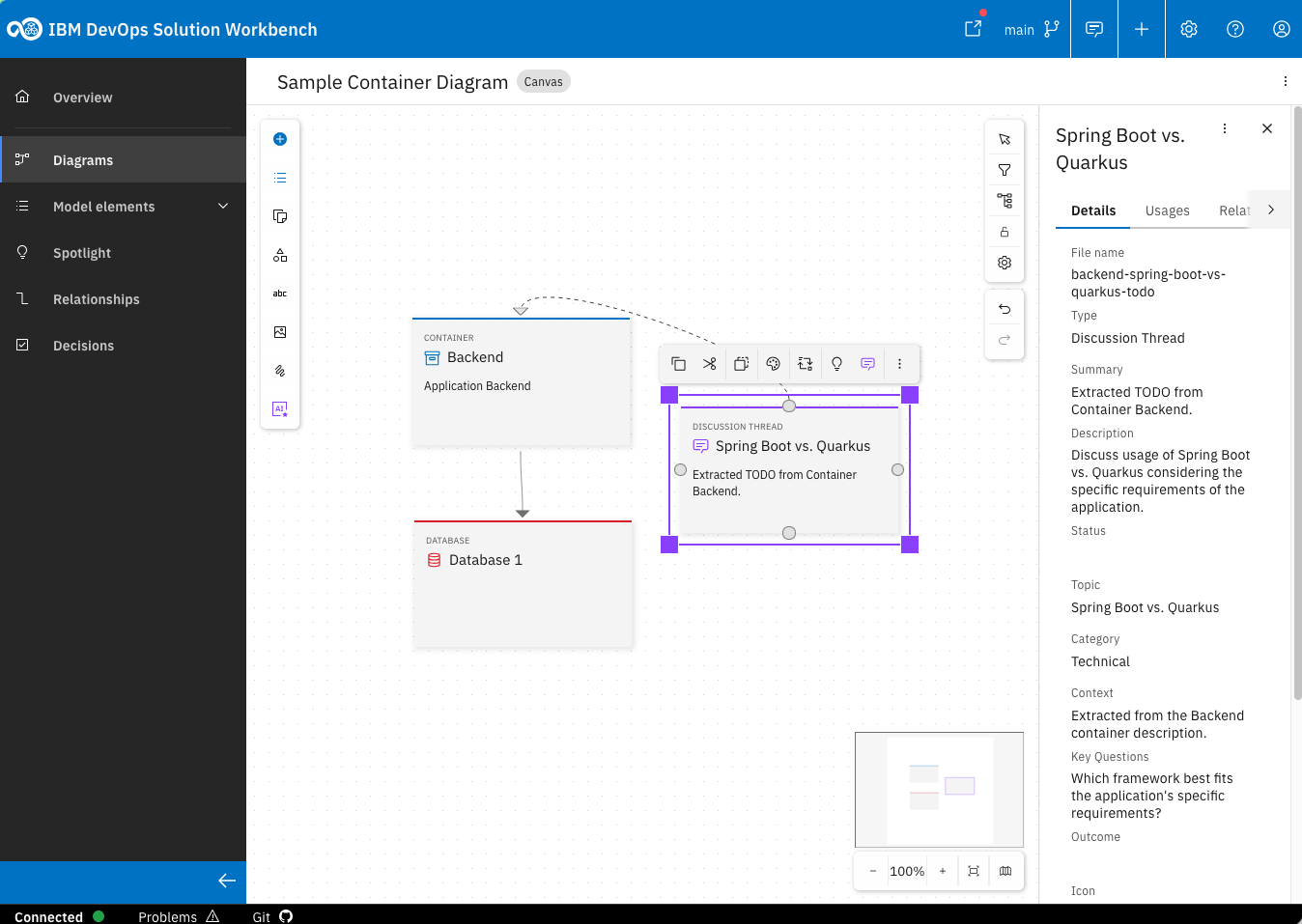
Review the newly created Discussion Thread element with the properties that the design assistant set
You have successfully created and tested a custom design recipe.