Configure IBM Bob for reverse engineering with Workbench MCP server
You want to reverse engineer an existing codebase with IBM DevOps Solution Workbench using IBM Bob following instructions in Turn Existing Code into a Design Model and need to setup communications with the Modelling Support MCP server.
Description
This how-to will teach you how to setup IBM Bob with a static authentication token and how to obtain such a token.
IBM Bob currently - July 2026 - supports only static tokens for authenticating with the Modelling Support MCP server of IBM DevOps Solution Workbench. This might change in the future so keep an eye on the IBM Bob release notes! Maybe there is support for a more dynamic authentication configuration.
Preconditions
- You have installed IBM Bob.
- You have a project created using IBM DevOps Solution Workbench
Steps
Obtain a token
Secure access to the Workbench is provided courtesy of cryptographically signed JWT tokens. In order to use the Modelling Support MCP server built into Workbench, IBM Bob also needs to be configured with such a token. A token can be obtained in multiple ways and we will be showing a selection of methods for obtaining a token in the following section. Choose one to your liking and copy the token obtained for use in the next step.
Copy the token used in your browser session [option 1]
Login to Solution Designer. Once you are logged in, open the browser's developer tools by either
- pressing F12 (on Windows or Linux) or Cmd+Option+I (MacOS)
- Right Clicking anywhere in your browser window and choose
Inspectfrom the context menu
The Workbench URL will be different if you are working with your own instance of IBM DevOps Solution Workbench
In the developer tools find the tab named Storage (Firefox) or Application (Chrome based browsers) and in the tab, navigate to Session Storage which will have one entry for the URL you are currently on and select the key starting with oidc.user:
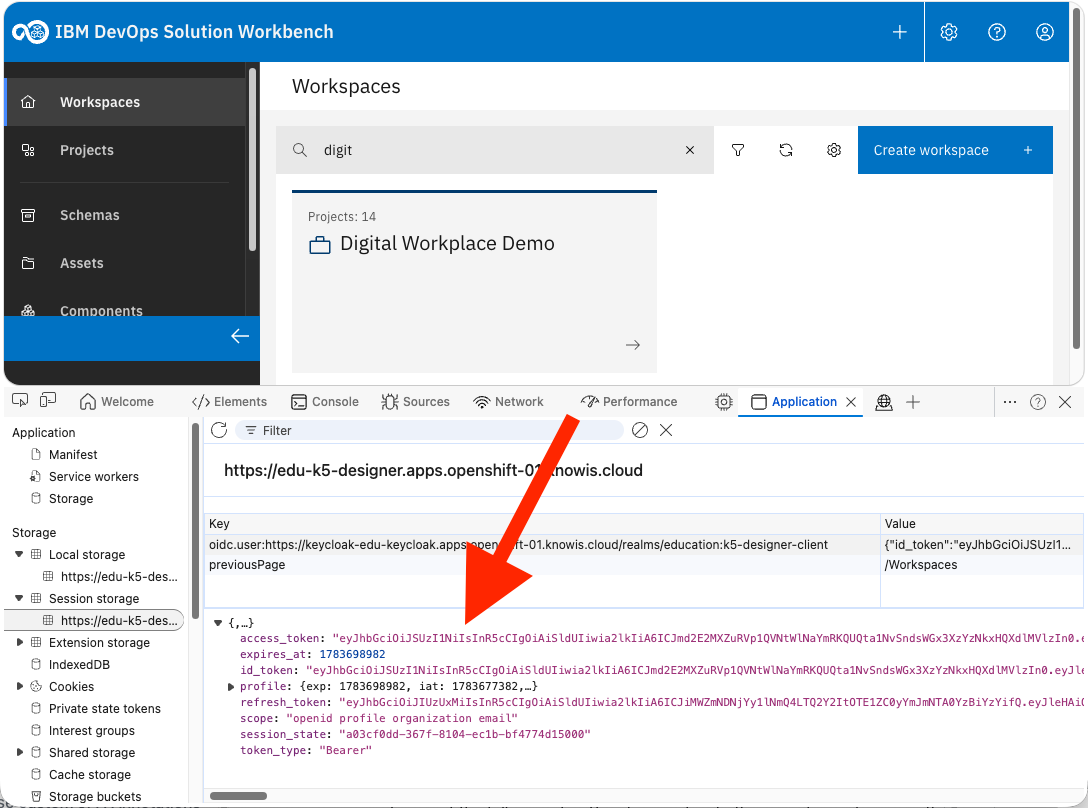
From the shown value right-click the part that is called access_token and choose Copy value
Copy the token used in your browser session [option 2]
Follow the same steps as above to open the browser developer tools. Once developer tools are open, find the Console tab and paste one of the following JavaScript snippets into the console, confirming with Enter:
Simple version, prints out the value of access_token from session storage if found
for (let i = 0; i < sessionStorage.length; i++) {
  let key = sessionStorage.key(i);
  if (key.indexOf("oidc.user:") > -1) {
    let token = JSON.parse(sessionStorage.getItem(key)).access_token;
    console.log(token);
    break;
  }
}
More advanced version, registers a shortcut key (Ctrl+Shift+C) that when pressed while working in Workbench will fetch the access_token value and copy it to the clipboard
(() => {
  const HOTKEY = { key: "c", ctrlKey: true, shiftKey: true, altKey: false }; // Ctrl+Shift+C

  // Remove a previously registered handler if you re-paste this snippet
  if (window.__sessionCopyHandler) {
    document.removeEventListener("keydown", window.__sessionCopyHandler);
  }

  window.__sessionCopyHandler = async (e) => {
    if (
      e.key.toLowerCase() !== HOTKEY.key ||
      e.ctrlKey !== HOTKEY.ctrlKey ||
      e.shiftKey !== HOTKEY.shiftKey ||
      e.altKey !== HOTKEY.altKey
    ) {
      return;
    }

    e.preventDefault();

    let key = '';
    let token = '';
    for (let i = 0; i < sessionStorage.length; i++) {
      let k = sessionStorage.key(i);
      if (k.indexOf("oidc.user:") > -1) {
        key = k;
        token = JSON.parse(sessionStorage.getItem(key)).access_token;
        console.log(token);
        break;
      }
    }

    try {
      await navigator.clipboard.writeText(token);
      console.log(`Copied sessionStorage["${key}"] to clipboard:`, token);
    } catch (err) {
      console.error("Clipboard write failed:", err);
    }
  };

  document.addEventListener("keydown", window.__sessionCopyHandler);
  console.log(
    `Handler registered. Focus the page and press Ctrl+Shift+C to copy the access_token value.`
  );
})();
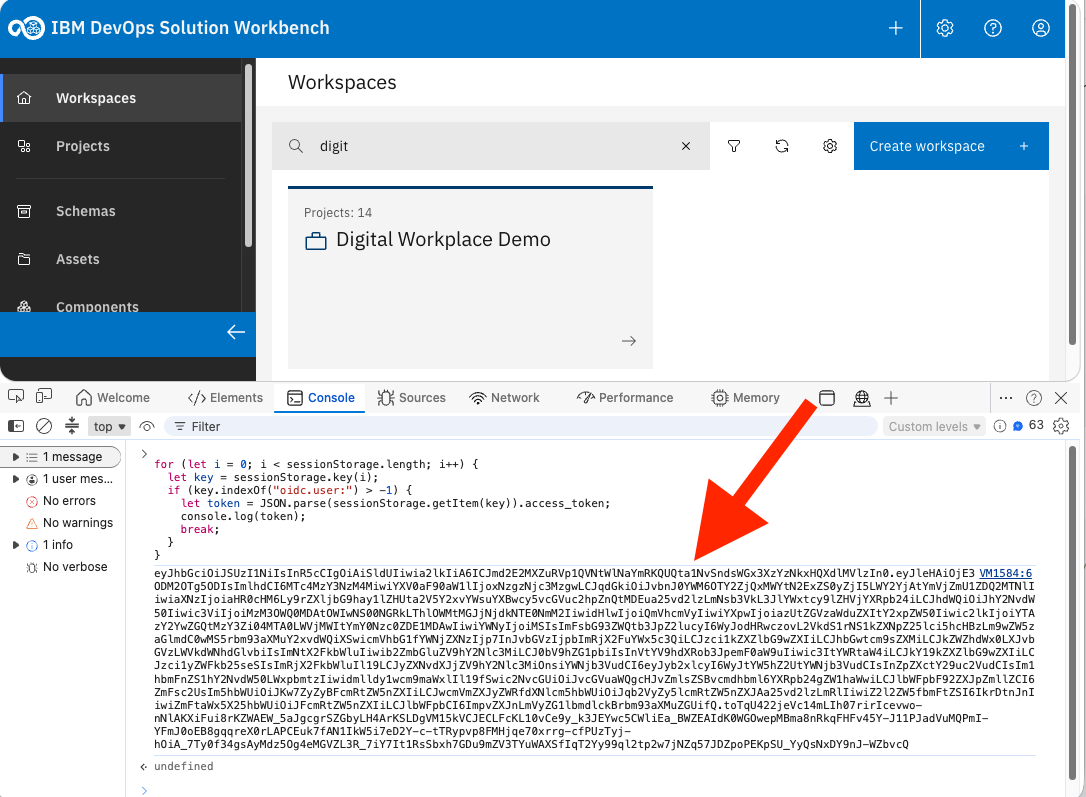
Obtain a token from the keycloak IDP token endpoint
If your instance of IBM DevOps Solution Workbench is using Keycloak for authentication (the trial environment is) you can also obtain the token by directly calling a Keylcoak API using e.g. curl. The call returns a token in exchange for your username and password. This is the curl sample for this call, which you can run in a MacOS or Linux Terminal or in a Windows WSL terminal or powershell window.
If you get errors like command not found or similar you have to install curl first.
curl --request POST \
  --url https://{{ YOUR_KEYCLOAK_URL}}/realms/{{ YOUR REALM }}/protocol/openid-connect/token \
  --header 'content-type: application/x-www-form-urlencoded' \
  --data grant_type=password \
  --data username={{ YOUR_USERNAME }} \
  --data password={{ YOUR_PASSWORD}} \
  --data scope=openid \
  --data client_id=k5-designer-client
Alternatively you can make these calls from an API tool like Bruno or Postman.
No matter which method you choose, you should end up with a token value, which is a long sequence of characters starting with eyJ.... Take a note of this value as you will need that in the next step.
If you are curious and want to peek inside the token you can do that by e.g. pasting the token value into a tool like jwt.io. This will decrypt the token and display the information contained in the token in readable format. It will look something like this:
{
  "exp": 1783630518,
  "iat": 1783608918,
  "auth_time": 1783608916,
  "jti": "onrtac:8902662a-...",
  "iss": "https://keycloak.acme.tld/realms/workbench",
  "aud": "account",
  "sub": "3379d400-...",
  "typ": "Bearer",
  "azp": "k5-designer-client",
  "sid": "7ba5acc2-...",
  "acr": "1",
  "allowed-origins": [
    "https://designer.acme.tld"
  ],
  "realm_access": {
    "roles": [
      "dc_analyst",
      "sr-developer",
      "dc_developer",
      "sr-readonly",
    ]
  },
  "resource_access": {
    "account": {
      "roles": [
        "manage-account",
        "view-consent",
        "manage-account-links",
        "view-profile"
      ]
    }
  },
  "scope": "openid profile organization email",
  "email_verified": false,
  "name": "John Doe",
  "preferred_username": "john.doe@email.com",
  "given_name": "John",
  "family_name": "Doe",
  "email": "john.doe@email.com"
}
Configure Modelling Support MCP server in IBM Bob
To have IBM Bob work with MCP servers you need to configure them globally or on a per project basis as described in Using MCP in Bob. Here we'll configure Modelling Support MCP server for a single project by providing the following json configuration file:
# {PROJECT_PATH}/.bob/mcp.json
{
  "mcpServers": {
    "my-design-server": {
      "url": "https://{DESIGN_URL}/diagram/mcp",
      "type": "streamable-http",
      "headers": {
        "Authorization": "Bearer {YOUR_TOKEN}"
      }
    }
  }
}
The value for DESIGN_URL you can just copy from your browser's location bar when you are logged in to Workbench. The value for YOUR_TOKEN is what you obtained in the previous step. Once you have created above configuration file, IBM Bob should pick up the MCP server and you should see an entry of the configured MCP server in the MCP section of the Settings pane of IBM Bob.
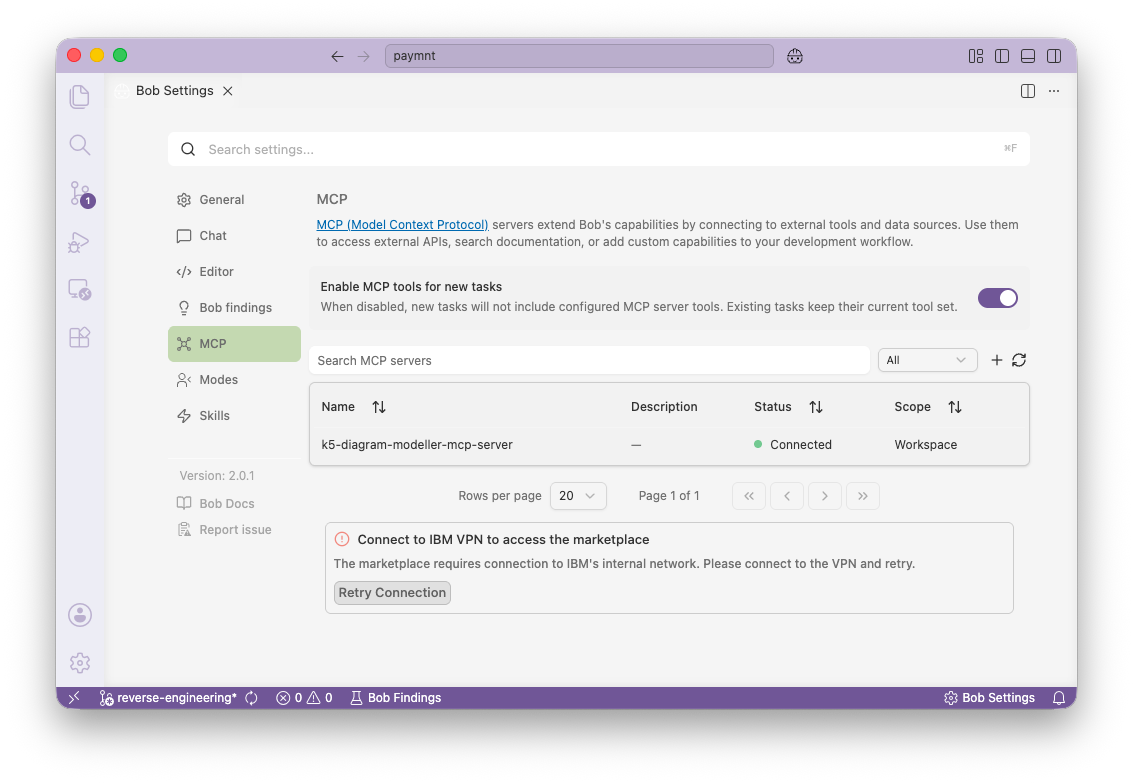
You can click on the entry called k5-diagram-modeller-mcp-server and this will show you the tools and prompts provided by this MCP server.
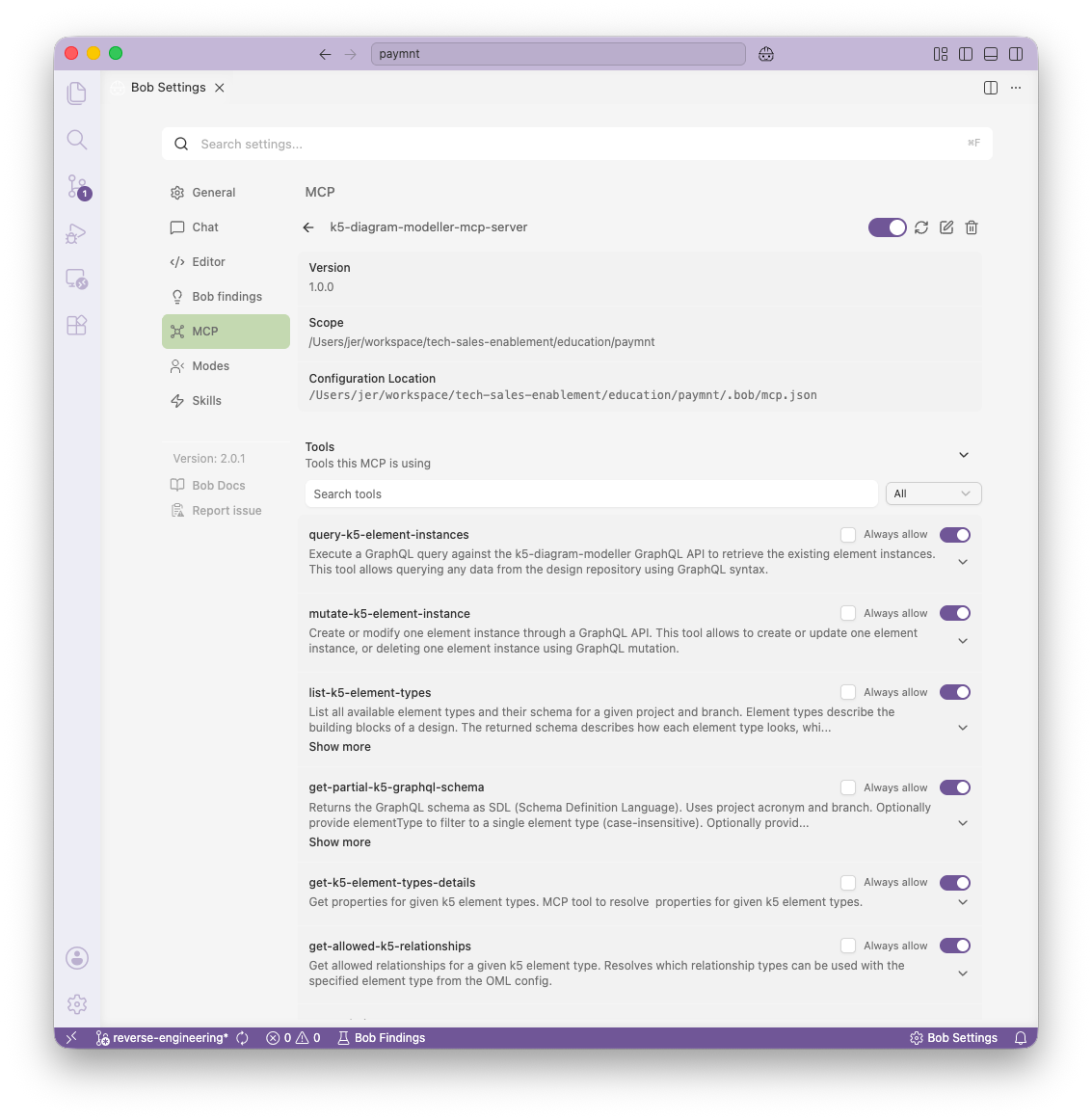
Try out what you can do with the Modelling Support MCP server by following Turn Existing Code into a Design Model.
Those tokens expire and as a result stop working. In that case you need to acquire a new token and modify your MCP configuration. Validity durations of token vary from instance to instance. In the case of the trial environment, token validity is set to 6h to allow for convenience when experimenting with the Modelling Support MCP server. In more security constrained environments these durations might be a lot shorter. You can ask your operations team to extends those times or even configure a different so called oauth client just for use with the MCP server but the precise instructions on how to do that are outside of the scope of this how-to.
You now have a working MCP configuration and can start letting your coding agent cooperate with IBM DevOps Solution Workbench.