Turn Existing Code into a Design Model
Before you start
Estimated time: 15-20 minutes
What you need: Access to our trial environment.
About your trial environment
Your trial environment includes everything you need to get started: a dedicated, isolated tenant in the IBM DevOps Solution Workbench, and a GitLab instance with repositories for all your projects - including our reference application Roboflow ready for you to explore.
You bring your own IDE and coding assistant — whatever you normally use. In our screenshots throughout these trials we use Visual Studio Code with GitHub Copilot.
Solution Designer
The Solution Designer is your main workspace in Workbench. This is where architecture is modelled,
design decisions are captured, and structured context is created for your coding assistant.
Your trial comes with a dedicated, isolated tenant. Log in using the credentials from your trial onboarding email.
GitLab
Every project in the Solution Designer is backed by a Git repository in your trial's dedicated GitLab group. Throughout the trial, you usually access GitLab repositories
through the Solution Designer since URLs are specific to your tenant.
To find the Repository URL for any project:
- Open the project in the Solution Designer
- On the Overview page that opens, you'll find "General Information" on the right hand side.
- The link under "Acronym" takes you directly to the GitLab repository for that project.
- Log into GitLab using the "Keycloak" button.
Cloning a project to work in your own IDE requires a Personal Access Token (PAT). To create one:
- Log into your Trial GitLab (using the Keycloak button)
- Click your profile icon in the upper right corner and select Preferences
- Go to Access → Personal Access Tokens
- Create a token with
read_repository,write_repositoryandapiscope
Cloning a project
To clone a project, you can either use the "Code" button in the GitLab UI and copy the "Clone with HTTPS" URL or you can copy the URL directly from the Solution Designer project page. To do this:
- Open the project in the Solution Designer
- Expand the footer bar that says "Git"
- Copy the URL
In both cases, use a terminal and run git clone <URL> -b <optional-branch-name> and use your username and the created PAT as the password when prompted.
Cloning via SSH is disabled in the trial environment for security reasons.
RoboFlow
Your trial environment comes preloaded with RoboFlow — a fictional B2B webshop for robotics parts that serves as the reference
application across all trial experiences. Its services are already designed and documented in the Solution Designer, ready for you to explore and build on.
You are working with the Payment Service of the Roboflow reference application — a B2B webshop for robotics parts. If you are new to the scenario or want a quick overview of the system and its services, expand the section below.
About the RoboFlow reference application
The RoboFlow reference application
The trials in this section are built around RoboFlow — a fictional B2B webshop for robotics parts that serves as the reference application across all trial experiences. If you want to find out about RoboFlow's ambitions and requirements, you can head to the RoboFlow overview page for a quick introduction.
RoboFlow's system is composed of multiple microservices, each designed and documented in the Workbench. The starting point is an architecture project — a high-level view of the system that shows which services exist, how they relate, and what responsibilities they carry. RoboFlow's architecture is modelled using C4 notation, one of the modelling languages IBM DevOps Solution Workbench supports out of the box.
The diagram below is the Container Diagram (Level 2) of the RoboFlow system in the RoboFlow architecture project — one level below the overall system context (L1), showing the individual services and their relationships. You can also open it directly in the Workbench.
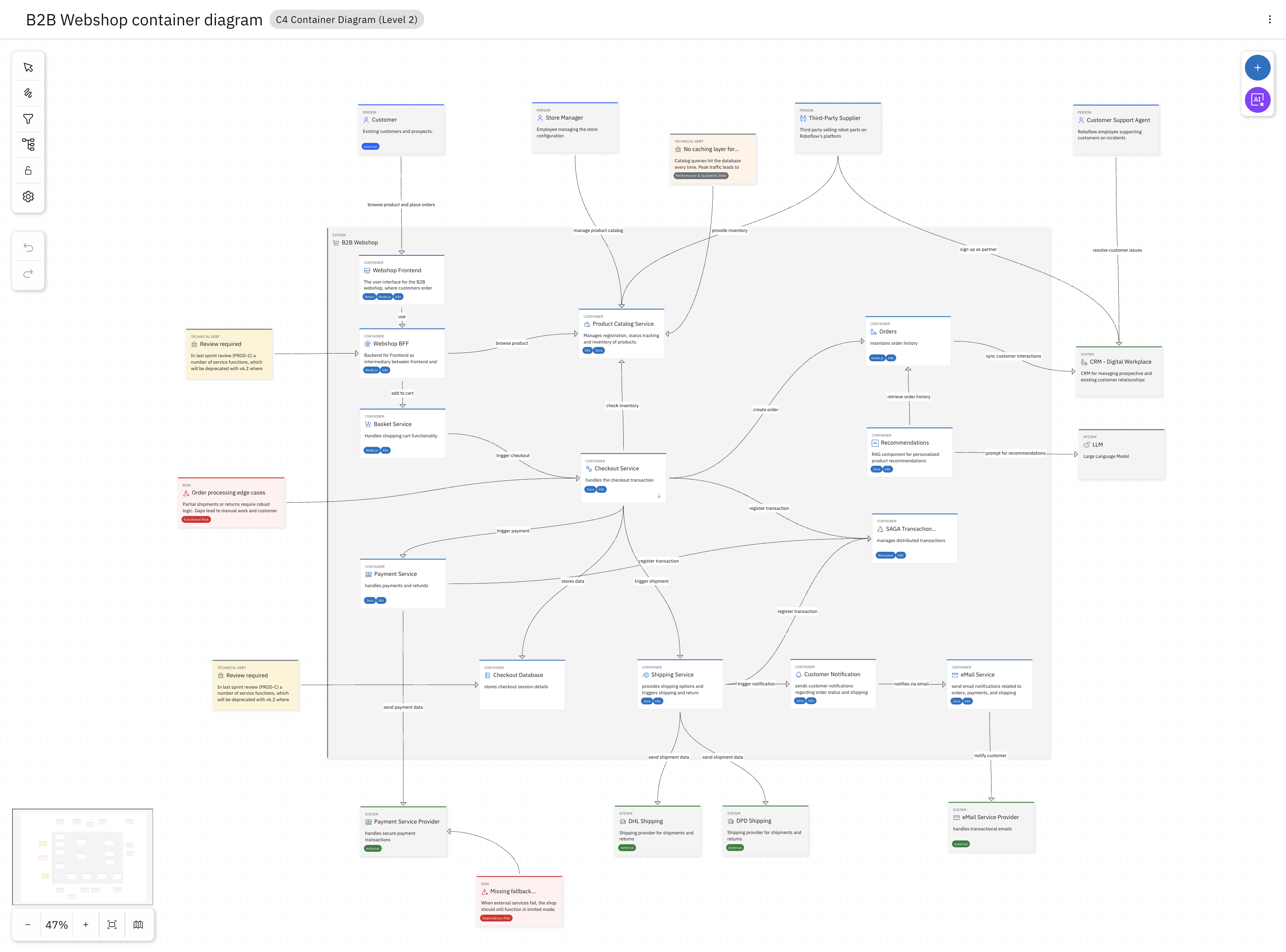
The system includes a WebShop Frontend, a Basket Service, a Checkout Service, a Payment Service, and others. Three services are central to the trials:
- Checkout Service — orchestrates the checkout flow, applies discounts, and initiates payment
- Payment Service — handles all payment processing and integrates with external payment providers
- Gift Card Service — manages gift card balances, validates voucher codes, and tracks redemptions
Each service usually has its own service project in the Workbench — a separate, more detailed specification that defines the service's boundaries, domain model, interfaces, and the architectural decisions that apply to it. This is where the real design work happens.
Explore a service
As an example, let's look at the Checkout Service.
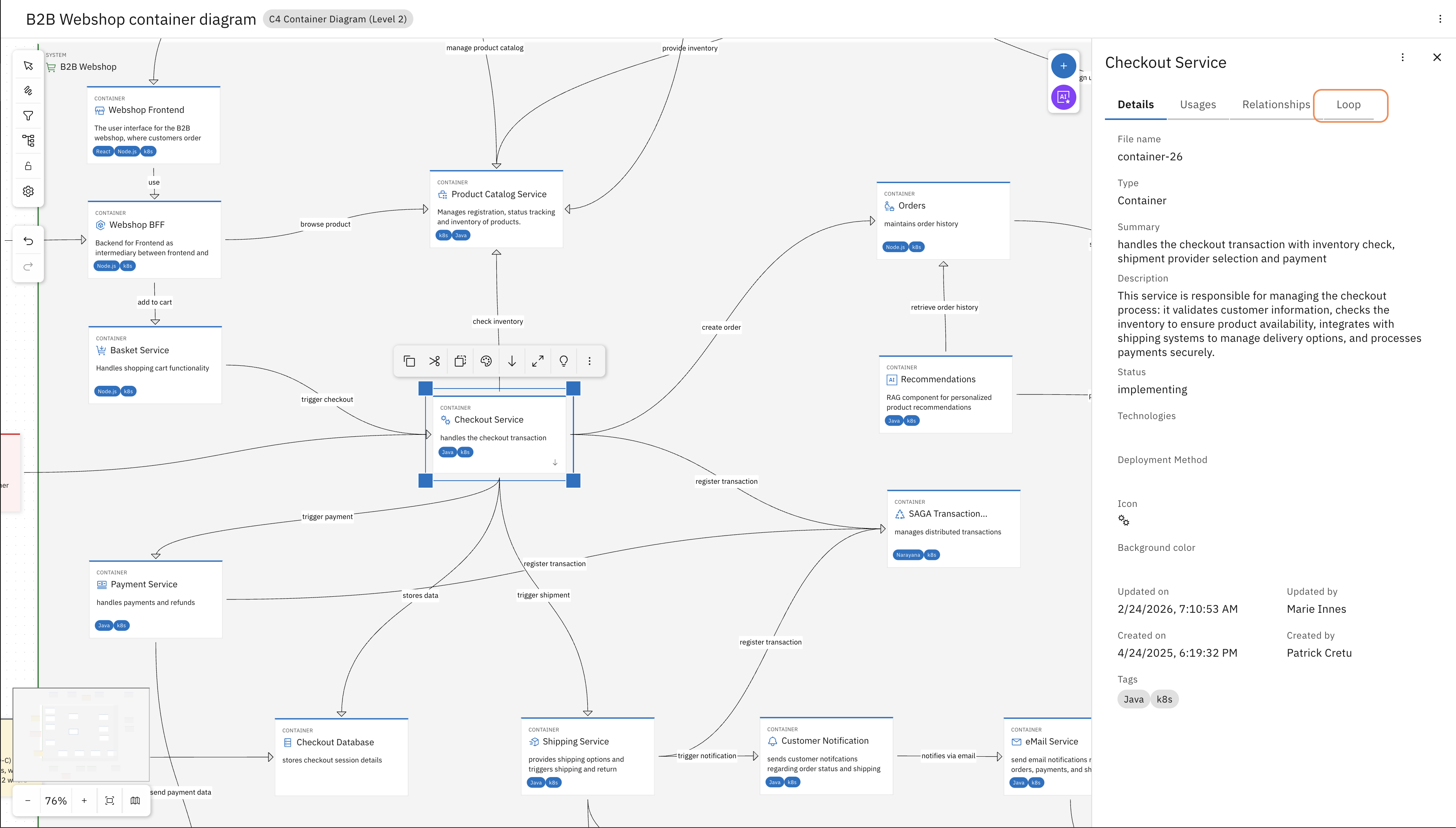
Select the Checkout Service on the L2 diagram and in the sidebar on the right (you might need to expand it) navigate to the Loop tab.
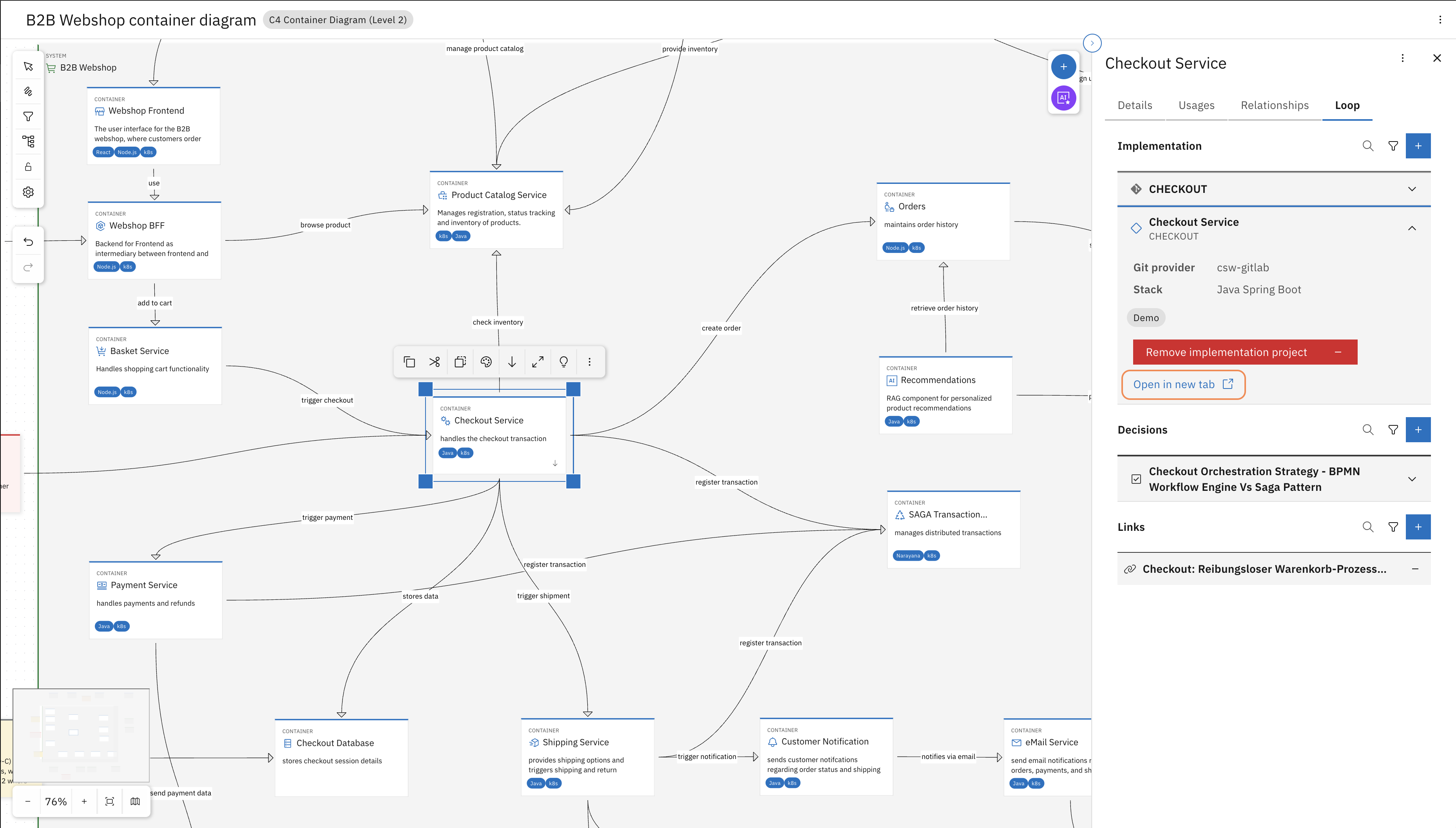
Find the Workbench project and "Open in new tab". This will open the service project where the design details of the Checkout Service are modelled and documented.
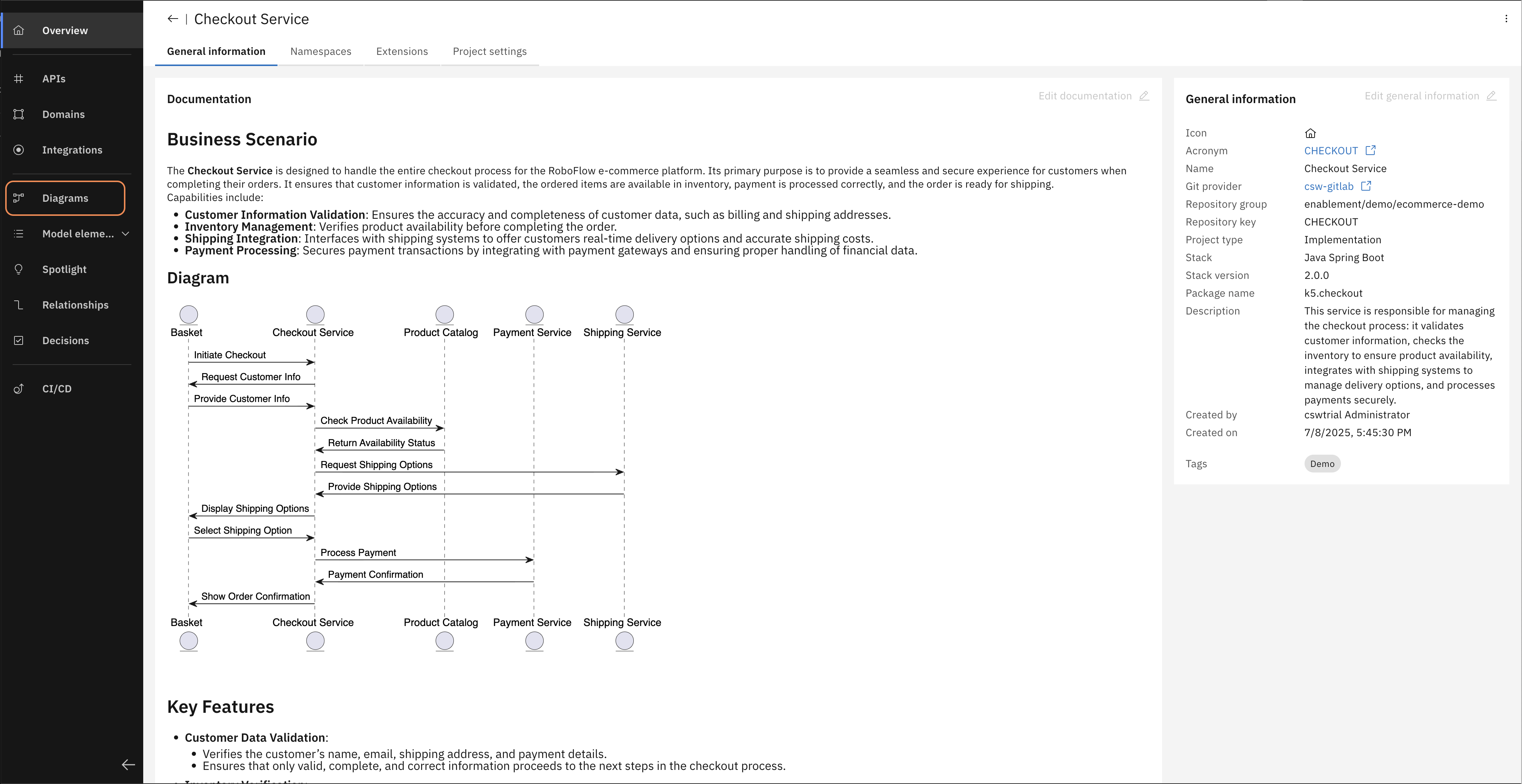
In the left navigation bar, open Diagrams and then open the "Checkout Service component diagram".
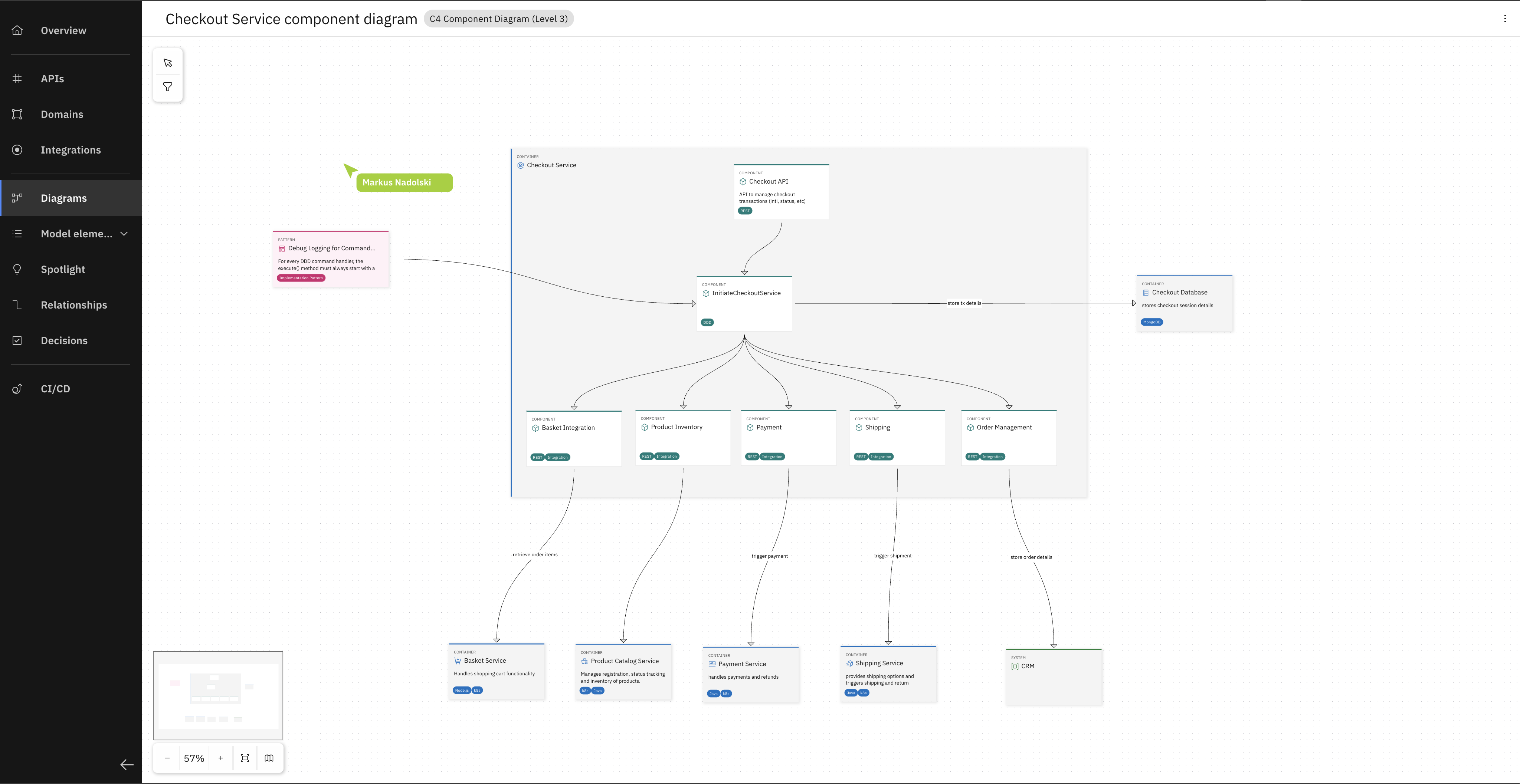
You can now explore the Component Diagram (Level 3 in the C4 model) of the Checkout Service.
In the RoboFlow system, the Payment Service handles all payment processing and talks to external payment providers. It exists as a working codebase with no design model attached yet.
From code to a design model
Most teams don't start from a blank slate. For our scenario, there's already a Payment Service running in production. It works. But over time nobody quite remembers what it really does anymore or how it's actually built. That makes adding functionality risky, hoping you won't break something you don't understand.
That's the normal starting point for most modernization work, and it's usually the first thing any modernization effort has to deal with: before you can redesign a system, you need a structural representation of what's actually there.
With Workbench's Reverse Engineering, you'll point the Workbench MCP agent at the Payment Service repository, let it analyze the code, and watch a design model emerge from what's actually there — the services, entities, and relationships the codebase already describes.
Once it's a model, it's something you can discuss, attach decisions to, and hand to a coding assistant directly. The alternative is letting the Coding Assistant keep inferring structure from the code — potentially accumulating technical debt with every assumption — or you would have to redesign the service from scratch: not a practical option when the system already exists.
That's what Reverse Engineering gives you: a structured model of the Payment Service as it actually exists today, ready to open in Workbench, explore, and build on.
What you'll do
In this trial you will:
- Connect the Workbench MCP server to your IDE
- Clone the Payment Service from your trial GitLab instance
- Run reverse engineering via the MCP agent
- Review the generated model elements in Workbench
- Create a diagram to visualise the service structure and relationships
Step 1 - Set up the Workbench MCP server
The reverse engineering capability is exposed through the Workbench MCP server. You need to connect it to your IDE before running the trial.
These steps only need to be done once. If you've already configured the MCP server in a previous trial, skip to Step 1.
The guide describes the steps for Visual Studio Code and Microsoft Copilot. If you are using another IDE or Coding Assistant the steps may vary - in case you are using IBM Bob, have a look at Configure IBM Bob for reverse engineering with Workbench MCP server.
- Create a
.vscode/mcp.jsonfile in your project workspace that holds the confguration of the MCP servers. - Add the following entry to the MCP configuration:
{
  "servers": {
    "my-design-server": {
      "url": "https://edu-k5-designer.apps.openshift-01.knowis.cloud/diagram/mcp",
      "type": "http",
      "oauth": {
        "clientId": "code-assistant-mcp"
      }
    }
  }
}
- Start the server by clicking on "Start" directly from the mcp.json file. This starts the authentication flow of the MCP server.
- Authenticate against Keycloak with your Workbench credentials.
Step 2 — Clone the Payment Service
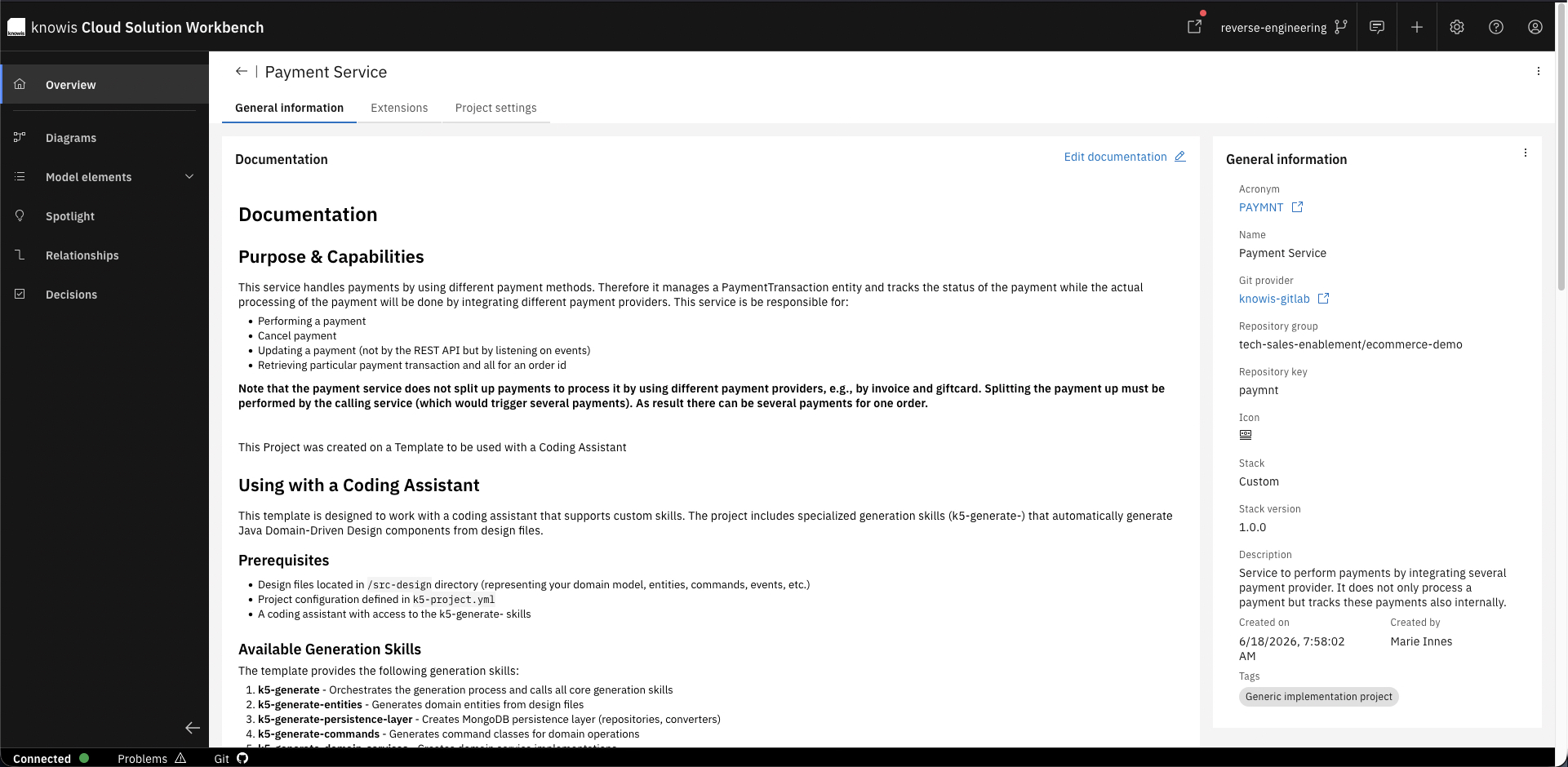
We will start with the Payment Service as it exists in the codebase today — a working service with no design model attached. To give you the correct entry point for your trial environment,
open the Payment Service in the Workbench.
This is where the model will live once reverse engineering is done — and where you'll review and visualize it.
Here you will find a link to the Gitlab repository where the service lives. We will have a closer look at the Solution Designer
later, but for now, just use the link in the "Git" footer to clone the reverse-engineering branch of the Payment Service to your local machine and open it in your IDE.
Here's how:
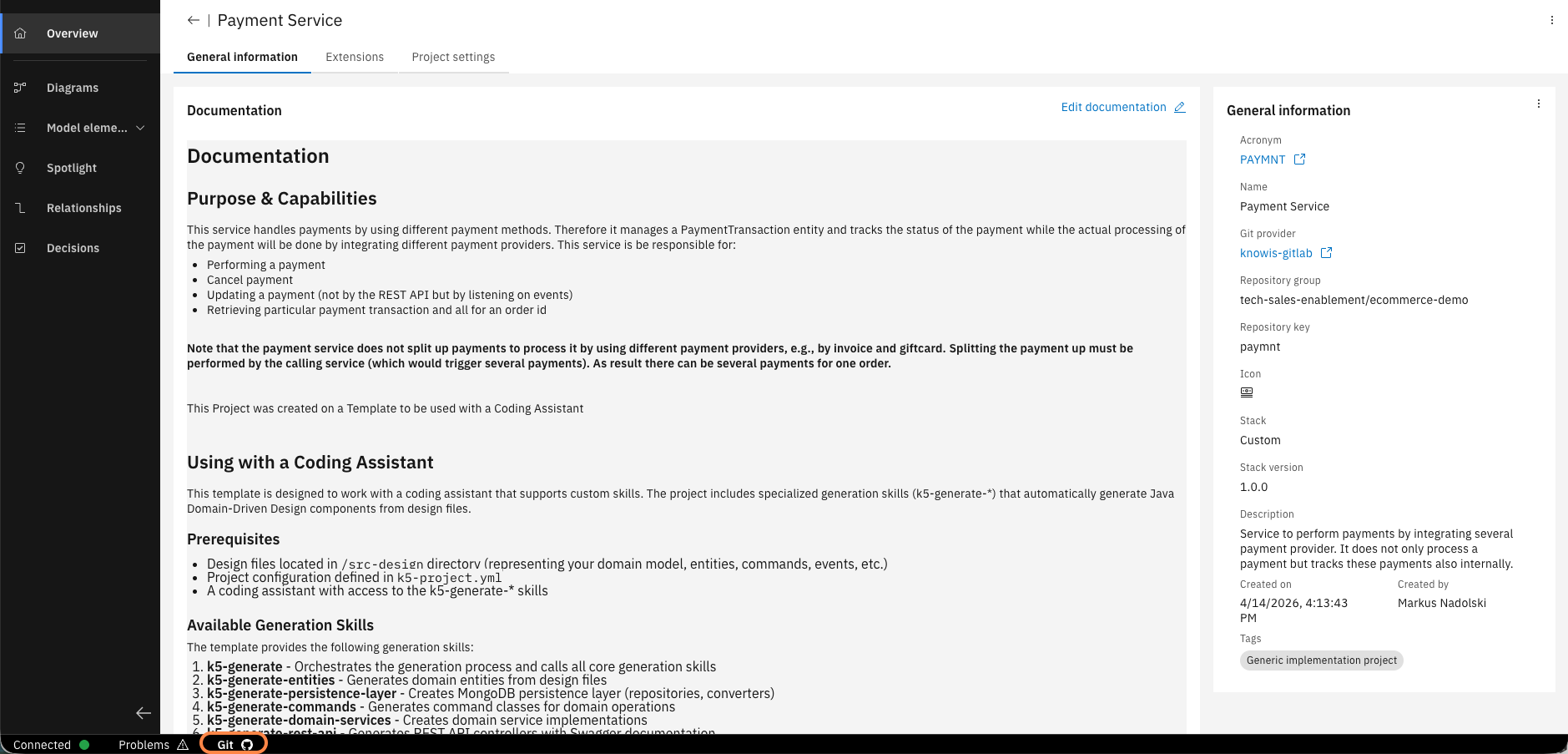
Open the Payment Service in the Solution Designer and retrieve the link of the Git repository of your trial instance in the "Git" footer.
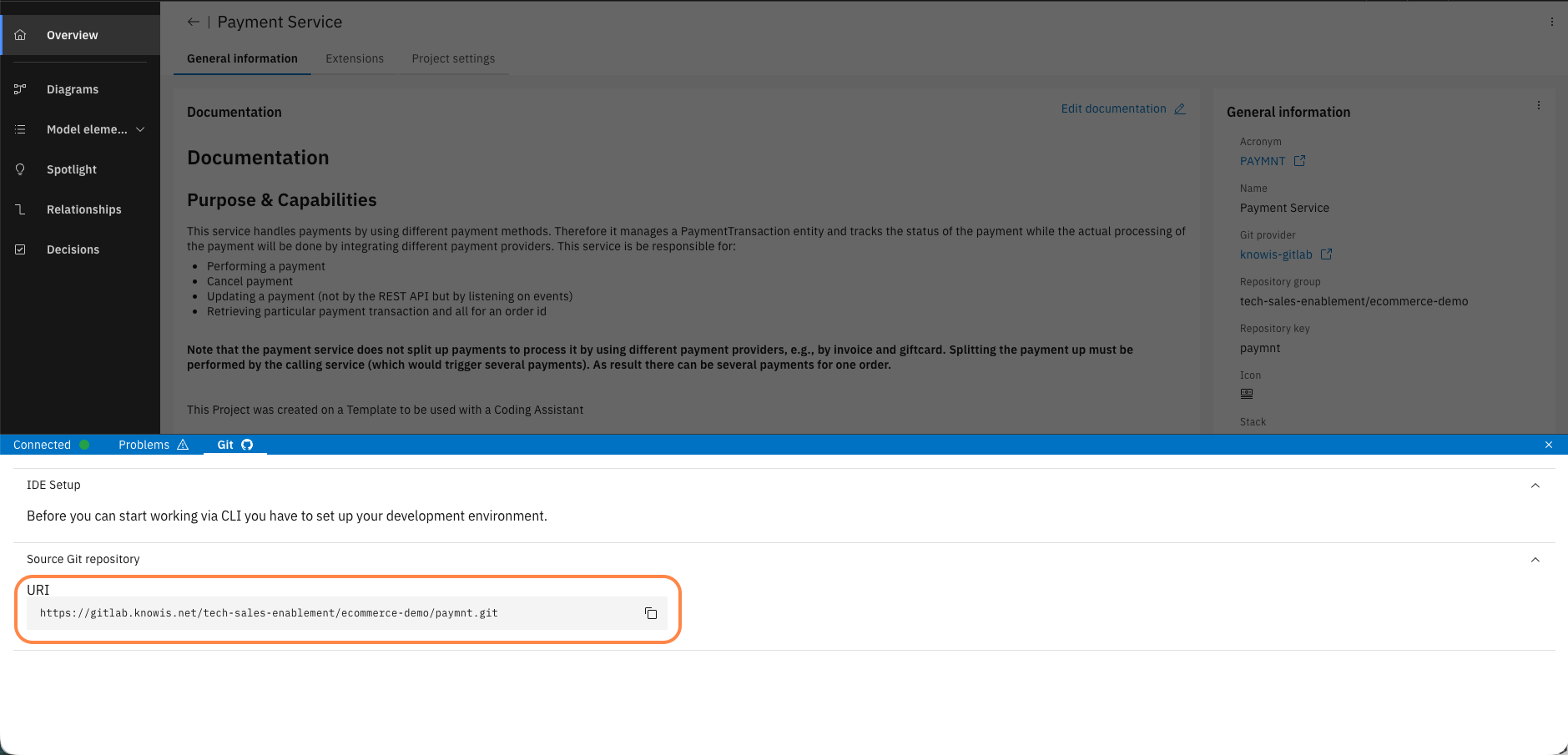
Copy the Git URI from the "Git" footer.
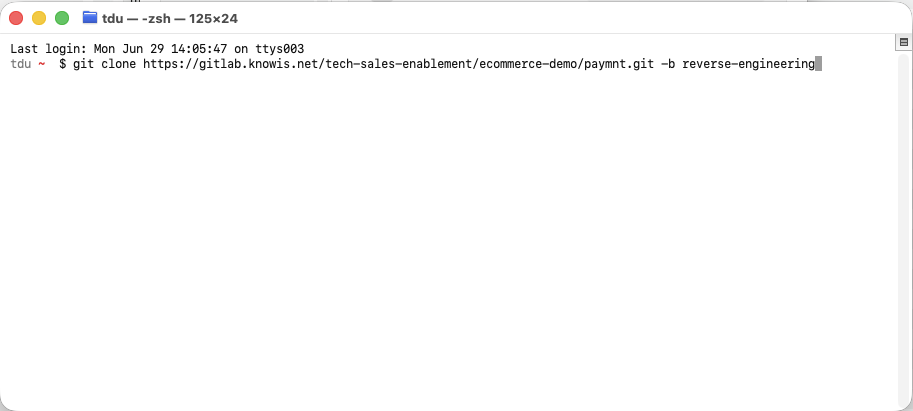
Clone the branch reverse-engineering to your local machine: git clone <your-git-url> -b reverse-engineering
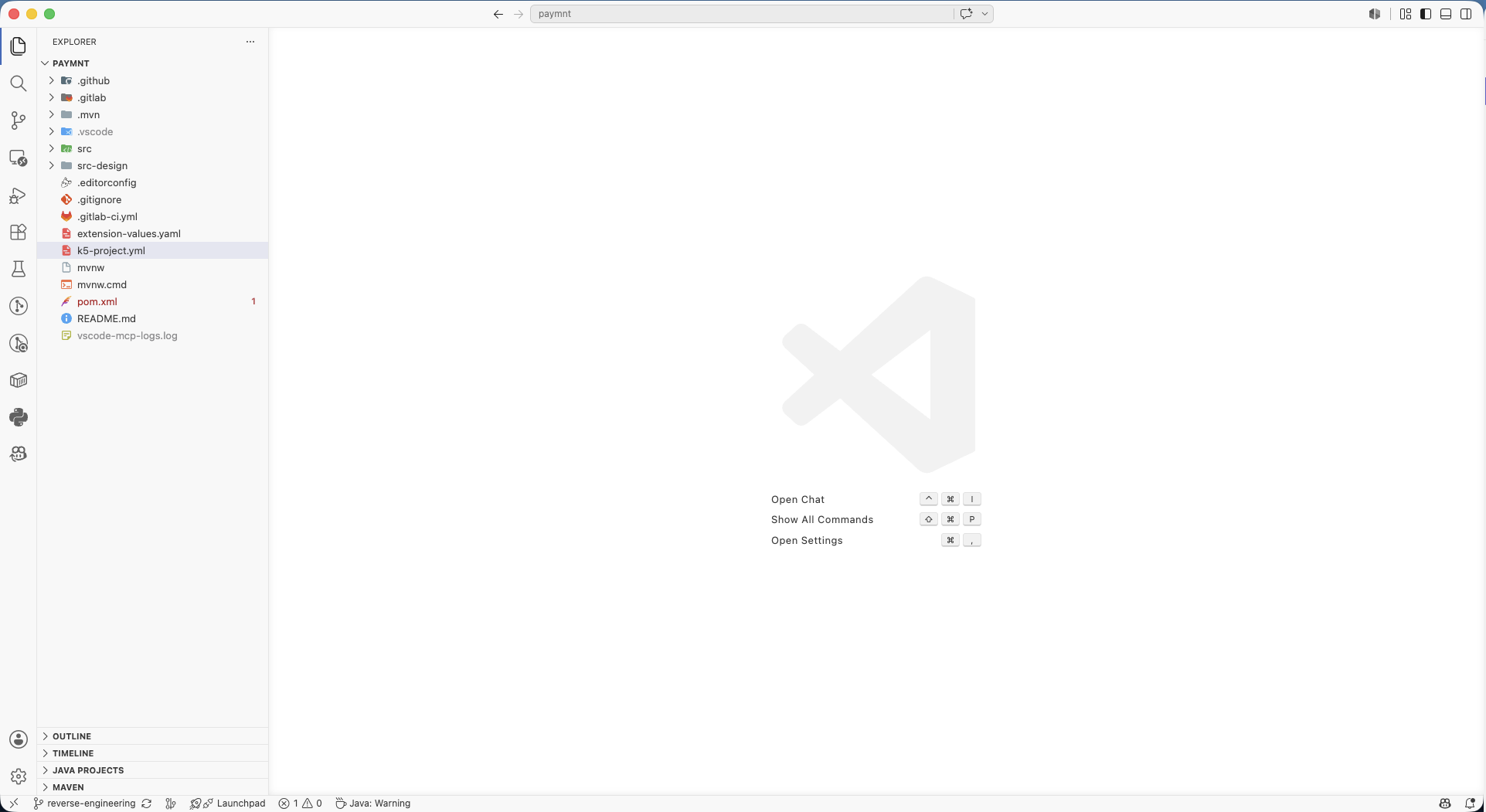
Open the project in your IDE.
Make sure you are on the reverse-engineering branch by adding -b reverse-engineering when you clone the repository. This branch reflects the current state of the Payment Service that we want to reverse engineer.
Step 3 — Run reverse engineering
With the MCP server connected and the codebase open, you'll now instruct your coding assistant to reverse engineer the Payment Service.
You can do this by typing /mcp.my-design-server.generate-k5-design-from-code in the chat window. This will start the guided reverse engineering workflow,
that steers the model to inspect your repository, interpret structure and dependencies, confirm scope with you where needed, and create or update design elements
and relationships via the server's tools.
The agent walks you through the process step by step — asking for your input at key decision points, such as which design approach to use or what scope to analyze — and explains what it will do next before each action. This gives you control over the process and lets you intervene if the workflow starts moving in the wrong direction.
While the agent is running and creating the model, you can switch to Workbench and watch the model elements appear.
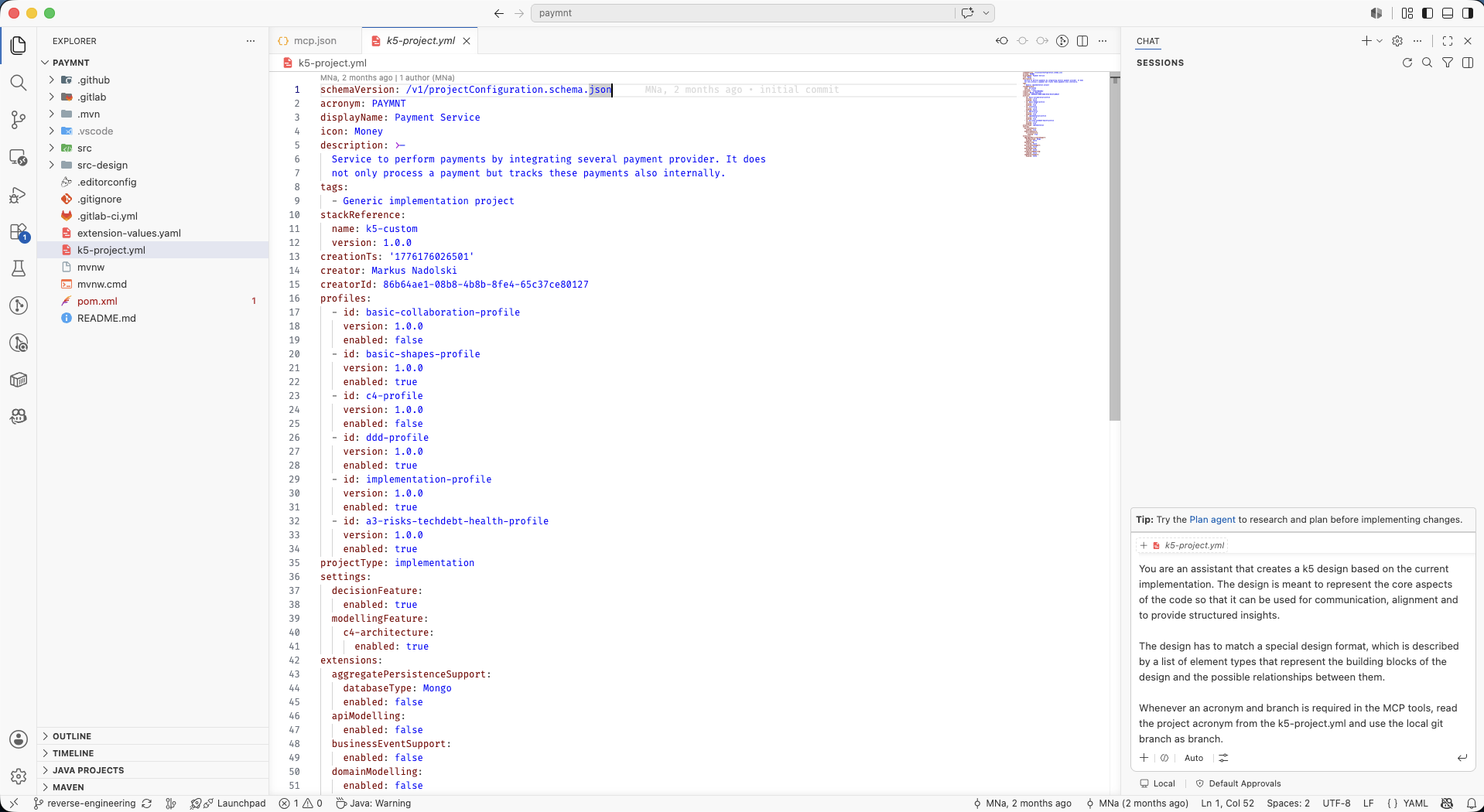
Execute the /mcp.my-design-server.generate-k5-design-from-code command. This command will insert the guided MCP prompt in the chat window for you to run.
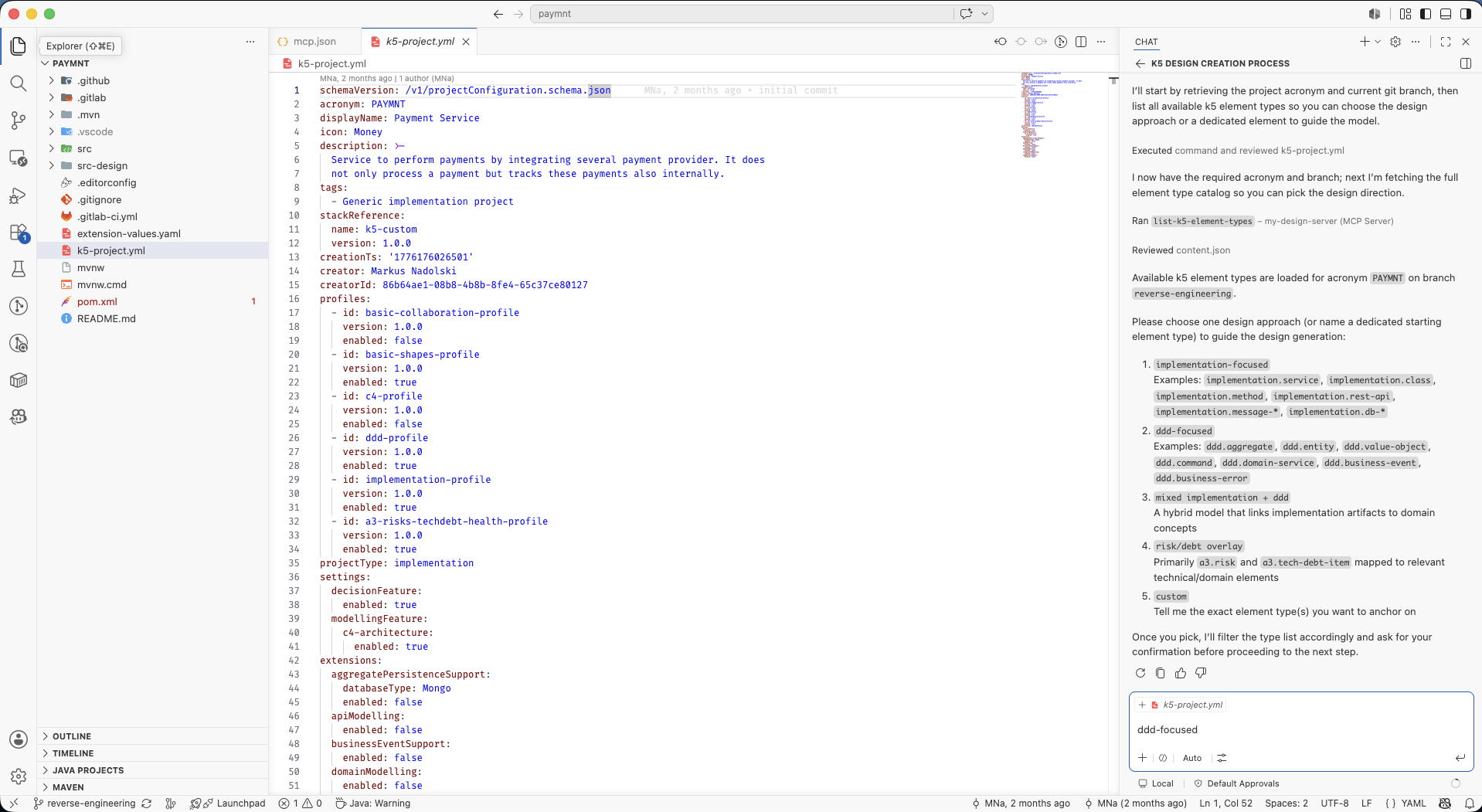
Choose the design approach for the reverse engineering. The available approaches depend on the OML Profiles enabled in your Workbench Service Project — for this example we will choose Domain-Driven Design.
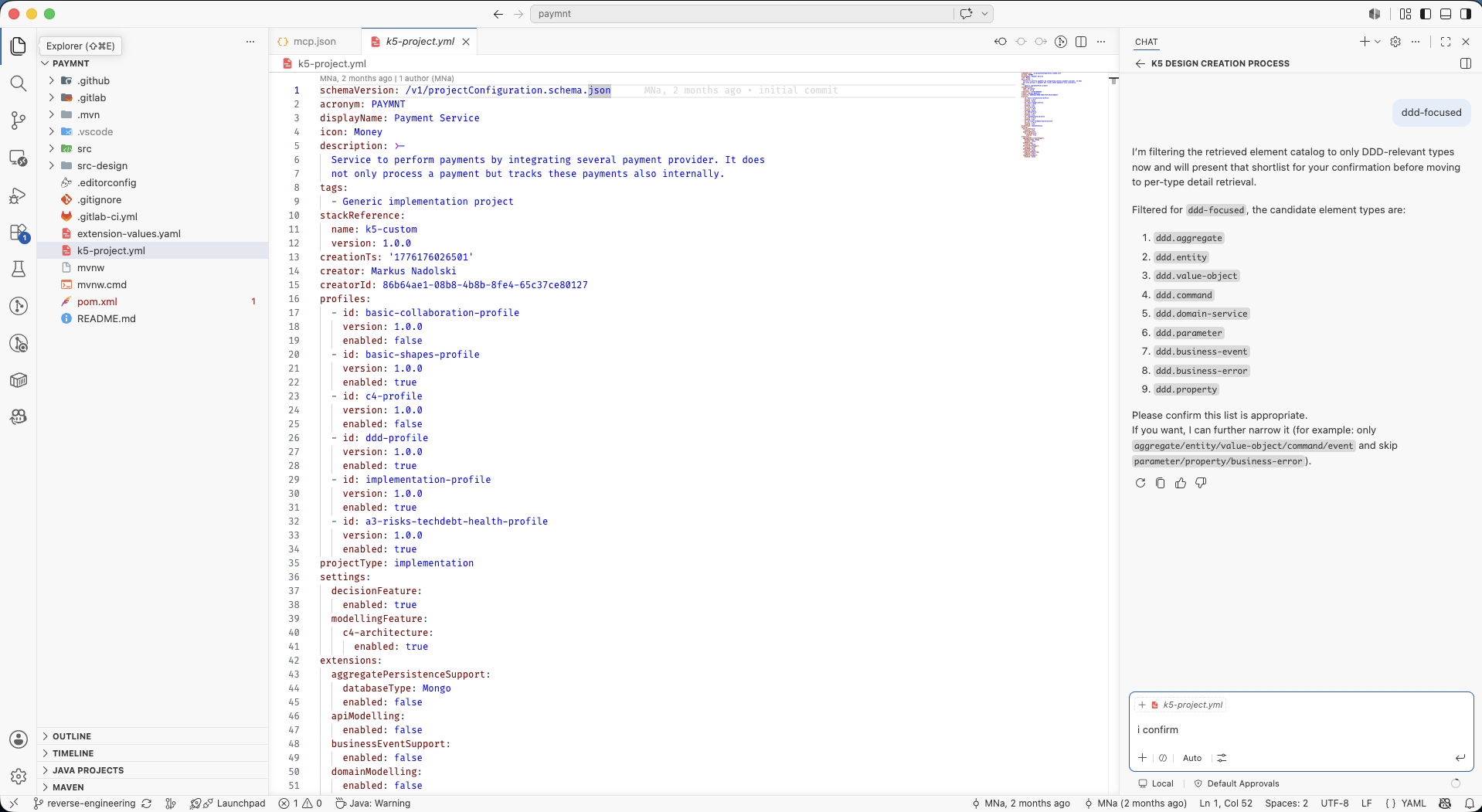
Confirm the list of elements that should be considered in the workflow. You can also modify the list according to your needs.
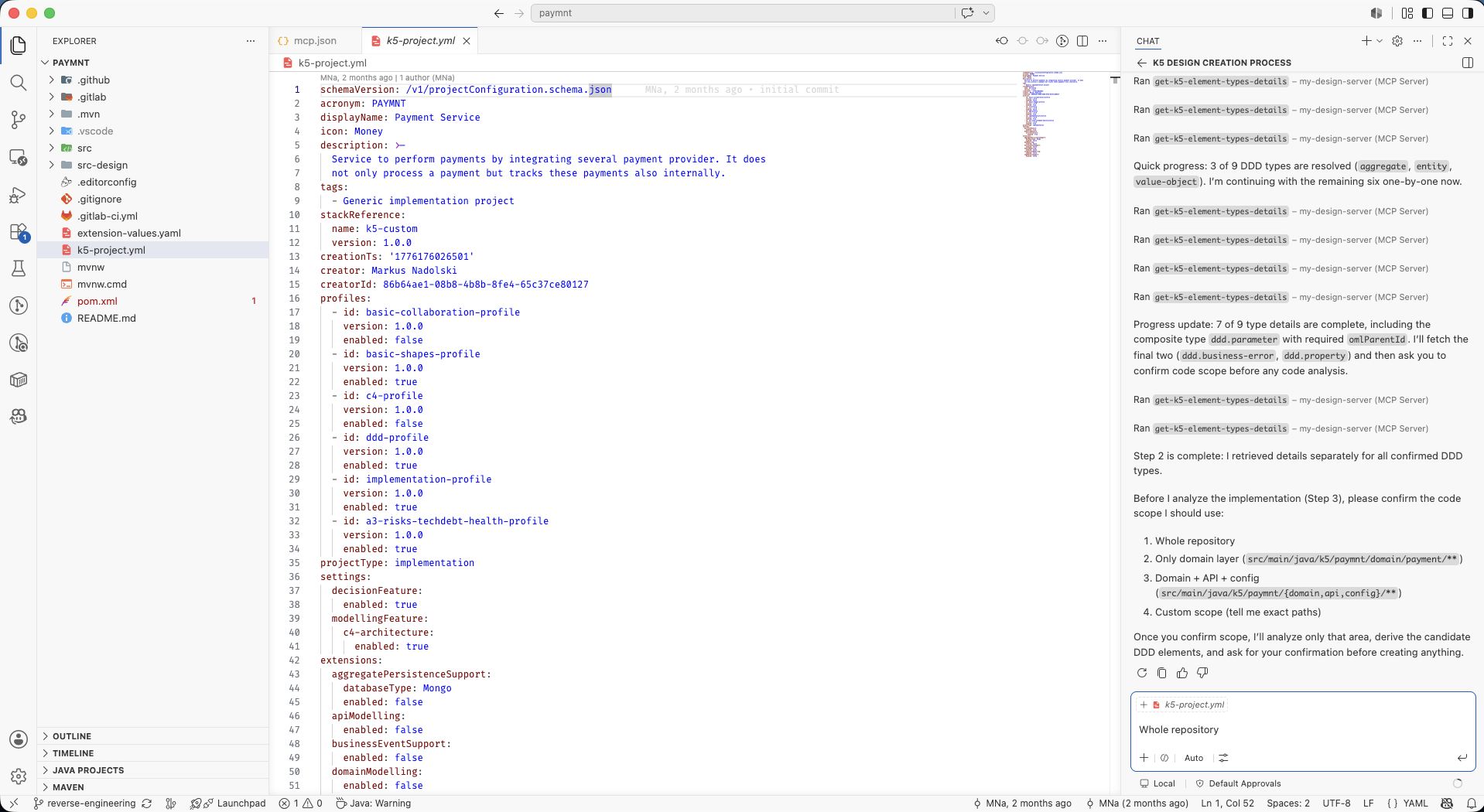
Determine the scope of the reverse engineering. For this example we will choose the whole repository.
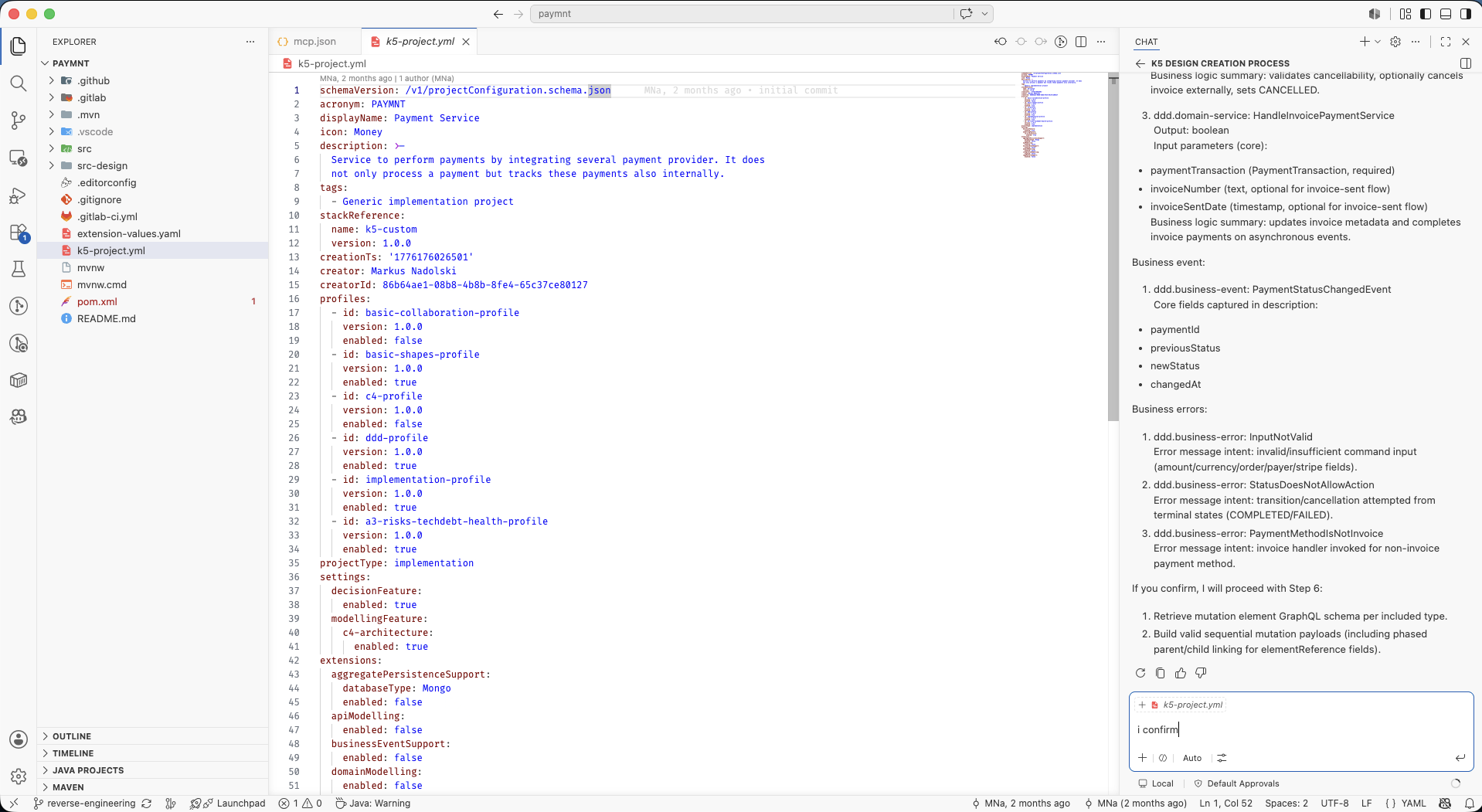
Review and confirm the model elements that should be created in Workbench.
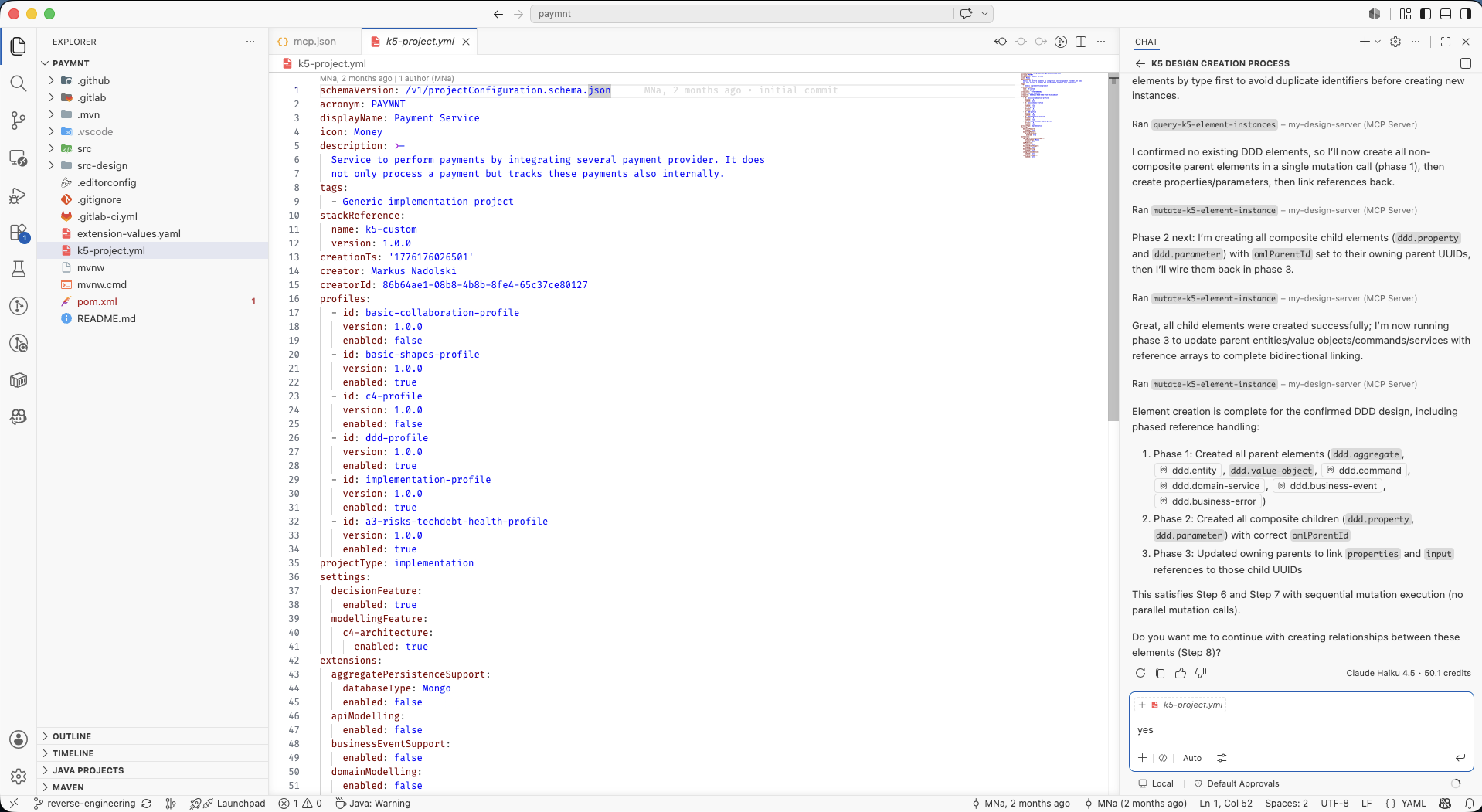
Decide if you also want to create the relationships for the newly created model elements.
Review and confirm the relationships that should be created in Workbench.
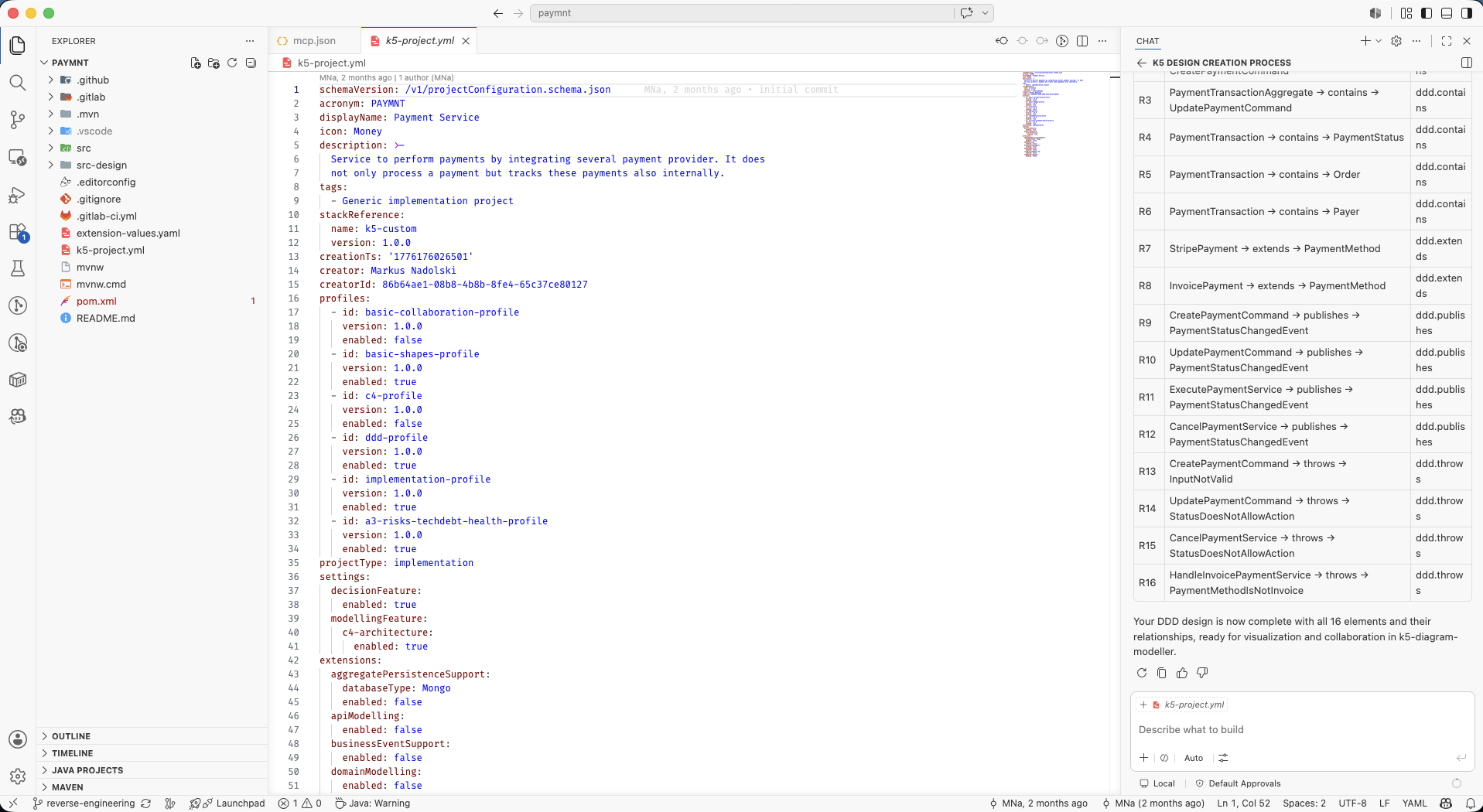
When the workflow is finished, the agent gives you an overview of which model elements were created.
Since this is an AI-driven workflow, it may vary slightly each time it is run. The sequence of steps remains the same, but the exact wording and results may differ.
Step 4 — Review the model in Workbench
Now switch back to Workbench to review the model elements as they are being created there by the agent.
Open the Payment Service in the Solution Designer and click on "Model elements"
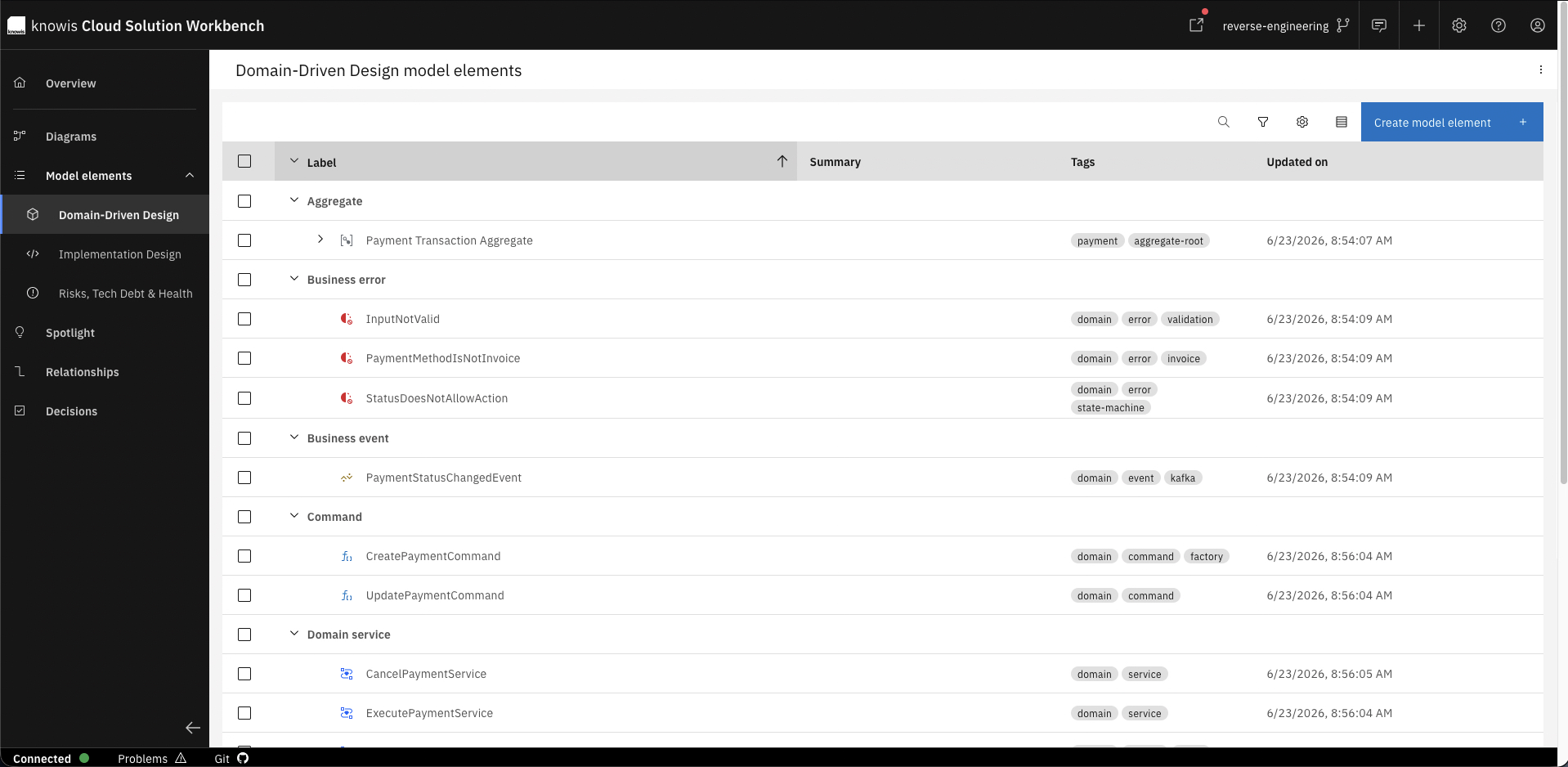
Click on the section that you chose for the reverse engineering. Here you can see all model elements that were created during the reverse engineering process.
Reverse engineering produces a model that reflects what's actually implemented, not what was originally planned. Gaps and imperfections are normal — and useful. They surface assumptions and omissions that are otherwise invisible.
What you have now is a list of model elements and their relationships — and that's already enough for a coding assistant to work from.
But reverse engineering rarely happens in isolation. The next step is usually incremental feature development or modernization efforts: new requirements come in, the team needs to align on what's already there before deciding what to add or change. For that, a list isn't enough.
So let's put the model on a canvas.
Step 5 — Create a diagram
To turn the list of model elements into something that can be discussed between an architect and a developer, create a diagram in Workbench to visualise the structure of the Payment Service and the relationships between elements.
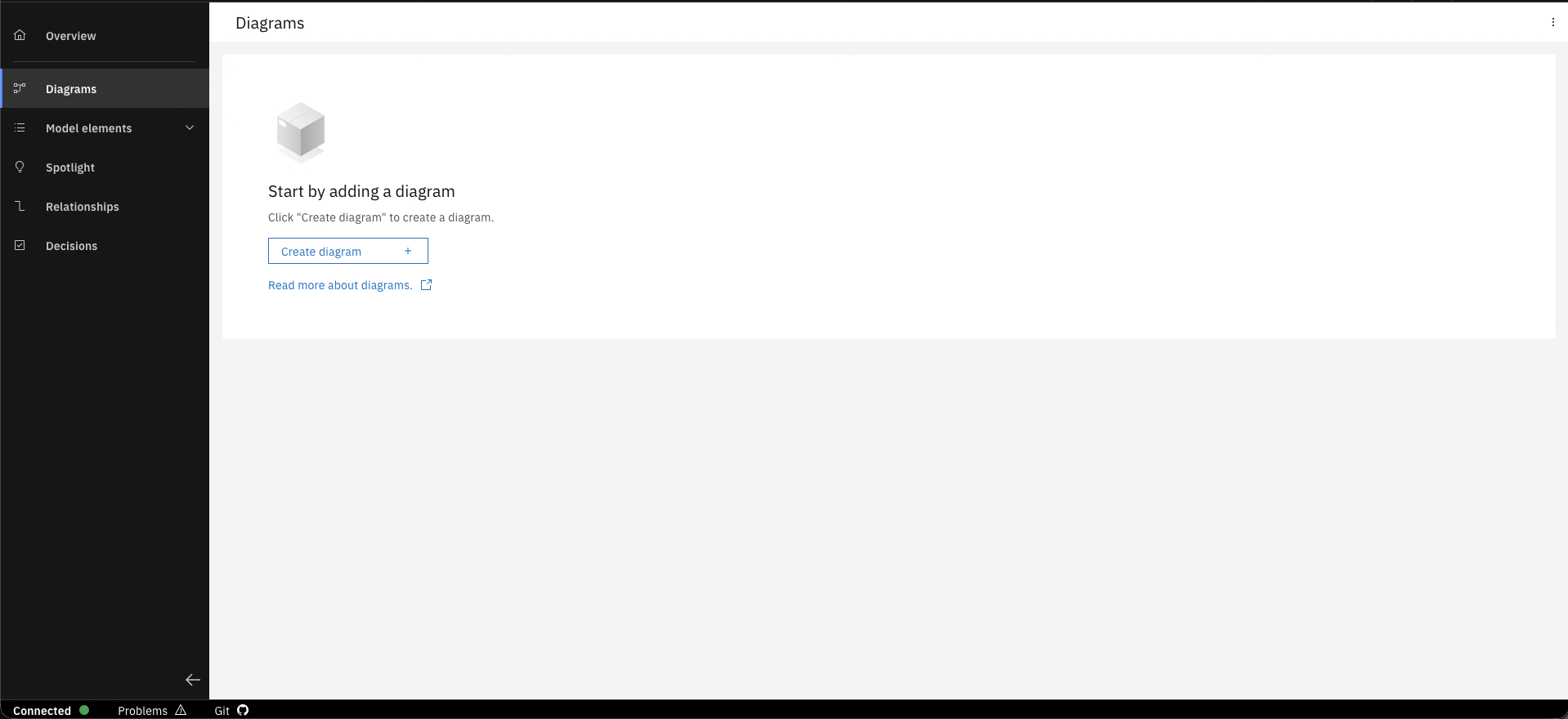
In the Payment Service navigate to "Diagrams" and click on "Create diagram".
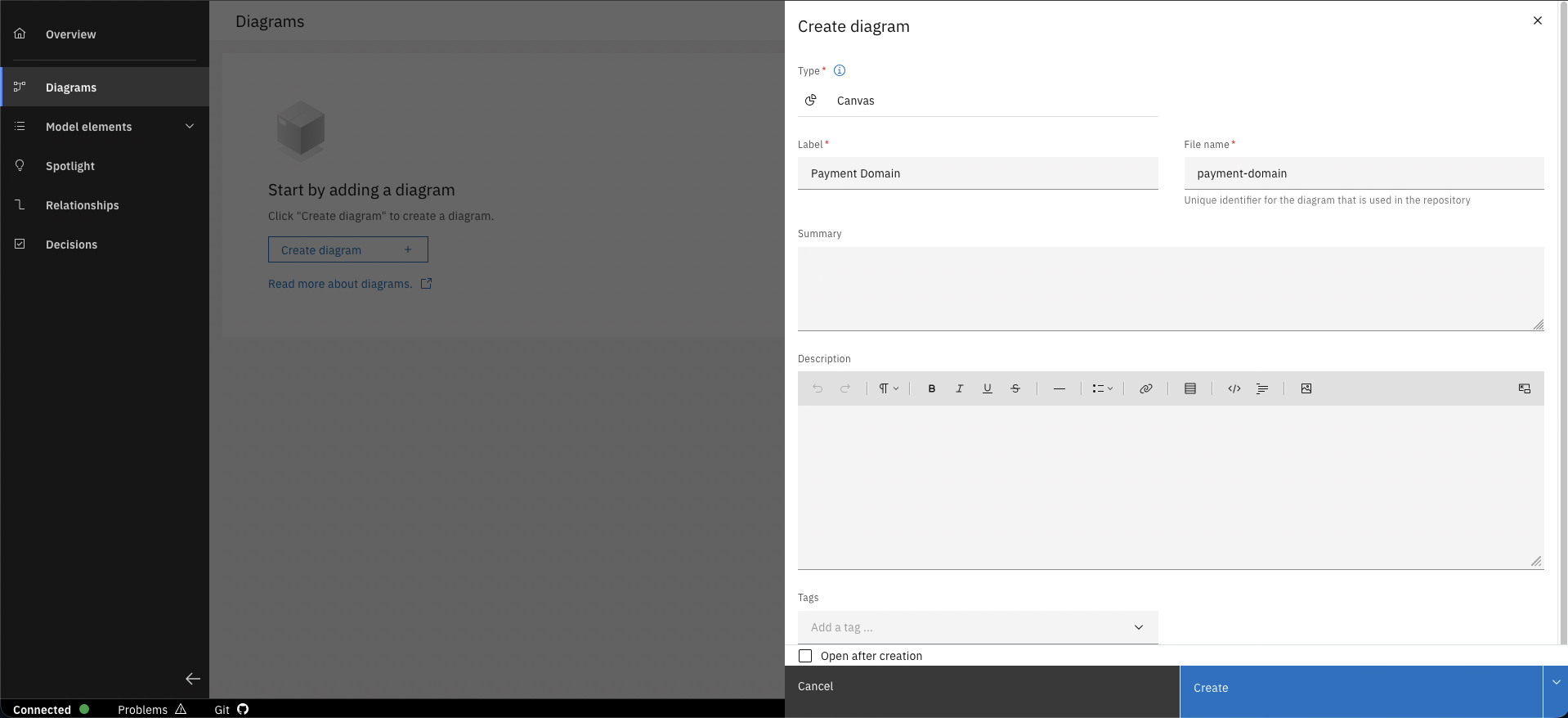
Create a new Canvas for the Payment domain.
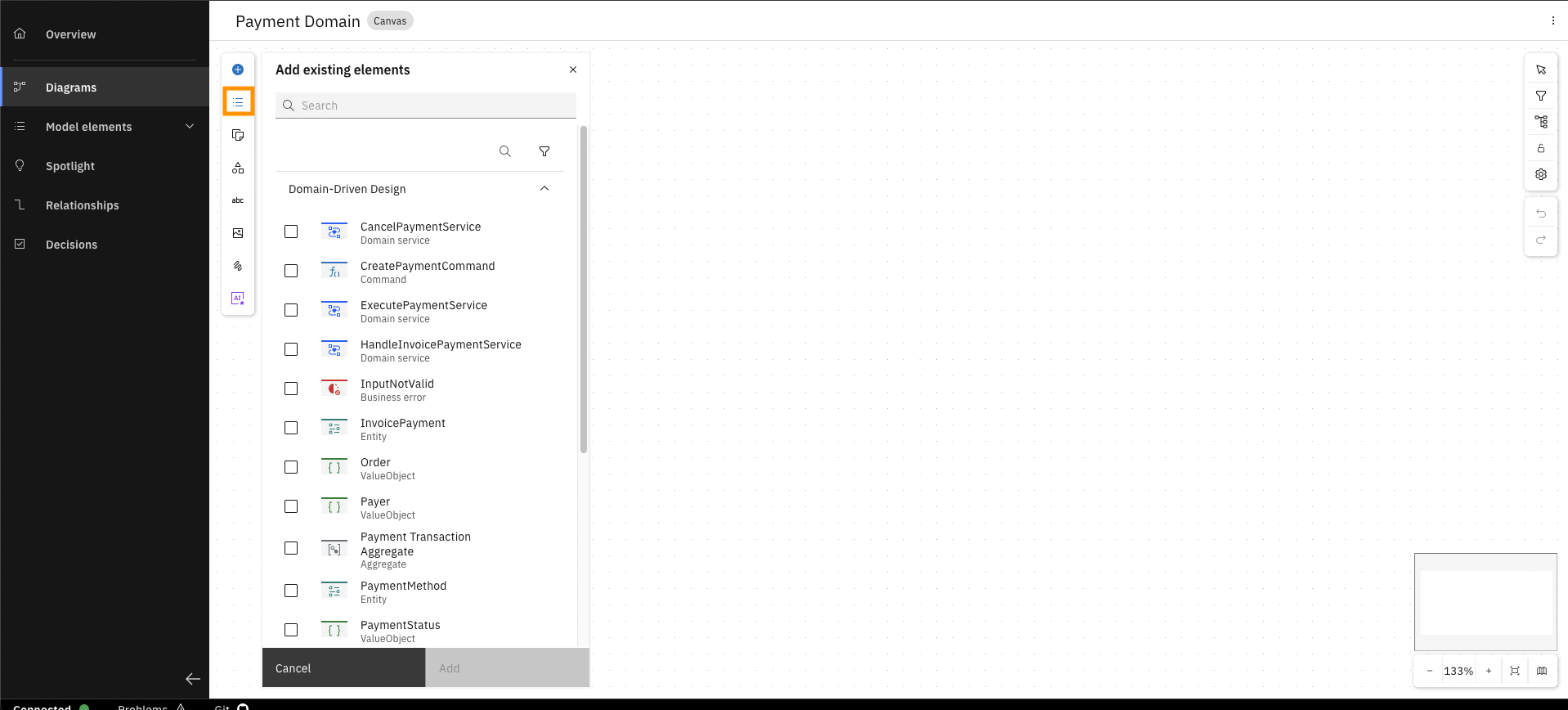
Click on "Add existing elements" and open the section that you chose for the reverse engineering. Here you can see all model elements that were created during the reverse engineering process.
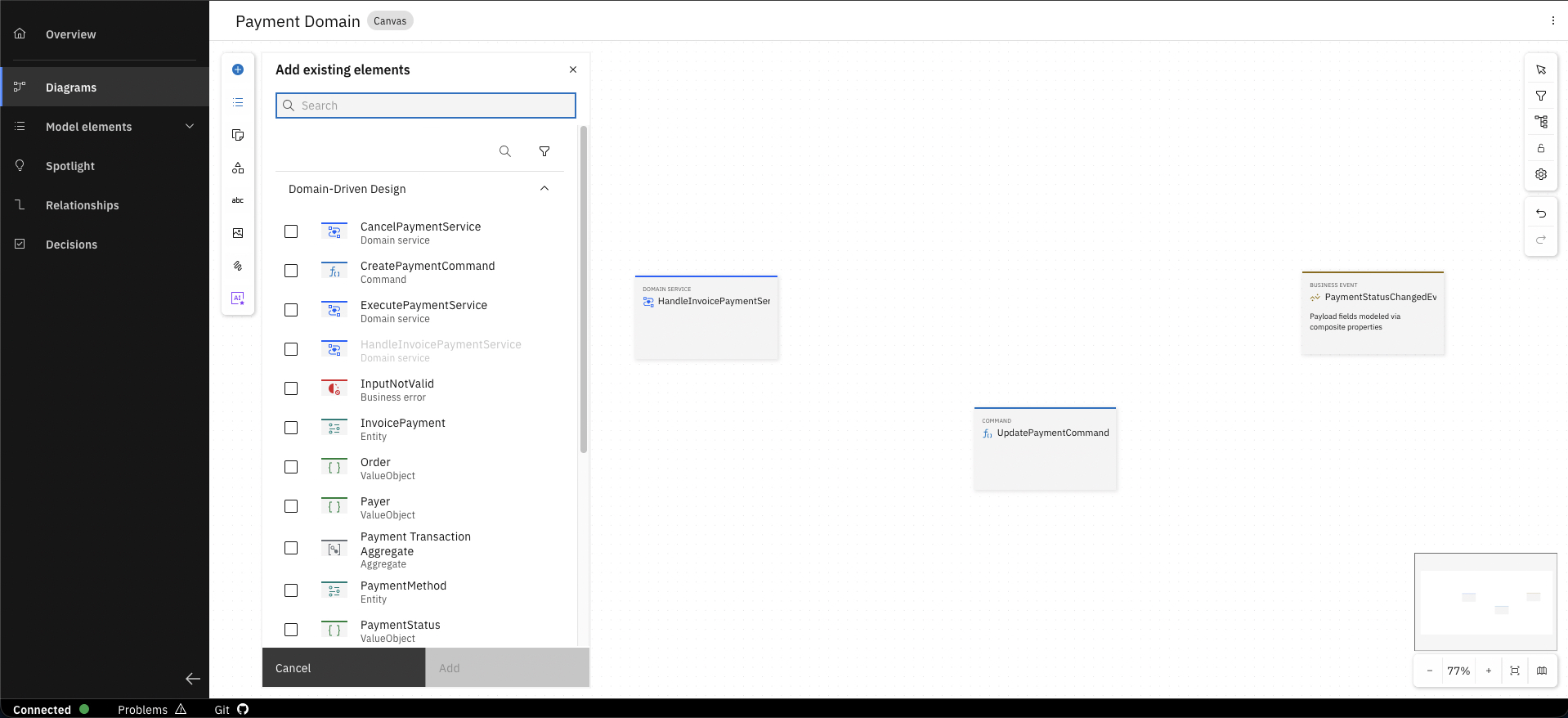
Now you place the elements you want to have on the diagram via "Drag-and-Drop" on the canvas. In our example we want to model the flow when an invoice is paid by a customer. We therefore place the domain service HandleInvoicePaymentService, the command UpdatePaymentCommand and the business event PaymentStatusChangedEvent on the canvas.
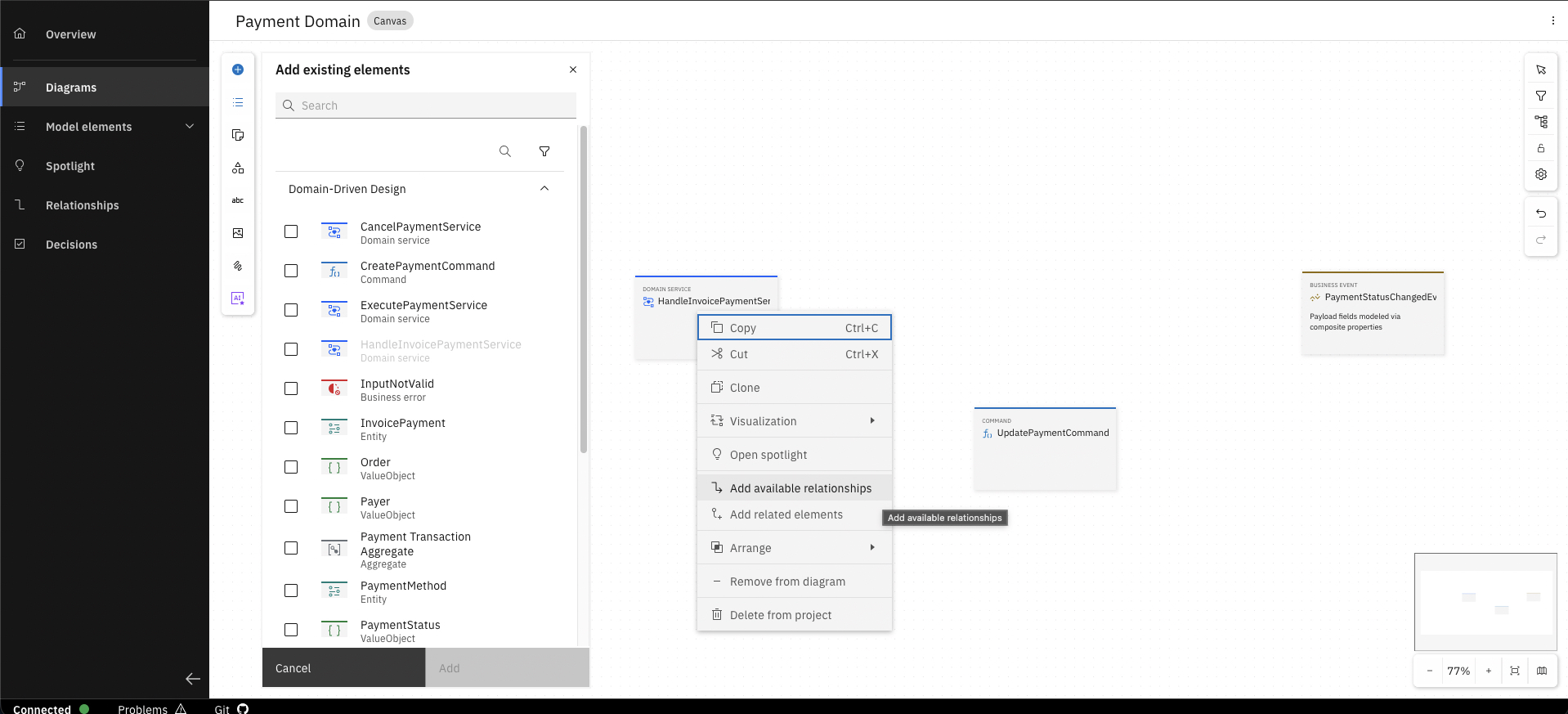
We now use the built-in functionality to add the available relationships to an element on the canvas. Right click on the element and click on "Add available relationships".
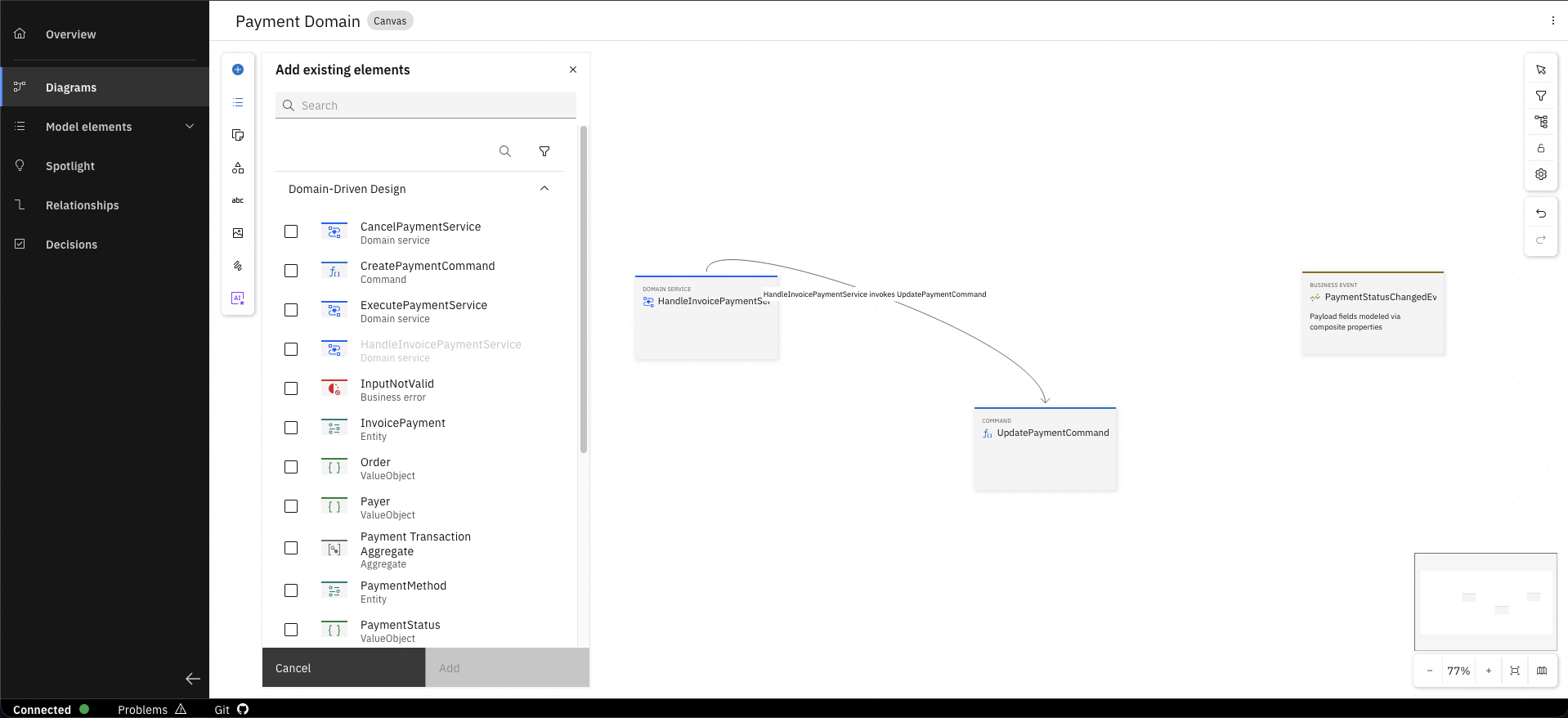
The relationship that got created during the reverse engineering process is now automatically added to the elements.
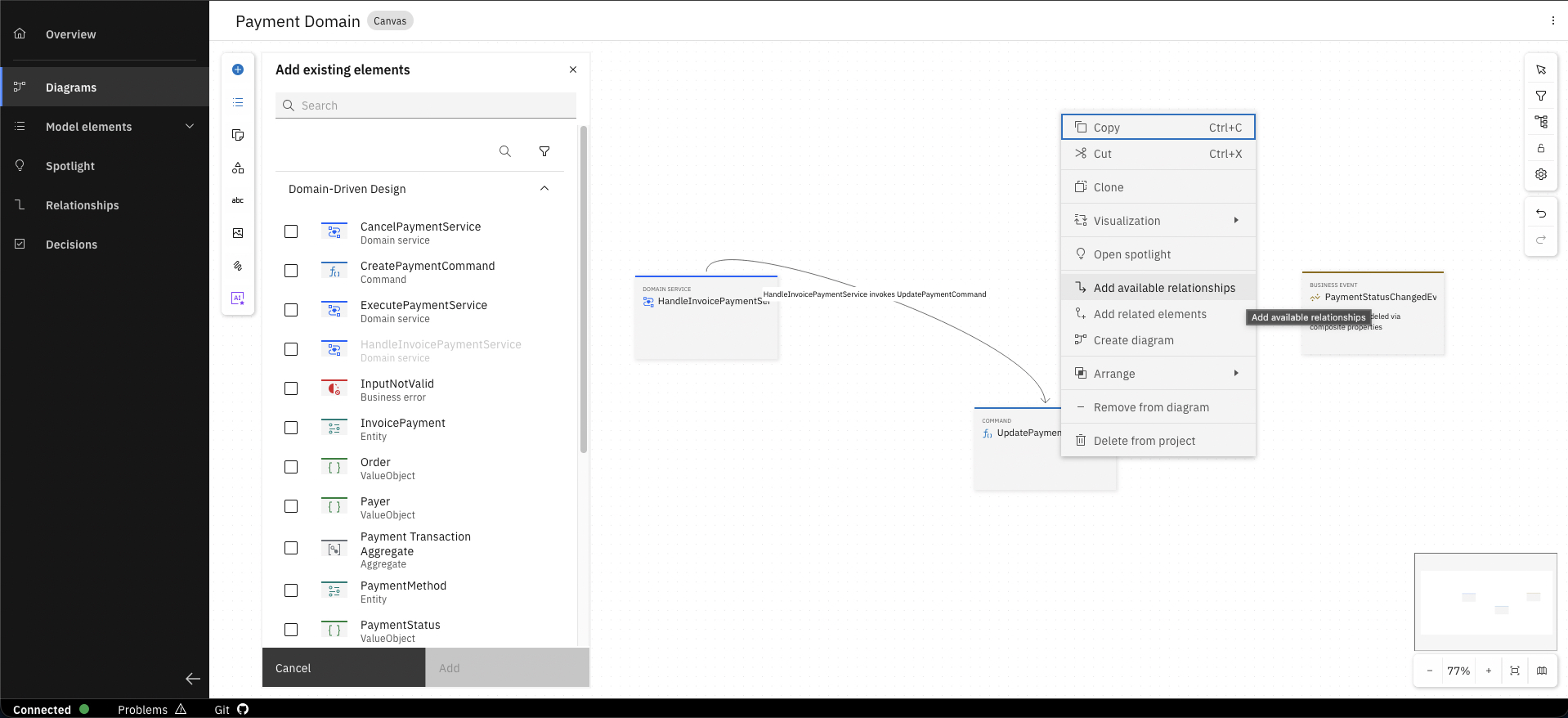
Repeat the same step for the next element.
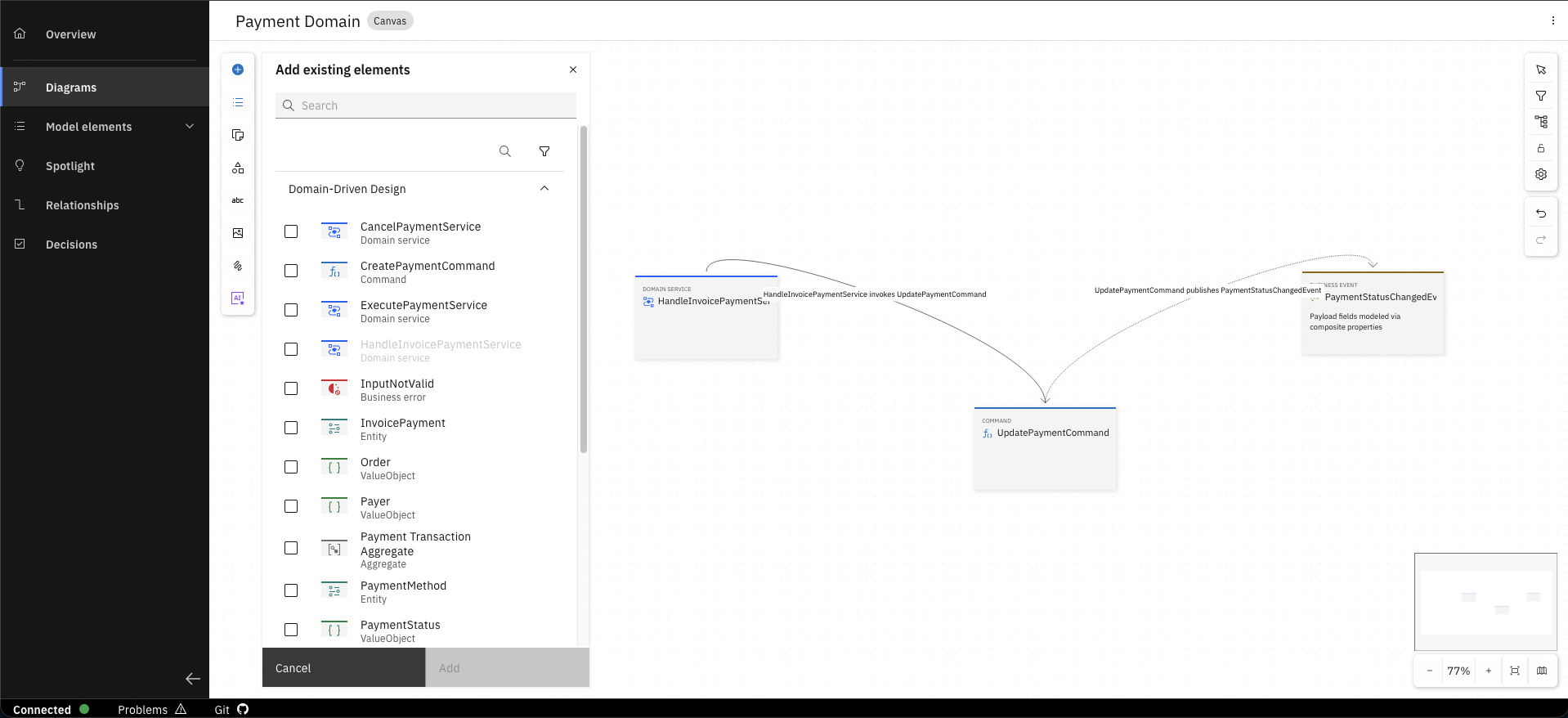
The relationship to the business event is also added.
You can also right-click on a model element in the diagram and select "Add related elements" to add all related elements to the diagram at once. This is a quick way to visualize the relationships between model elements.
Not a list of classes — a model you can point at, discuss, and align on as a team before anyone writes a line of code. And once that conversation has happened, the same model is what your coding assistant works from. You didn't design this from scratch. It was already in the code. You just made it visible.
What just happened
You started with a service that works but that nobody fully understands anymore — no design, no shared picture of what's there.
The MCP agent analyzed the codebase, identified the structure, and created model elements from what it found. You confirmed scope along the way and watched the model take shape in Workbench in real time.
What you have now is a structured model of the Payment Service as it actually exists — readable by your team and by a coding assistant. You understand what is there and can now safely add to it: a solid foundation for your future feature development or modernization work.
What's next
The model you just created is the starting point for the next trial. You'll open it in the Design Assistant and extend it through conversation — adding a new requirement without touching a design file directly. The same model your team just aligned on becomes what the AI works from.
Extend Your Design Through Conversation
Use the Design Assistant to extend the model you just generated — adding a new requirement and refining the design through natural conversation.
Reverse Engineering Reference
Full reference documentation for the reverse engineering capability — supported languages, model element types, and configuration options.
Configure IBM Bob for reverse engineering with Workbench MCP server
How-To describing configuration of IBM Bob for use with Modelling Support MCP server.