Extend Your Design Through Conversation
In this hands-on trial, you will use the Design Assistant to explore an existing design model, identify what's missing for a new requirement, and extend it — all in plain language, without leaving Workbench.
Before you start
Estimated time: 15-20 minutes
What you need: Access to our trial environment.
About your trial environment
Your trial environment includes everything you need to get started: a dedicated, isolated tenant in the IBM DevOps Solution Workbench, and a GitLab instance with repositories for all your projects - including our reference application Roboflow ready for you to explore.
You bring your own IDE and coding assistant — whatever you normally use. In our screenshots throughout these trials we use Visual Studio Code with GitHub Copilot.
Solution Designer
The Solution Designer is your main workspace in Workbench. This is where architecture is modelled,
design decisions are captured, and structured context is created for your coding assistant.
Your trial comes with a dedicated, isolated tenant. Log in using the credentials from your trial onboarding email.
GitLab
Every project in the Solution Designer is backed by a Git repository in your trial's dedicated GitLab group. Throughout the trial, you usually access GitLab repositories
through the Solution Designer since URLs are specific to your tenant.
To find the Repository URL for any project:
- Open the project in the Solution Designer
- On the Overview page that opens, you'll find "General Information" on the right hand side.
- The link under "Acronym" takes you directly to the GitLab repository for that project.
- Log into GitLab using the "Keycloak" button.
Cloning a project to work in your own IDE requires a Personal Access Token (PAT). To create one:
- Log into your Trial GitLab (using the Keycloak button)
- Click your profile icon in the upper right corner and select Preferences
- Go to Access → Personal Access Tokens
- Create a token with
read_repository,write_repositoryandapiscope
Cloning a project
To clone a project, you can either use the "Code" button in the GitLab UI and copy the "Clone with HTTPS" URL or you can copy the URL directly from the Solution Designer project page. To do this:
- Open the project in the Solution Designer
- Expand the footer bar that says "Git"
- Copy the URL
In both cases, use a terminal and run git clone <URL> -b <optional-branch-name> and use your username and the created PAT as the password when prompted.
Cloning via SSH is disabled in the trial environment for security reasons.
RoboFlow
Your trial environment comes preloaded with RoboFlow — a fictional B2B webshop for robotics parts that serves as the reference
application across all trial experiences. Its services are already designed and documented in the Solution Designer, ready for you to explore and build on.
Step 1 — Orient yourself
You are working with the Payment Service of RoboFlow — a fictional B2B webshop for robotics parts that serves as the reference application across all trial experiences. If you are new to the scenario or want a quick overview of the system and its services, expand the section below.
About the RoboFlow reference application
The RoboFlow reference application
The trials in this section are built around RoboFlow — a fictional B2B webshop for robotics parts that serves as the reference application across all trial experiences. If you want to find out about RoboFlow's ambitions and requirements, you can head to the RoboFlow overview page for a quick introduction.
RoboFlow's system is composed of multiple microservices, each designed and documented in the Workbench. The starting point is an architecture project — a high-level view of the system that shows which services exist, how they relate, and what responsibilities they carry. RoboFlow's architecture is modelled using C4 notation, one of the modelling languages IBM DevOps Solution Workbench supports out of the box.
The diagram below is the Container Diagram (Level 2) of the RoboFlow system in the RoboFlow architecture project — one level below the overall system context (L1), showing the individual services and their relationships. You can also open it directly in the Workbench.
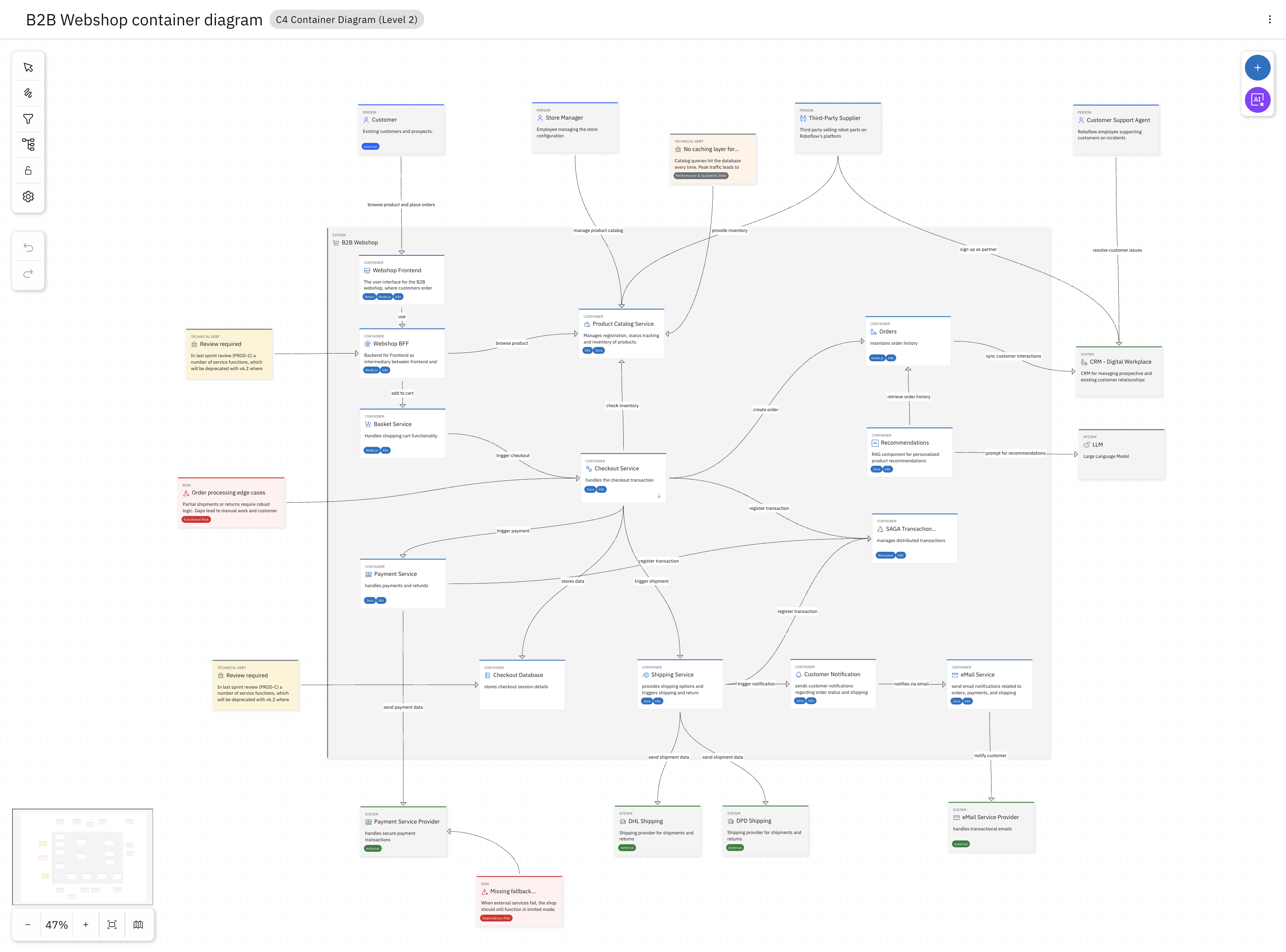
The system includes a WebShop Frontend, a Basket Service, a Checkout Service, a Payment Service, and others. Three services are central to the trials:
- Checkout Service — orchestrates the checkout flow, applies discounts, and initiates payment
- Payment Service — handles all payment processing and integrates with external payment providers
- Gift Card Service — manages gift card balances, validates voucher codes, and tracks redemptions
Each service usually has its own service project in the Workbench — a separate, more detailed specification that defines the service's boundaries, domain model, interfaces, and the architectural decisions that apply to it. This is where the real design work happens.
Explore a service
As an example, let's look at the Checkout Service.
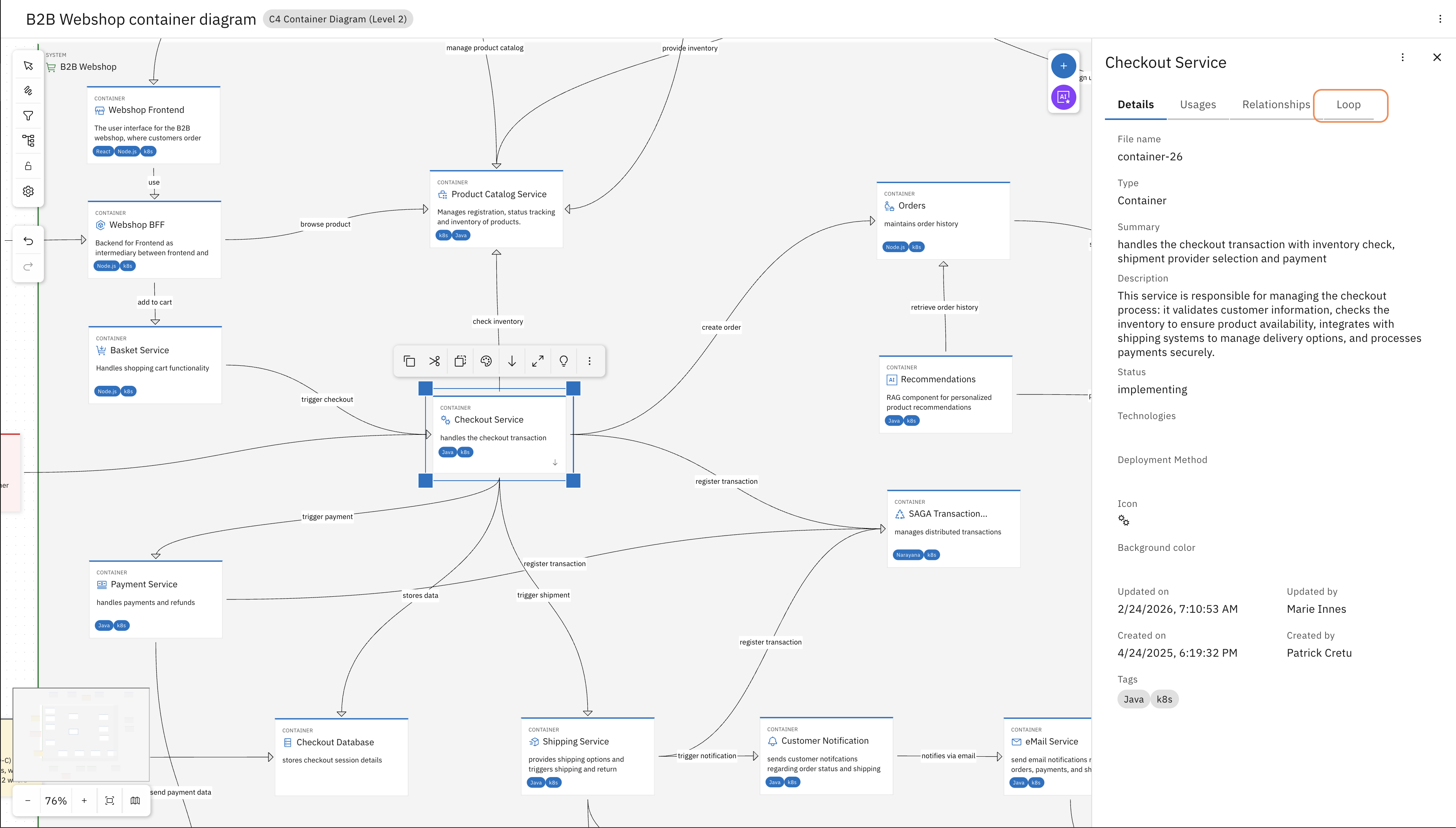
Select the Checkout Service on the L2 diagram and in the sidebar on the right (you might need to expand it) navigate to the Loop tab.
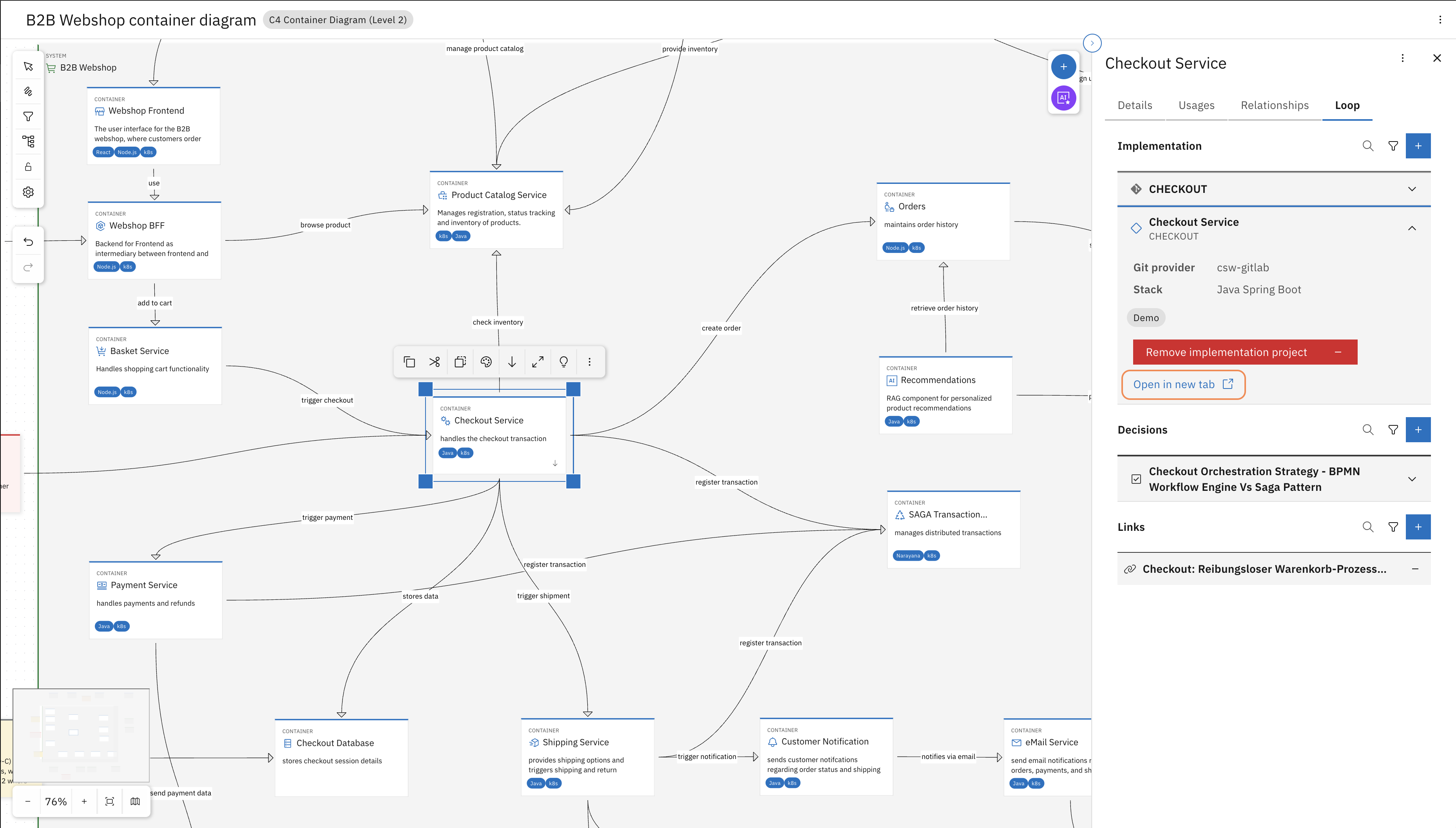
Find the Workbench project and "Open in new tab". This will open the service project where the design details of the Checkout Service are modelled and documented.
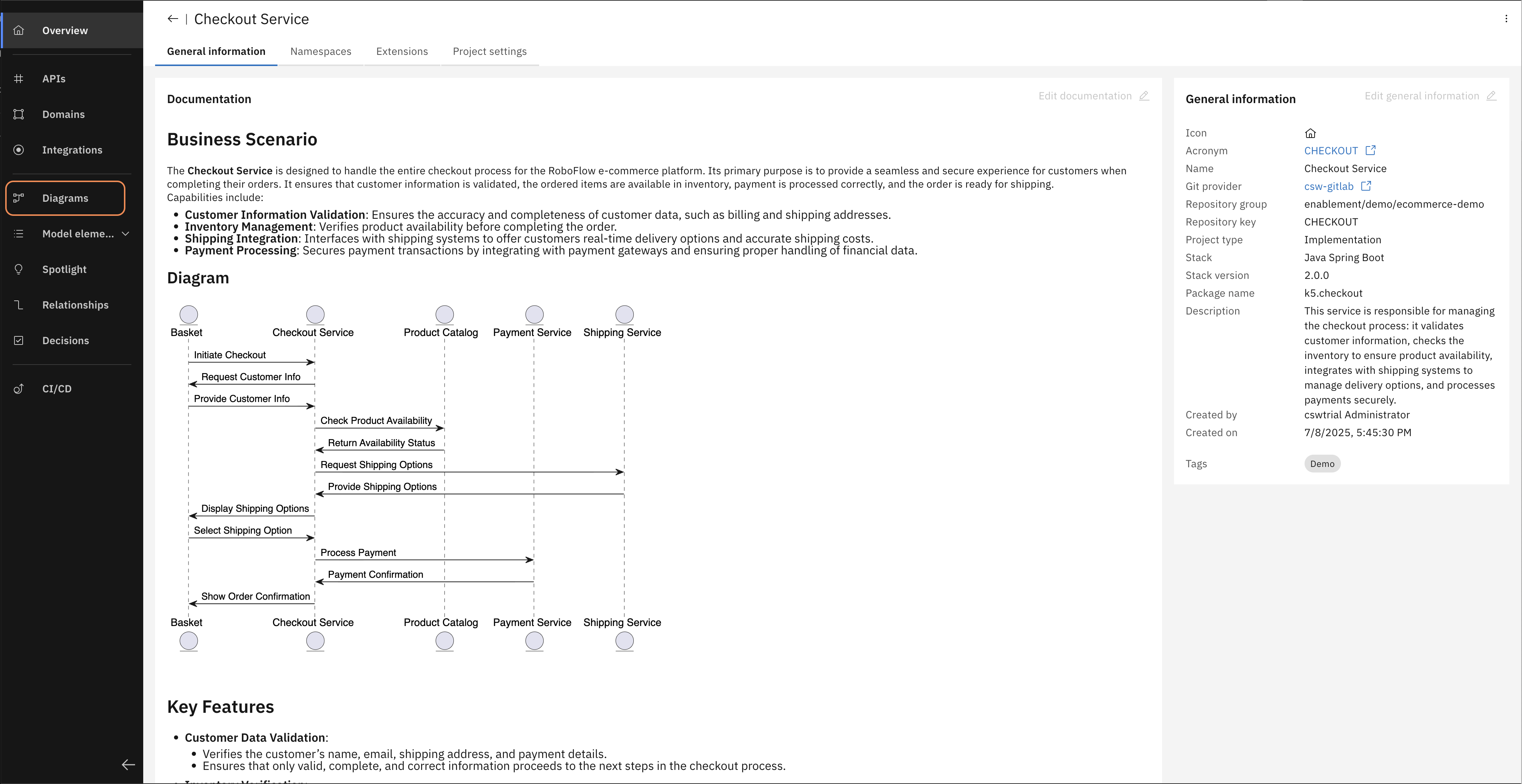
In the left navigation bar, open Diagrams and then open the "Checkout Service component diagram".
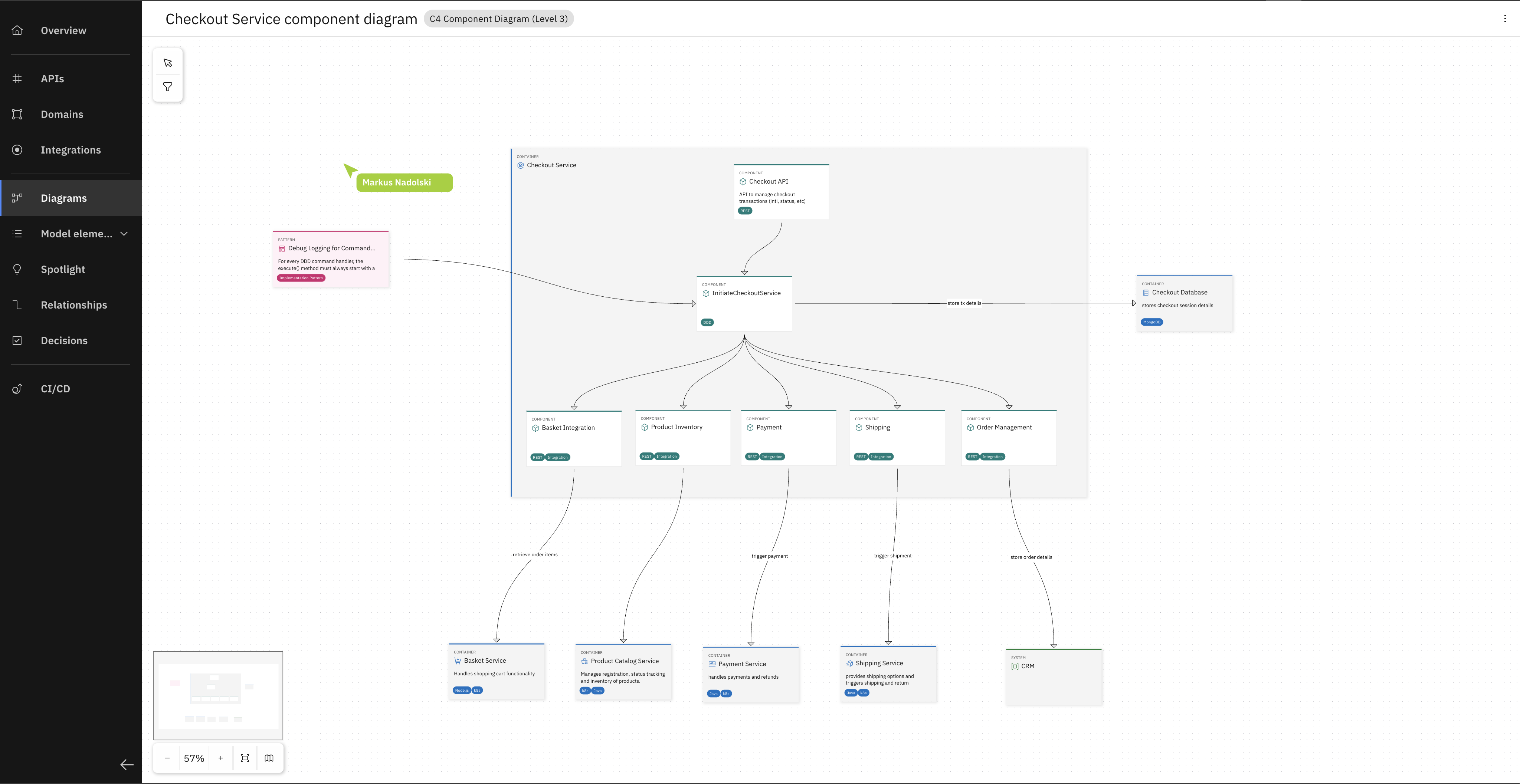
You can now explore the Component Diagram (Level 3 in the C4 model) of the Checkout Service.
Open the Payment Service in the Workbench and have a look at the Payment Domain diagram.
Make sure you are in the design-assistant branch of the Payment Service. This branch reflects the status of the service after it was reverse engineered from the existing codebase.
The model open in front of you was built from the Payment Service codebase through Workbench's Reverse Engineering feature. Reverse Engineering extracted the model elements and their relationships from the code. The diagram is how an architect arranged and visualized them.
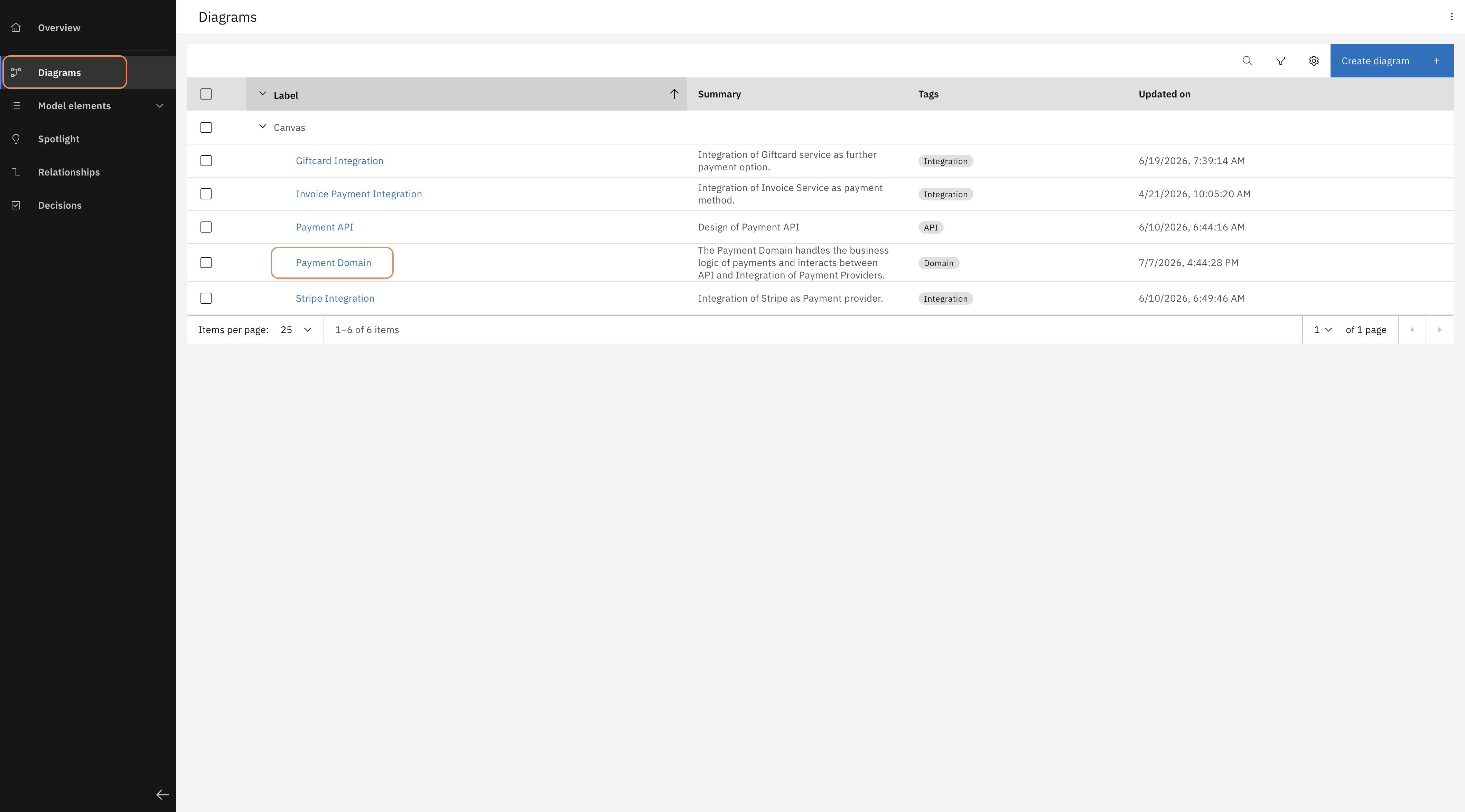
On the left, navigate to "Diagrams" and open the "Payment Domain" diagram.
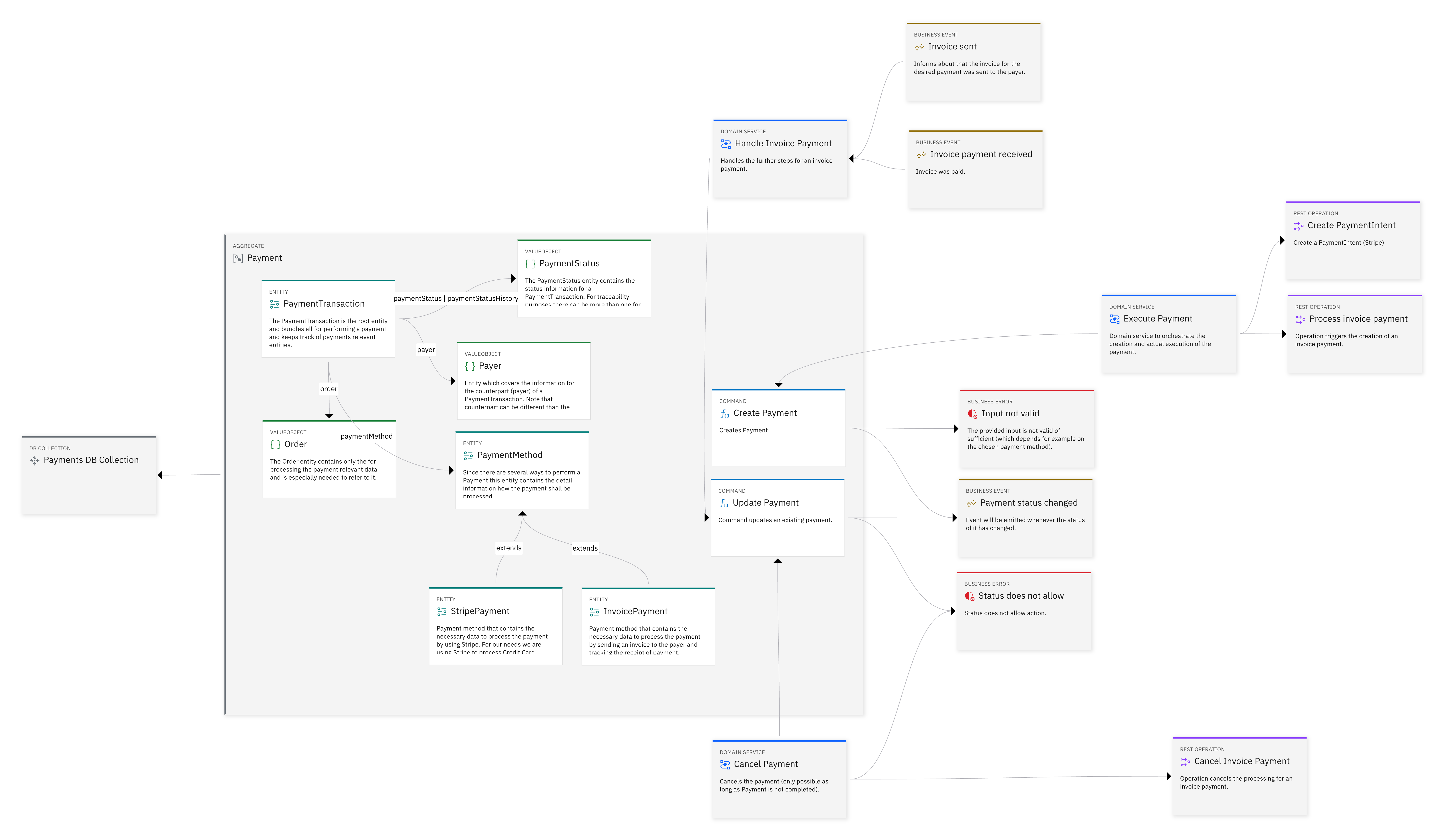
The reverse-engineered Payment Domain diagram: entities, commands, domain services, everything that could be extracted from the existing codebase.
In the Turn Existing Code into a Design Model trial, you run Reverse Engineering yourself on the Payment Service's existing codebase — watching model elements appear in Workbench as the MCP agent analyzes the code.
Step 2 — Meet your new requirement
Now that you have a sense of the Payment Service's current design, it's time to handle a new requirement. The product owner has asked for a new payment option: RoboFlow shall allow customers to pay with gift card vouchers at checkout.
"Add gift card as a supported payment option."
Before jumping to its implementation, you take the role of the architect and use the Design Assistant to explore what's already in the design,
find what's missing, and add it.
Afterwards, the model not only reflects how the service works today, but describes how it should work tomorrow — capturing the new requirement and the
decisions and constraints that guide how to extend the service.
Step 3 — Ask the Design Assistant what's already there
Open the Design Assistant in Workbench by clicking the chat icon in the top right.

The Design Assistant opens as a panel next to your diagram, using the current project and branch as context automatically.
You may notice that the product owner's requirement isn't in the model — there is currently no element type for it in this baseline. The Make Workbench Speak Your Language trial shows how your team can extend the vocabulary so that a product owner can capture their requirements alongside the technical model elements.
In the chat window, ask the Design Assistant a question about the current design:
"How does the Payment Service currently handle different payment methods?"
The assistant answers from what's actually in the model: a single domain service, ExecutePaymentService, with one method per provider — Stripe, PayPal, Invoice — and nothing else attached. No interface, no shared type, no decision record. Just what reverse engineering found in the code.
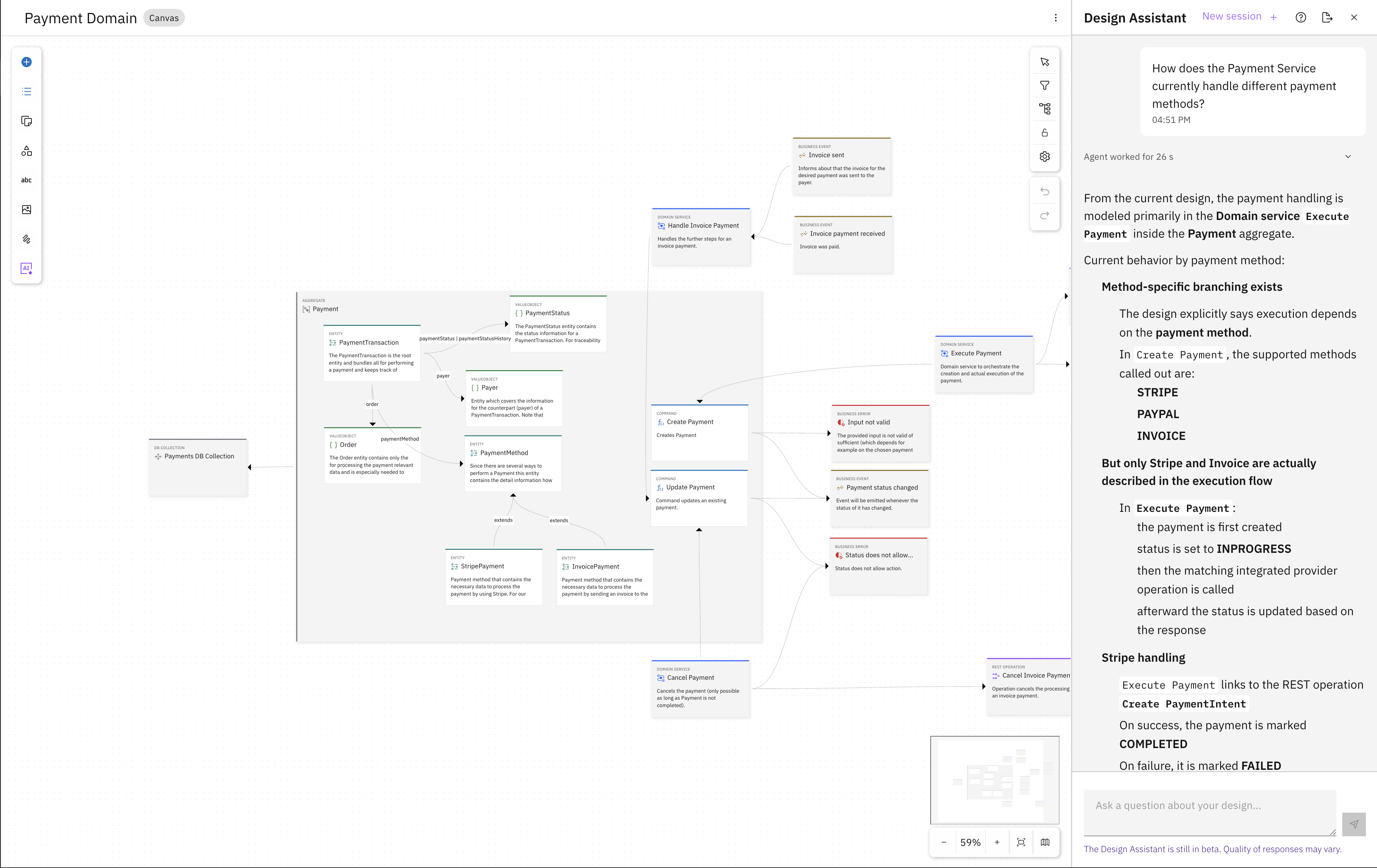
The assistant reads the model and reports back: payment method handling is centred in Execute Payment, with Stripe and Invoice modelled explicitly. No gift card integration yet.
Step 4 — Find the gap
Now ask the Design Assistant about the new requirement:
"If I add gift cards as a new payment method, is there a pattern or interface I should follow?"
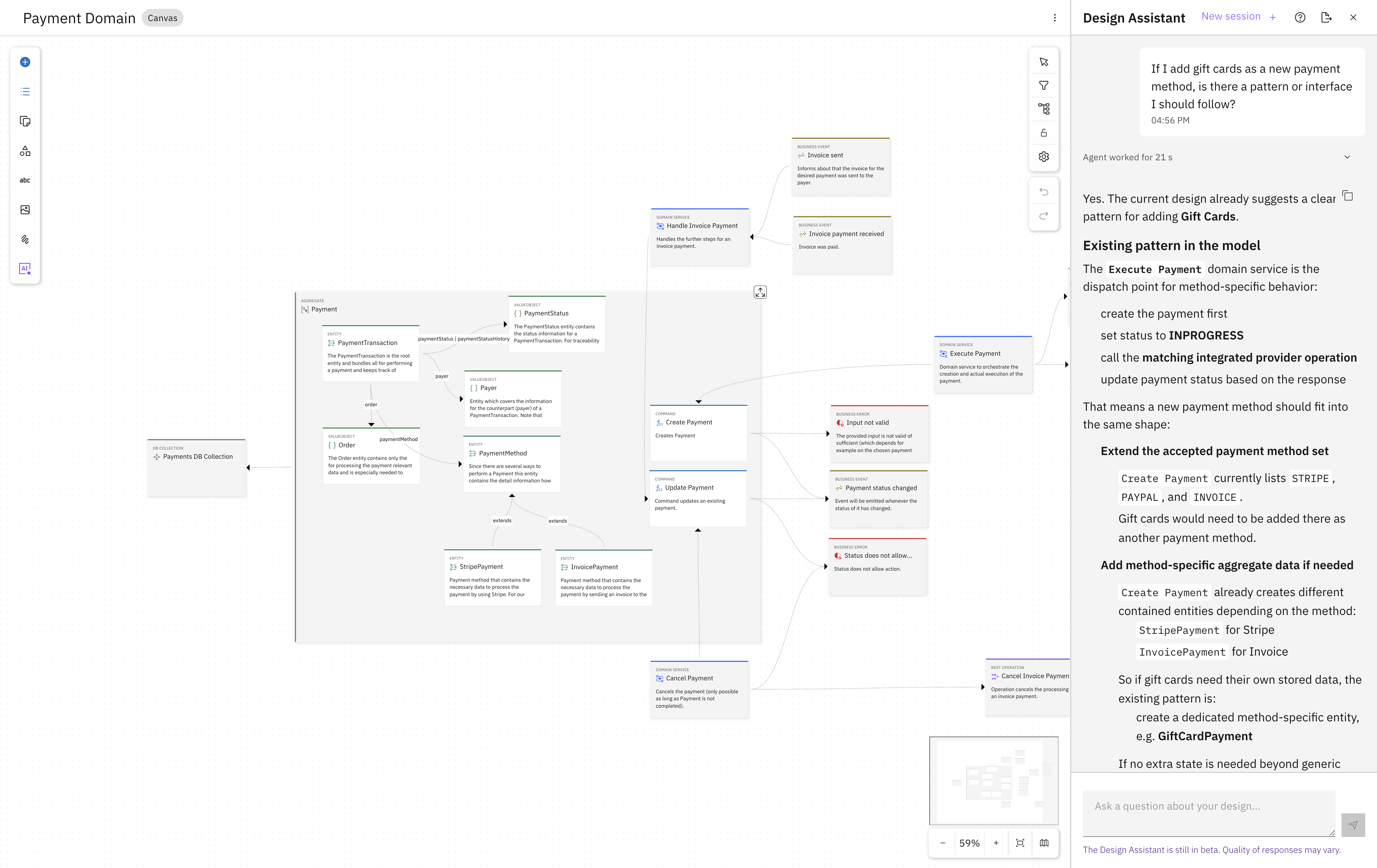
The assistant analyzes the model and confirms: the current pattern is inheritance and branching — and gift cards are not modelled anywhere yet.
The model is consistent with the code: Payments are implemented in Execute Payment. Adding another branch for the new payment method works, but you as the architect know from the
running service that this pattern doesn't scale, e.g., rolling back a failed transaction doesn't have a consistent path and leads to duplicated logic across payment providers.
So let's document this gap in the model so that future developers and their coding assistants don't have to rediscover it.
Step 5 — Flag it as Tech Debt
Tell the Design Assistant:
"Add a Tech Debt note to Execute Payment: 'Payment flow still contains legacy logic — no shared adapter interface.'"
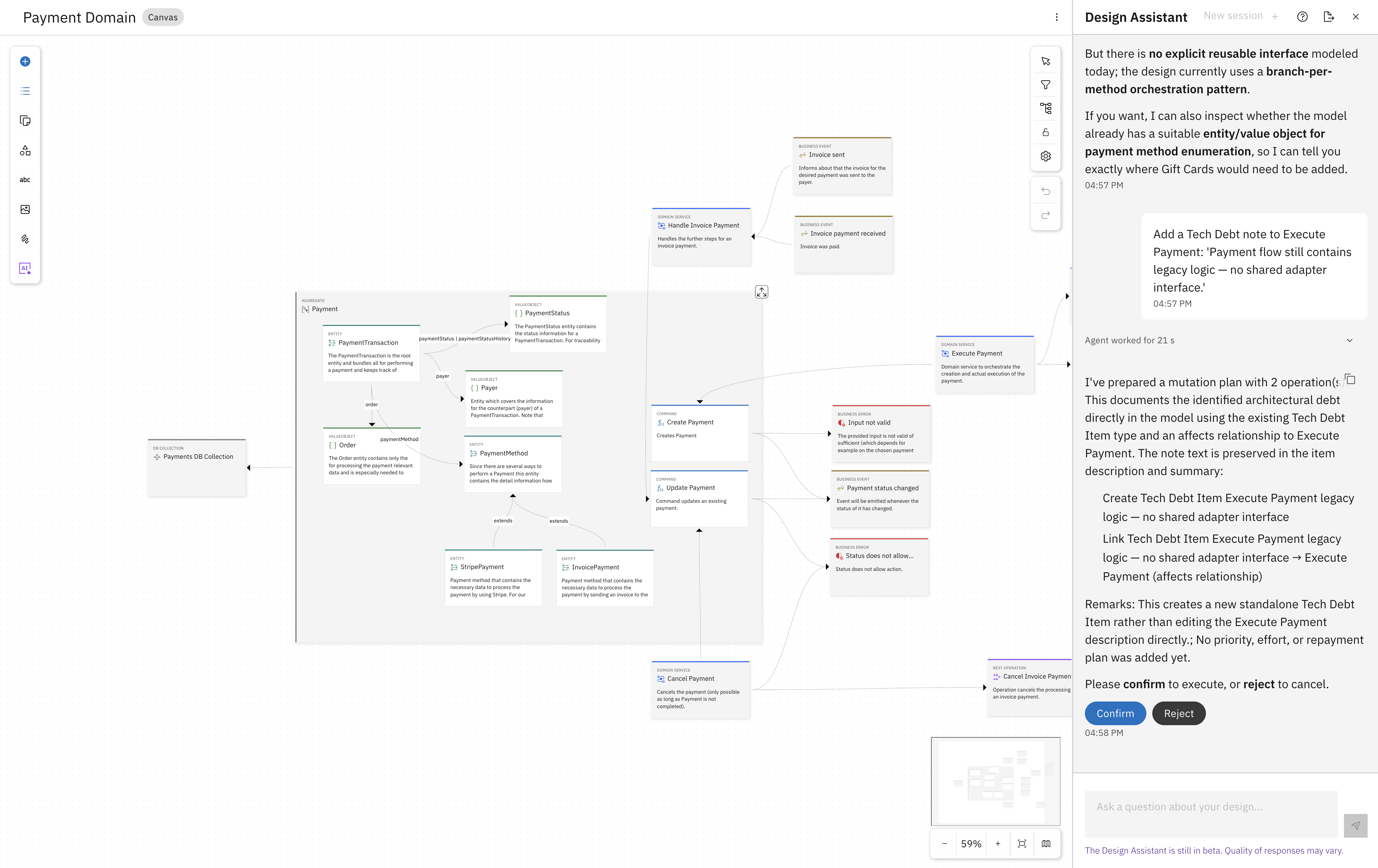
The assistant wants to create a Tech Debt element to attach it to Execute Payment.
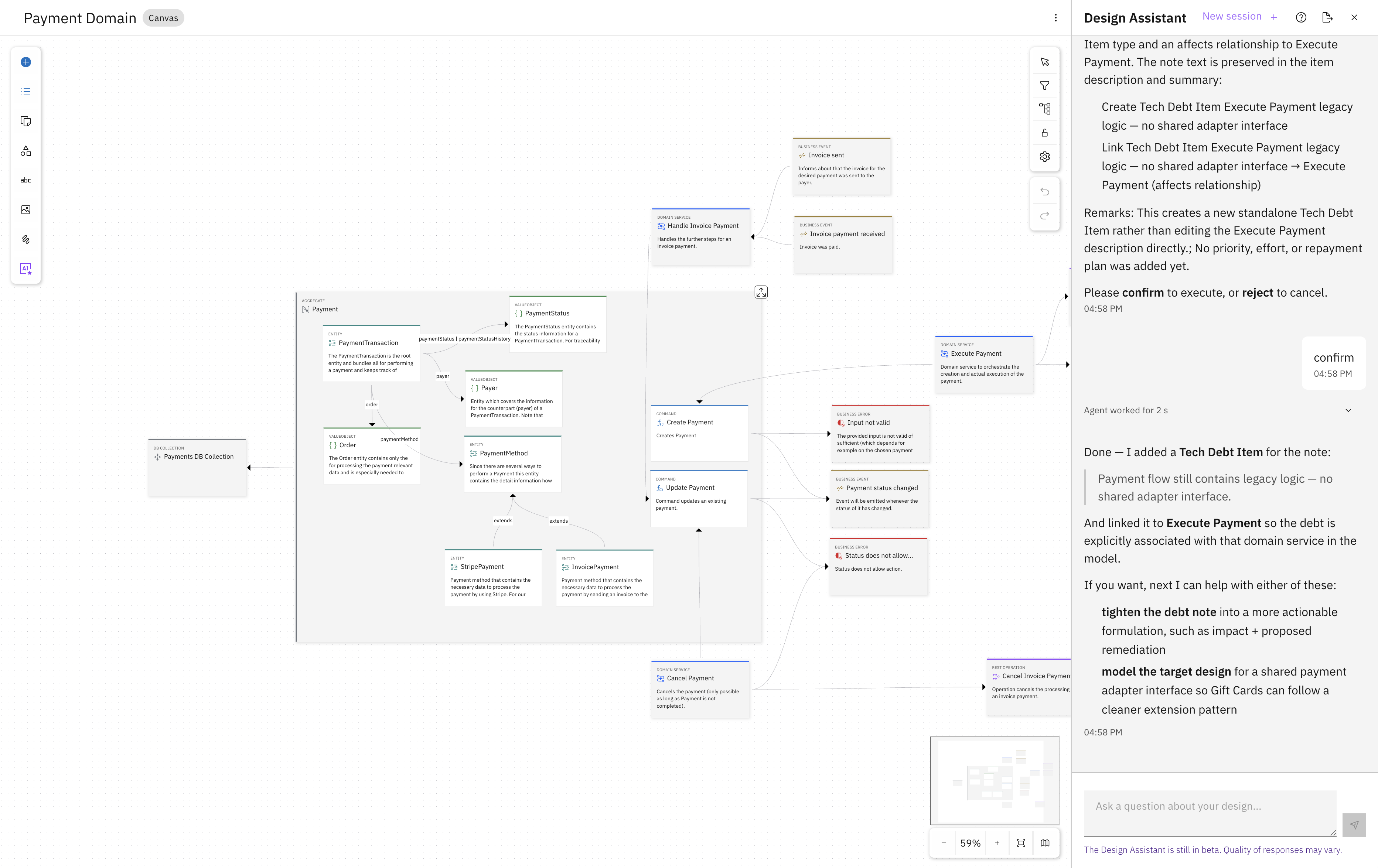
Confirm the creation of the model element.
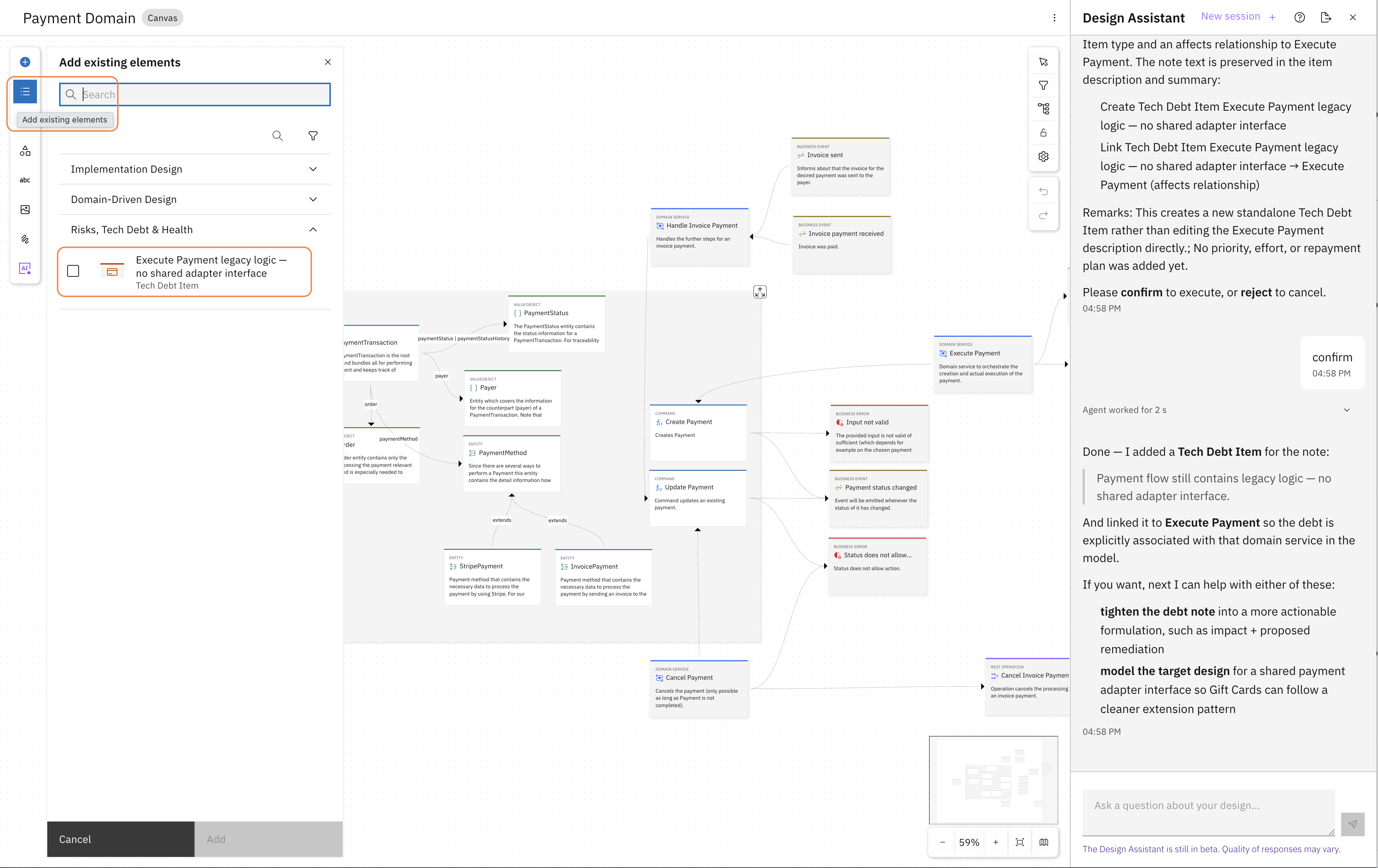
The Tech Debt element now exists in the model. Add it to the diagram by clicking "Add existing elements" and selecting it from the "Risks, Tech Debt & Health" section or start typing in the search box.
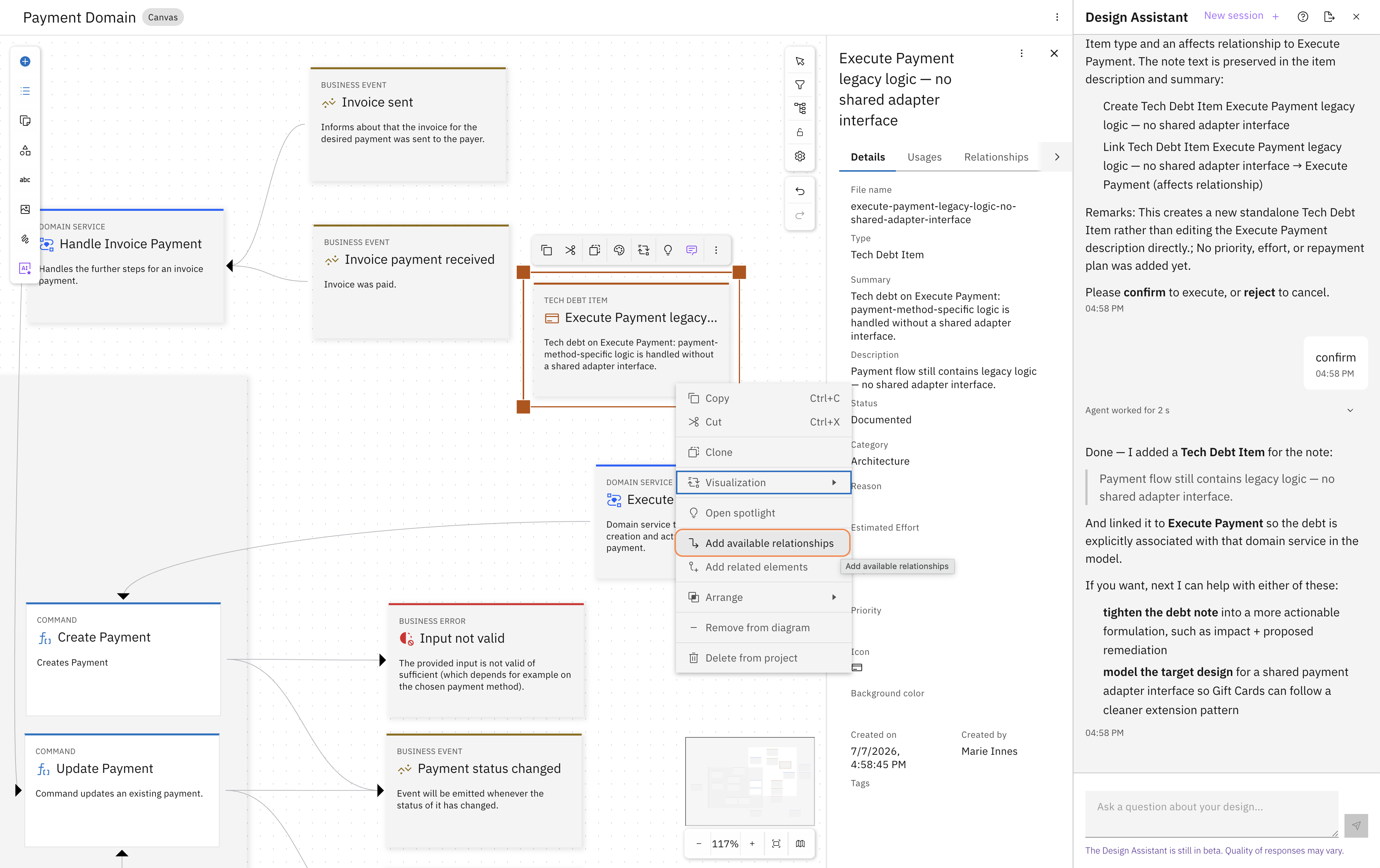
Right-click the Tech Debt element on the canvas and select "Add available relationships" to make the connection to Execute Payment visible in the diagram.
A gap that existed only in the architect's head is now a structured model element, added by surfacing a gap through a conversation with the Design Assistant.
Step 6 — Turn debt into a decision
Workbench lets you attach Design Recipes to model element types — predefined actions that assemble the relevant model context into a ready-made prompt for the Design Assistant. They work the same way the generation skills in other trials work for your coding assistant, except these run inside Workbench, directly on the model rather than on code.
The Tech Debt element type has one attached: Create ADR.
Select the Tech Debt note you just created and open its recipes by clicking the chat icon in the toolbar.
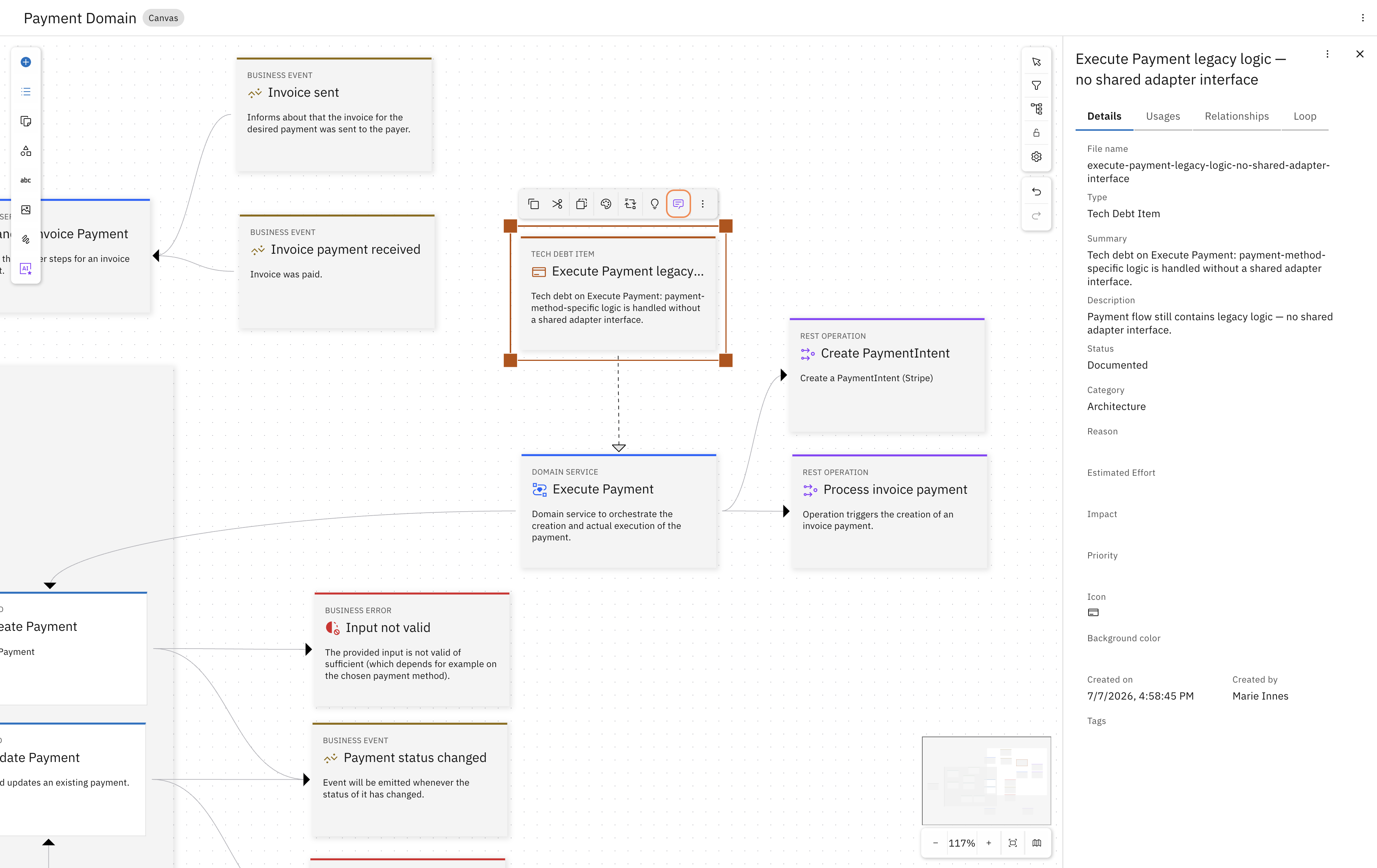
Selecting the Tech Debt element reveals the toolbar. The chat icon opens the available design recipes attached to this element type.
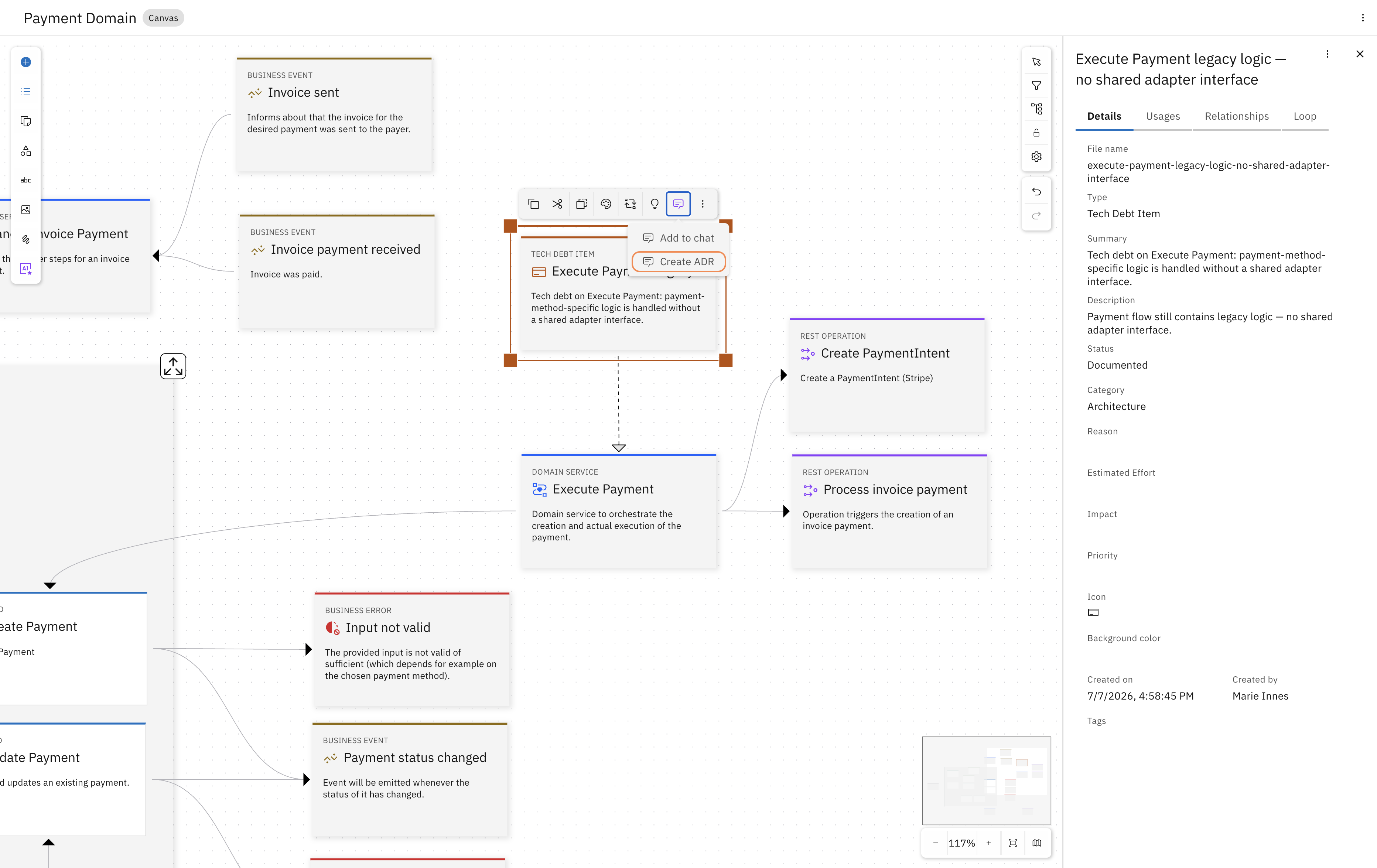
Two recipes are available: "Add to chat" and "Create ADR". Select "Create ADR".
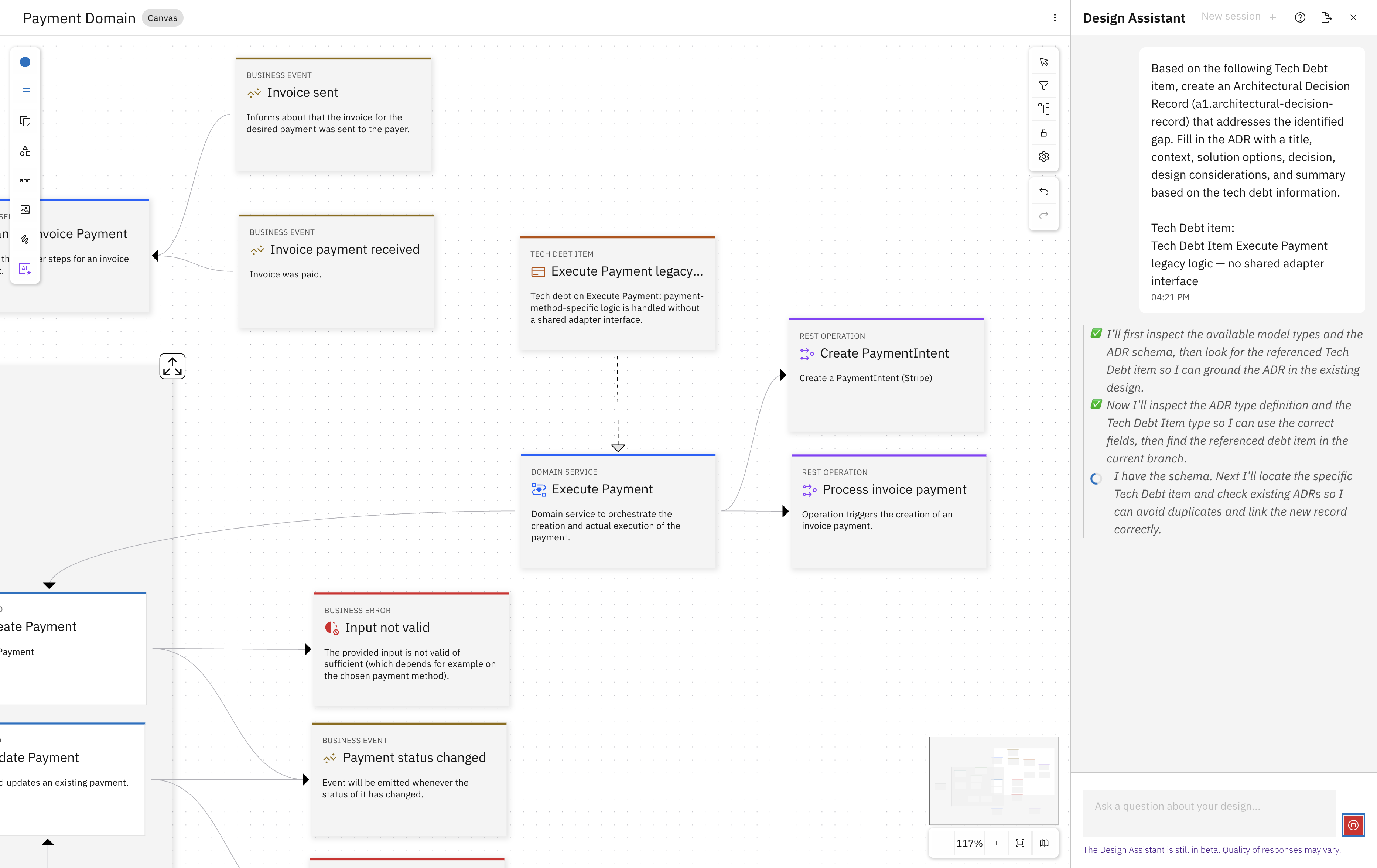
The recipe pre-fills the Design Assistant chat with a prompt that already carries the Tech Debt context. You don't have to explain any of that yourself. Send it.
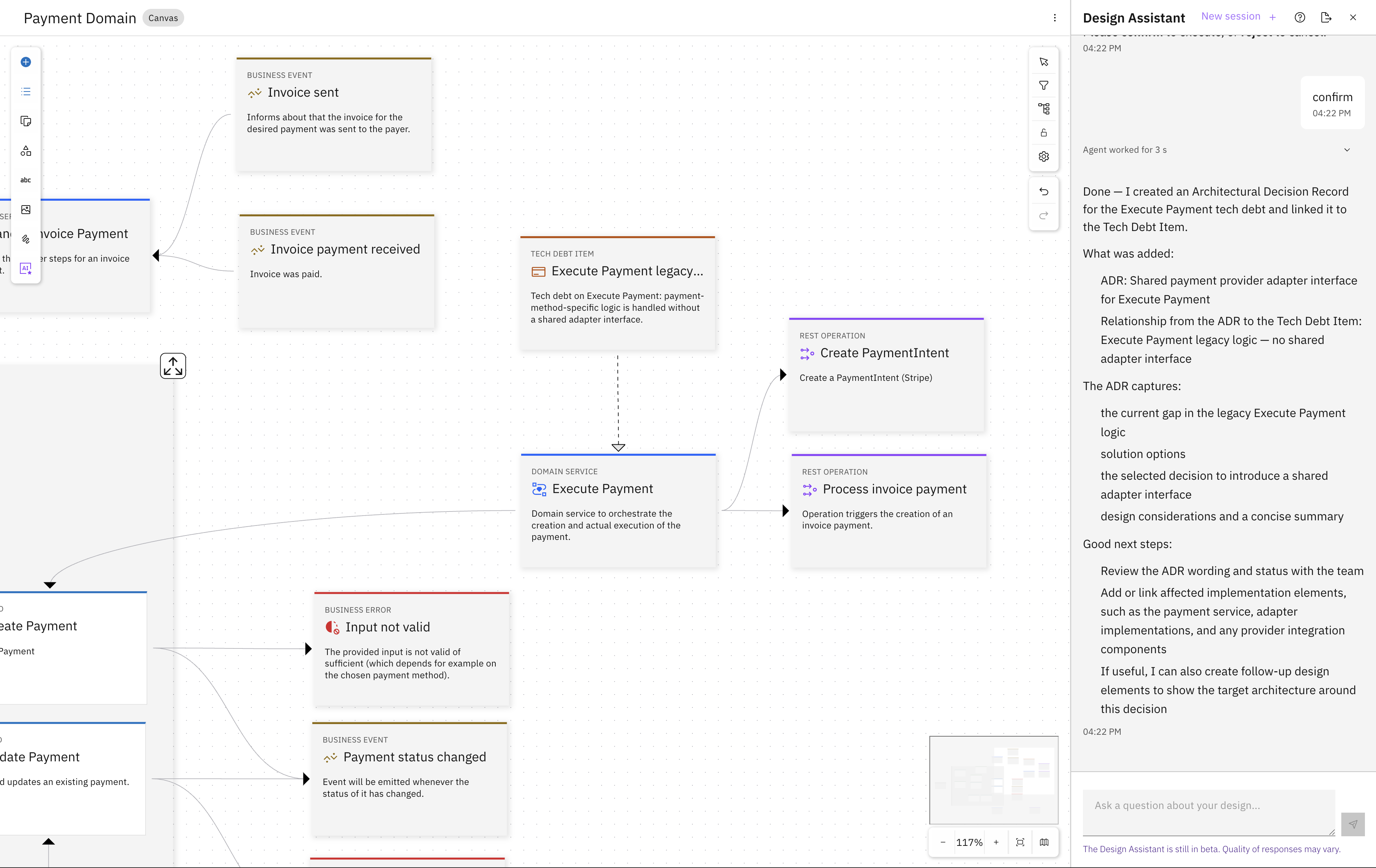
The assistant proposes an ADR — "Shared payment provider adapter interface for Execute Payment" — linked to the Tech Debt item. Confirm to create it.
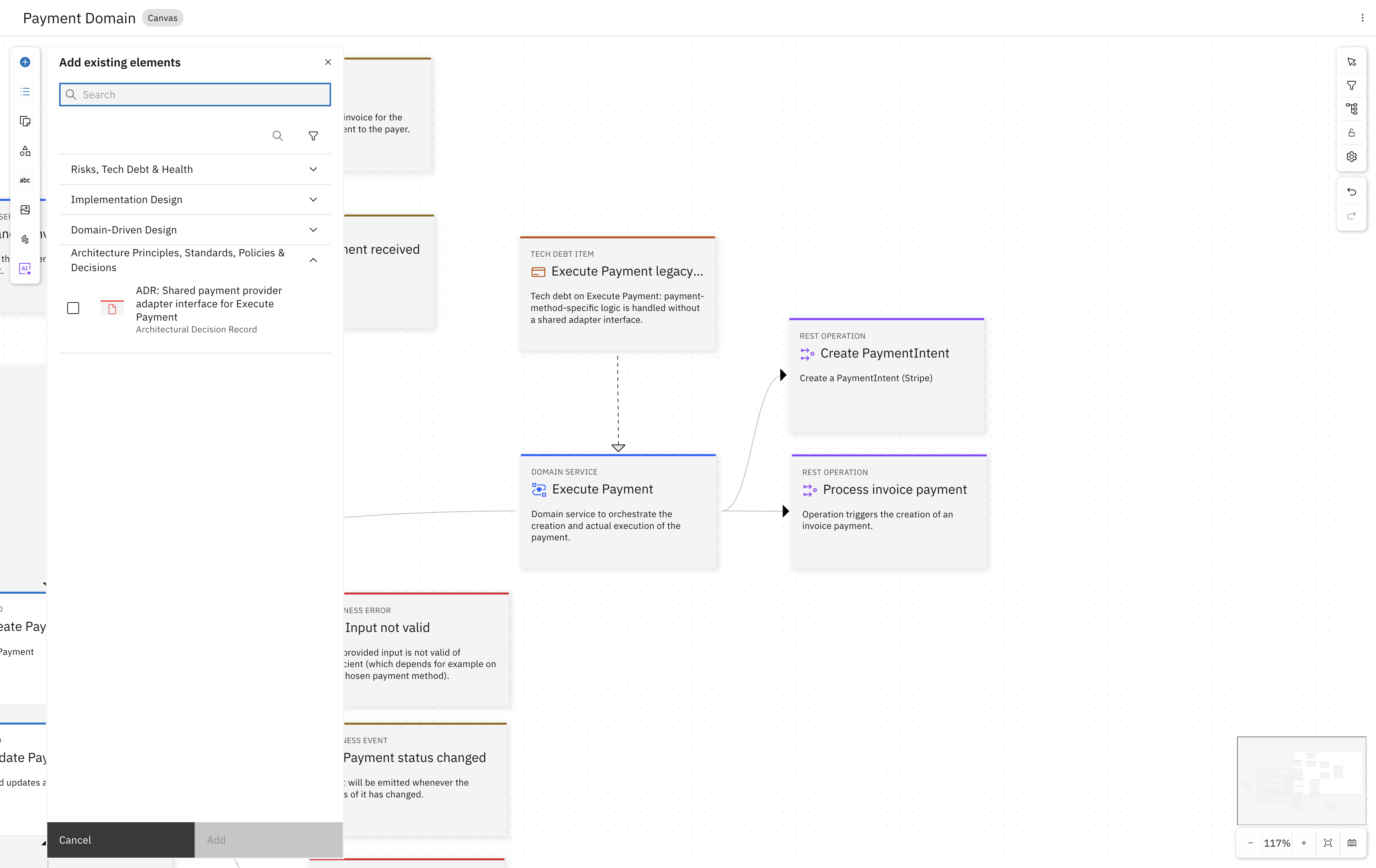
The ADR now exists in the model. Add it to the diagram via "Add existing elements" — you'll find it under "Architecture Principles, Standards, Policies & Decisions".
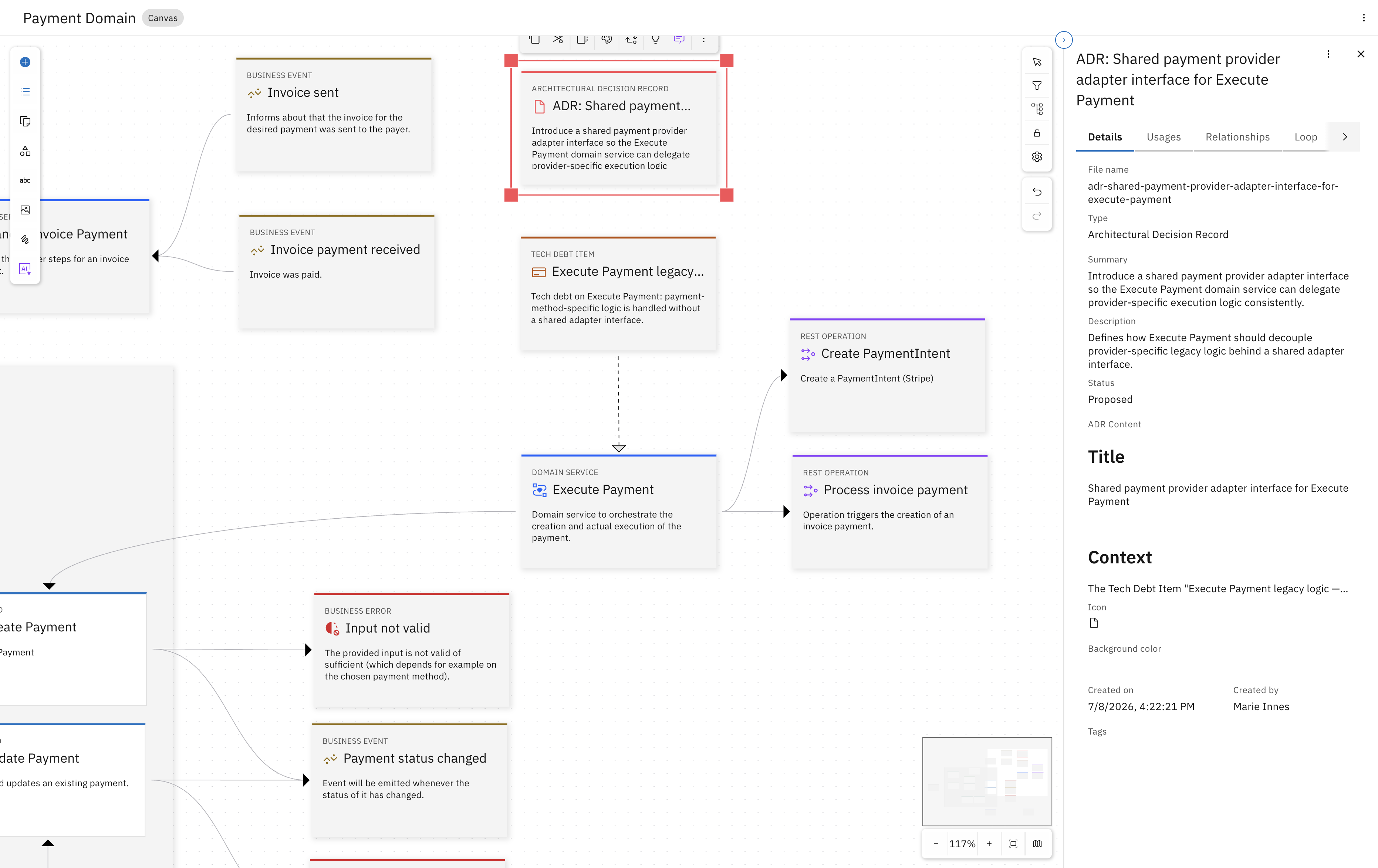
The ADR is now on the diagram, attached to the Tech Debt item that triggered it. The full decision — context, solution options, selected approach — is captured in the details panel.
The tech debt note and the architectural decision it led to are now linked in the model — not a note in someone's head, not a Confluence page nobody reads on the next project. The design recipe carried the context forward from the element it was triggered on.
Before moving on, set the ADR status to Accepted in the details panel. The coding assistant picks up ADRs with this status when generating code — so the adapter pattern decision you just made will be followed automatically when someone implements gift card support.
Step 7 — Model the gift card integration
The decision is captured. Now add the integration point that implements it: a RedeemGiftcard REST operation connected to Execute Payment, following the same pattern as the existing provider integrations.
Ask the Design Assistant:
"Add a REST operation called RedeemGiftcard to Execute Payment, following the same pattern as the existing Create PaymentIntent and Process invoice payment operations. It should represent the integration point with the Gift Card Service for redeeming a gift card as part of payment execution."
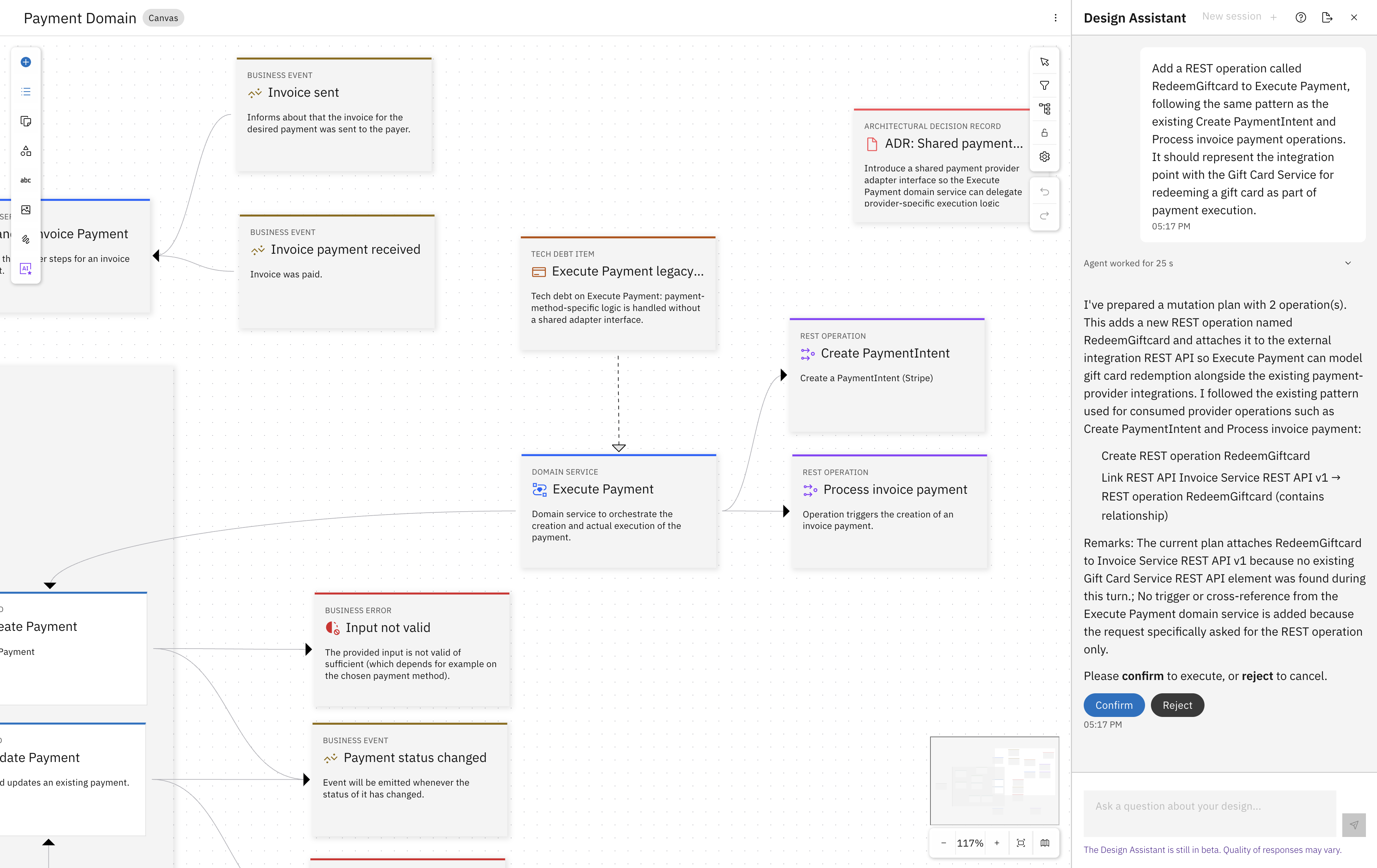
The assistant follows the existing pattern and proposes a RedeemGiftcard REST operation, linked to the external integration API container. Confirm to create it.
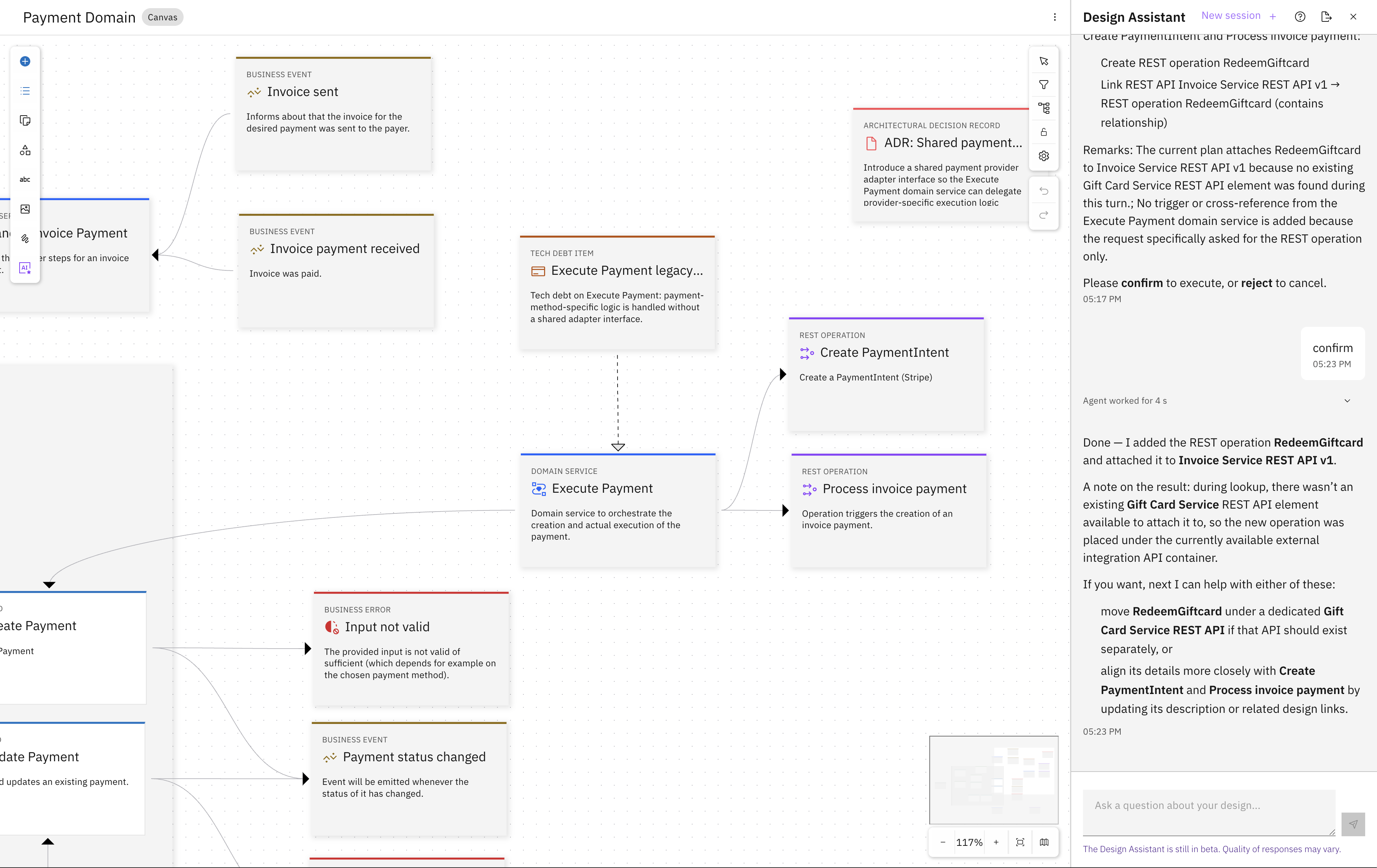
The assistant notes there was no existing Gift Card Service REST API element to attach it to, so it placed the operation under the available external integration container.
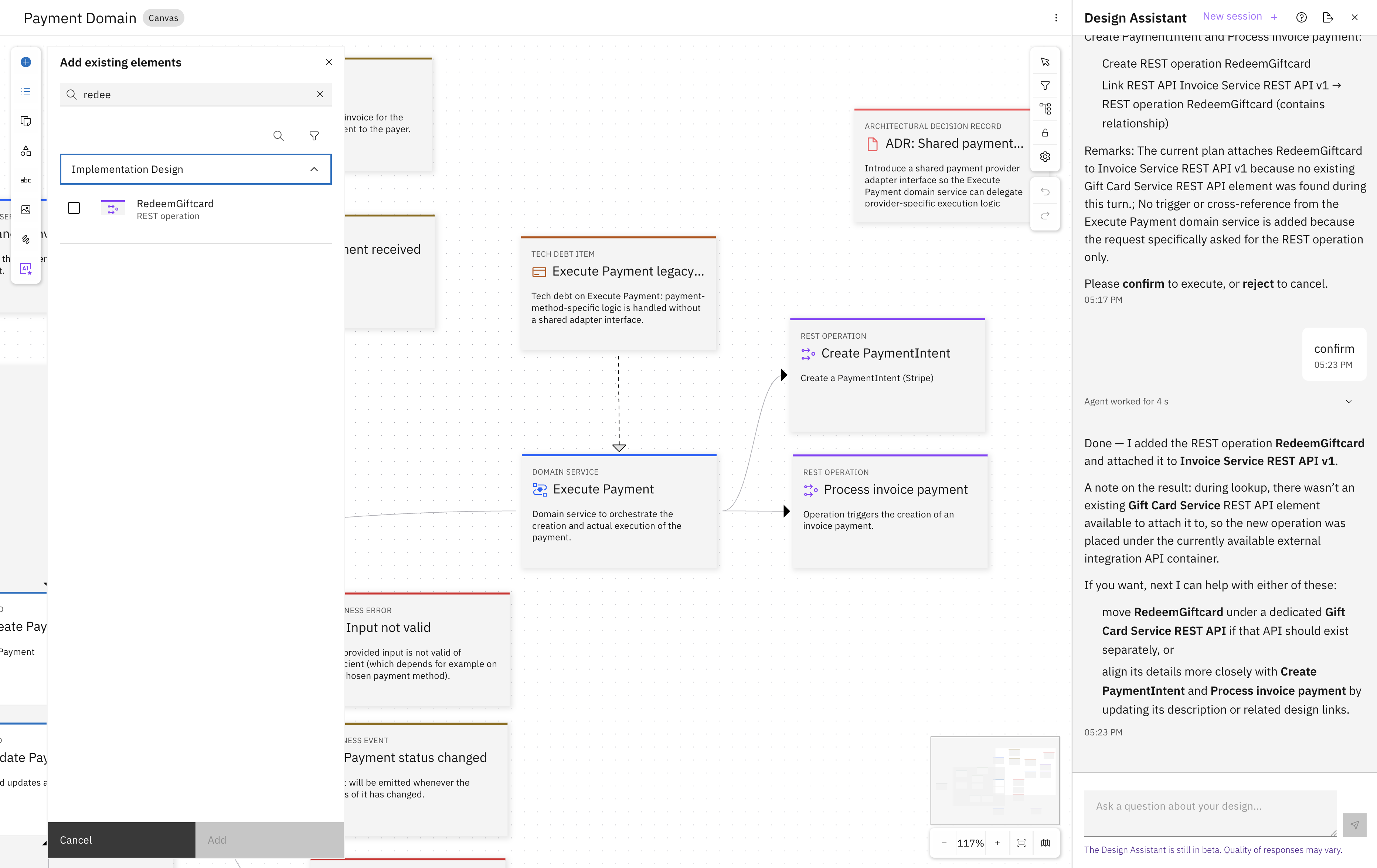
Add the new REST operation to the diagram via "Add existing elements". You'll find it under "Implementation Design".
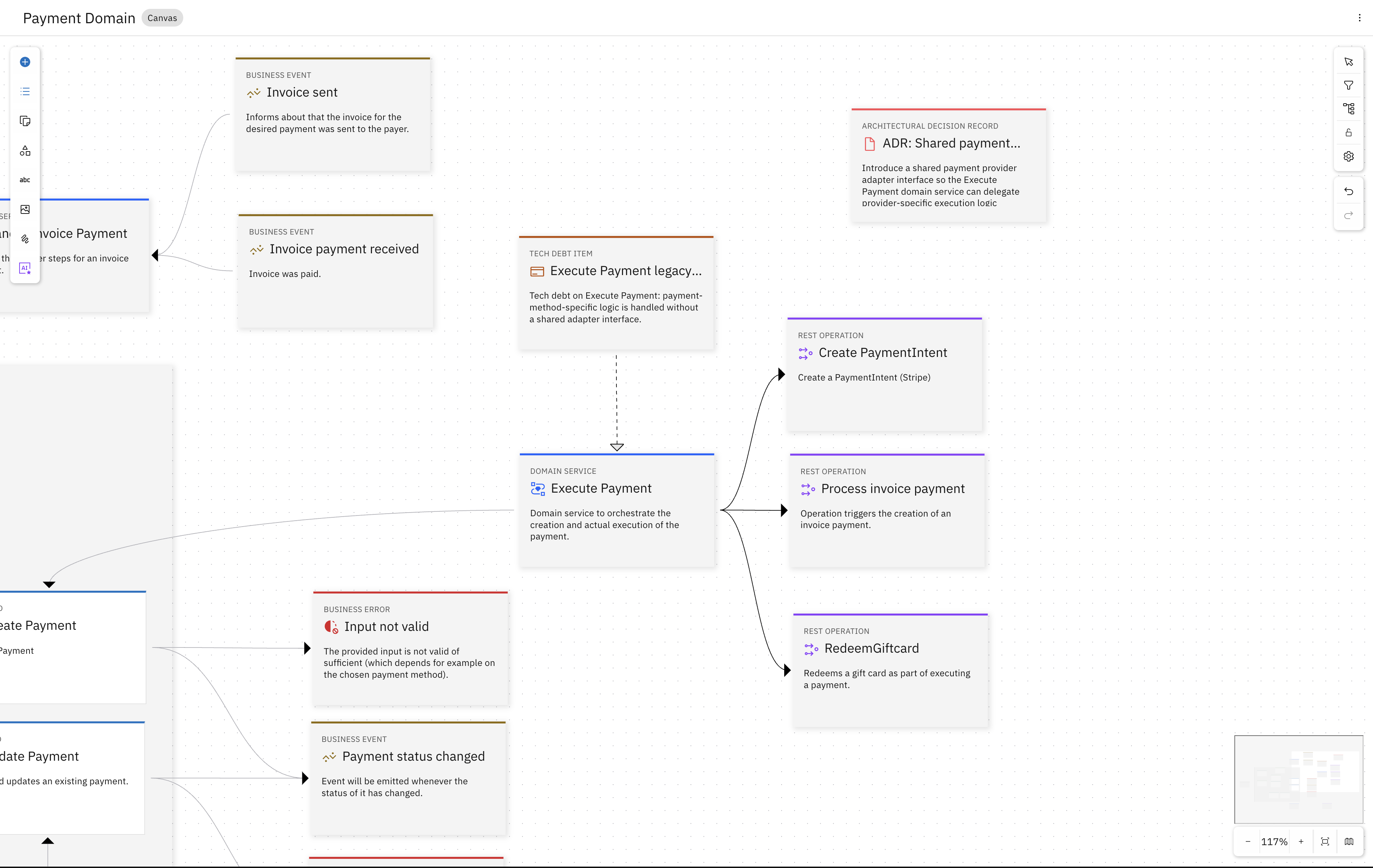
The gift card integration is now part of the design — modelled at the same level as the existing payment provider integrations.
It is not strictly necessary to add the created model elements to the canvas - they exist in the model regardless and can be understood by a Coding Assistant. However, adding them to the diagram makes it easier for a human reader to understand the design and the new requirement.
The requirement is in the design. Not as a ticket in another tool, but as a model element — attached to the service it affects, consistent with how existing integrations are structured, and ready for a coding assistant to work from.
What just happened
You started with a model that reflected what the current code contained, explored the existing design and found what was missing for a new requirement. All through a conversation with the Design Assistant — without leaving Workbench or touching a design file directly.
The model now not only reflects how the Payment Service works today, but describes how it should work tomorrow: the gap is documented, the decision is captured, and the integration point is in place — everything a developer and their coding assistant need before writing a line of code.
You didn't have to write a design document. You asked the model a question, asked a follow-up, and let the answers tell you where the gap was. Then you documented a technical debt, turned that note into a decision, and the decision into structure — three model elements, each generated from the context of the last, without retyping any of it.
Go deeper
Turn Existing Code into a Design Model
See where this design model came from: reverse engineering turns an existing codebase into a structured starting point.
From Prompt to Design-Aware AI
See the decision you just made — and the tech debt note you just attached — change what a coding assistant generates for the same requirement.
Bootstrap a Service from a Shared Design Model
See what a fully designed service unlocks: generate a complete microservice from a shared design model in one command.